
Deploy
Embeds
Add your agents directly to any website with embed code snippets.
Embeds let you add your agents directly to your own website or any site where you can add a script tag or iframe. Use an embed when you want an AI tool to live alongside your existing content, like the Pickaxe Doorman that answers questions for visitors on pickaxe.co.
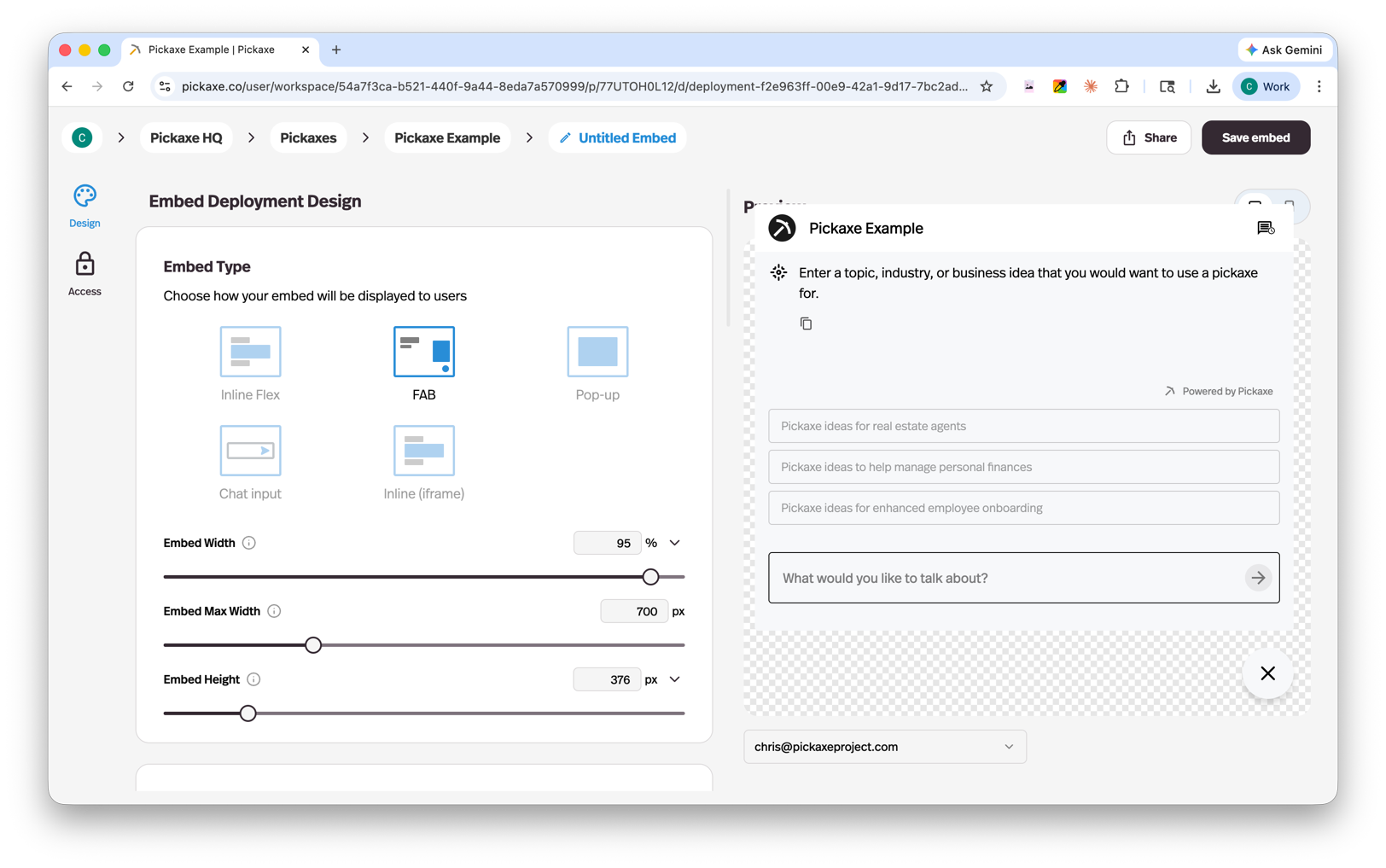
Create an embed
- Open the agent you want to embed.
- Create a new Embed deployment.
- Choose the embed type that fits your page.
- Customize the design and preview the result.
- Click Save Embed, then copy the generated code into your website.
You can return to the embed editor at any time. Changes you save are applied to the existing embed, so you do not need to replace the code on your website.
Embed types
Pickaxe offers five embed styles to fit different use cases and layouts:
| Embed type | Description |
|---|---|
| Inline Flex | A responsive chat interface that sits directly within your page content and adapts to its container. |
| FAB (Floating Action Button) | A chatbot button that floats in the corner of the page, creating a familiar chat widget experience. |
| Popup from Button | A chat window that opens when a user clicks a button you place on your page. |
| Chat Input | A standalone input field that can be placed anywhere on your page. Available for chat agents only. |
| Inline (iframe) | A fixed-size iframe for placing an agent on a page with full isolation from the host site. |
The first four options use a script embed. The Inline option uses an iframe.
New script embeds keep a signed-in user’s active chat as they navigate between pages on the embedded website. This applies to chat agents and forms with chat responses, and is unavailable in Inline iframe embeds.
Users can star a reply and open Favorites to read it or return to its conversation in both script and iframe embeds. Favorites appears after the first save and shows accessible replies from the current agent.
Customize without code
The embed editor includes controls for the most common design changes. You can customize:
- Colors and fonts
- Text and container sizing
- Width, height, and corner radius
- Placeholder text
- White-labeling on supported plans
- Usage limits and the message users see when they reach a limit
Use the live preview to check the result before saving. If you edit these settings later, the saved embed updates wherever you already installed it.
Some visual settings belong to the agent rather than the embed. Set the agent's logo in Agent Builder → Settings, and edit its intro message and ice breakers in Agent Builder → Settings → Customize.
Templates and themes: Embeds are designed by choosing an embed type and adjusting its appearance in the editor. For full pages with ready-made templates and theme controls, use Pages.
Add images, video, and formatted text
An embed places the agent interface on your site. Images or videos that should appear beside the agent belong in the page where you install the embed. Add that media with your website builder, CMS, or page code, then position the embed next to it.
There are a few related options inside Pickaxe:
- Use the agent logo when you want an avatar or branded image in the agent interface.
- Add images, video files, or YouTube content to the agent's Knowledge Base when the agent should learn from that material. Knowledge sources do not automatically appear as visible media in the embed.
- Ask the agent to use Markdown when you want emphasis such as bold or italic text in its responses. Test the output in Preview before publishing.
- Use custom JavaScript when you need media or design elements inside a custom embed layout.
Advanced customization with JavaScript
For changes beyond the visual controls, open the embed's Custom JavaScript section. The editor accepts JavaScript that is included with the generated embed code. JavaScript can create HTML elements or inject CSS styles when needed. Common uses include:
- Injecting styles for elements available to the embed
- Creating a custom header, image, or decorative element
- Styling chat bubbles and interactive states
- Adding analytics or event tracking
- Creating custom behavior around the agent
Start with the built-in controls when possible. JavaScript that targets internal elements can require maintenance if the embed interface changes.
Script embeds and iframes
Script embeds work directly with the page and are the better choice when you need responsive layouts or advanced interaction with the host site.
The Inline iframe keeps the agent isolated from the host page. The website's CSS and JavaScript cannot directly restyle or control elements inside the iframe.
Install the embed on your site
Paste the generated script or iframe into a custom HTML or embed block on your site. This works with website builders and content systems that accept scripts or iframes, including WordPress, Webflow, Wix, Squarespace, Notion, Kajabi, and custom-built sites.
After publishing the page, test the embed on both desktop and mobile. Check its size, loading behavior, input field, and any usage-limit message.
For a longer walkthrough, see How to embed AI chatbots into your website.
Users can also download individual responses as TXT, Markdown, HTML, PDF, or DOCX. PDF uses browser printing and may be blocked by restrictive iframe or popup settings.
Let users connect an AI app
You and your users can talk to a Pickaxe agent from Claude Code, Codex, Cursor, or VS Code. In the agent, choose Use with an AI app (the terminal icon), select your app, and copy its setup command or MCP configuration.
To show the option, enable Design → Submission Through MCP → Show AI app option. New embeds and direct links enable it by default. Requests run as the signed-in user or visitor, with the deployment’s access and usage rules.