
Build
Pickaxe Wingman
Your in-workspace AI assistant — a floating button that can build agents, write custom-coded pages, and run any CLI task in plain English.
What is Pickaxe Wingman?
Pickaxe Wingman is an AI assistant that lives inside your Pickaxe workspace as a floating action button (FAB). Open it from any workspace page, describe what you want in plain English, and it makes the change for you — no terminal, no coding agent setup, no API keys to copy.
Under the hood, Wingman uses the Pickaxe CLI to talk to your account. The CLI is what lets it do real work: build agents, manage knowledge bases, set up access groups, deploy embeds, write custom-coded pages, and more. The difference is that everything runs from inside Pickaxe, with your workspace credentials already wired up.
Where you'll find it
Wingman is always one click away while you're inside a workspace. You'll see the FAB:
- Inside the Agent Builder while editing an agent
- On Deployments, Access Groups, Users, Documents, Memory, Pages, and Portals
- Anywhere else you're working on the contents of a single workspace
You won't see it on the higher-level account pages like billing, your global account settings, or the workspace picker. Wingman is scoped to the workspace you're currently in — so when you ask it to "add a new agent" or "invite ten users," it knows exactly which workspace you mean.
How it works
You don't have to install anything or paste in a key. Wingman:
- Picks up your workspace credentials automatically. When you open the FAB, it inherits the API key for the workspace you're already viewing — no
auth loginstep. - Translates your request into CLI commands under the hood. Ask for "a customer-support agent that knows our help docs" and Wingman runs the right combination of
pickaxe build,pickaxe docs add,pickaxe deploy create, etc. - Shows you what it's about to change before applying it, so you can review and approve.
- Has full access to the same surface area as the CLI — agents, deployments, embed scripts, custom pages, portals, actions, MCP servers, knowledge bases, users, access groups (including pricing tiers and upgrade paths), and memory.
Wingman is also built from the same off-the-shelf Pickaxe pieces available to builders: agentic runtime, SSO embeds, JavaScript, Access Groups, and embed monetization. That is intentional. The goal is for Wingman to be powerful, but not magical — the same platform primitives can be used to build your own assistant, workflow copilot, or internal workspace helper on top of Pickaxe.
If you ever need to fall back to a coding agent for something more bespoke, the Pickaxe CLI doc covers that flow.
Usage limits and Wingman Credits
Wingman is an experiment, and part of that experiment is running it like a real Pickaxe-powered product. Because it uses Pickaxe's normal Access Group-controlled, credits-based embed monetization system, Wingman usage is metered separately from the rest of your workspace.
Every user currently gets $10 of Wingman usage free each month. Everyone starts with the same monthly amount. If you use more than that, Wingman can ask you to pay for additional Wingman usage.
Those paid top-ups are separate from extra credits you buy elsewhere in Pickaxe. Think of them as Wingman Credits: usage that belongs to Wingman specifically, not a general workspace credit balance.
We may adjust this system over time as Wingman evolves. For now, it helps us keep Wingman available while using the same Access Group, credit, and monetization tools any Pickaxe builder can configure for their own products.
Workspace summary email
Wingman can also come to you. Under Settings → General → Workspace summary email, turn on Email me workspace summaries and Wingman starts emailing you what happened in the workspace — usage, notable changes, anything that needs attention — along with its recommendations.
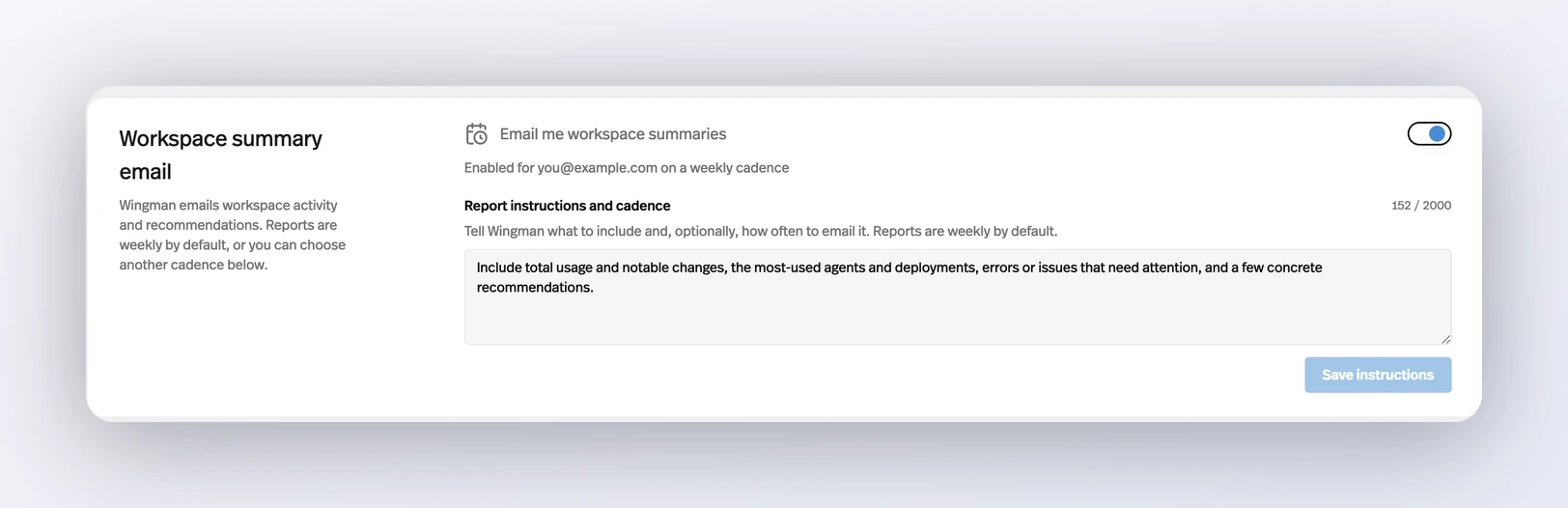
Reports go out weekly, Monday at 9 AM in your timezone, unless you say otherwise. The Report instructions and cadence box is plain English and covers both halves: what each report should focus on and, if you want a different rhythm, when to send it — "Send this every Monday at 9 AM and focus on usage, errors, and recommendations." Hit Save instructions to change a report that's already running.
Each report arrives as an email thread you can reply to. Replying is the other way to steer it: ask for a different day, time, or focus, or cancel the summary altogether.
Use cases
Wingman is good at almost anything you can describe. Here are some patterns that work well.
Spin up a new agent end-to-end
"Build me a 'Pricing Concierge' agent. Use the GPT-4 class model, give it access to our pricing PDF and the FAQ on our site, and add the 'send email' action so it can follow up after a chat. Then deploy it as an embed on our marketing site."
Wingman handles the agent creation, knowledge base attachment, action wiring, and the deployment in one pass — and shows you the final embed snippet to paste into your site.
Customize a deployment with raw code
The page editor and embed editor both accept custom HTML/CSS/JS. Wingman is genuinely powerful here because it can write that code for you and inject it directly:
"Style my embed so it looks like an iMessage chat — blue bubbles for the user, grey bubbles for the agent, rounded corners, and a subtle 'typing…' animation while the agent thinks."
"On the embed, hide the default header and add a thin top bar that pulls our customer's first name from the URL and says 'Hey {name}, ask me anything about your account.'"
"Make the chat input glow when the user hasn't typed for 30 seconds, and gently nudge them with a suggested question."
Build a custom-coded page
This is one of Wingman's most powerful features. Pages aren't just static — Wingman can hand you a raw HTML/CSS/JS page that does real work, then publish it as part of your portal.
"Build me a Page that shows a multi-step quiz: 5 questions about the user's industry, then routes them to one of three agents — 'Marketing', 'Operations', or 'Finance' — based on their answers. Use our brand colors and embed the right agent on the final screen."
"Make a Page that pulls in a Calendly embed, our pricing calculator, and a small chat widget for our 'Onboarding Concierge' agent — all stitched together into a single onboarding hub."
"Build me a Page with a comparison grid of our three agents, with a 'Try it' button under each one that opens that agent's chat in a popup."
Anything you'd normally hire a developer to glue together — landing pages, gated content, interactive calculators, multi-agent flows — Wingman can ship in a few minutes.
Bulk user and access management
"Invite this list of 47 emails to the 'Premium' access group. Skip anyone who's already a member."
"Find every user who hasn't logged in in 90 days, drop them to the 'Inactive' group, and bump their monthly limit down to 10 uses."
"Set up a new tiered pricing structure on the Member access group: 100 credits for $5, 250 for $9.99, and 1,000 for $29. Make sure the upgrade modal points to the new buy-more-uses flow."
Manage knowledge bases and memory
"Pull every URL listed in this Notion doc and add them to the 'Sales Agent' knowledge base. Tell me which ones failed."
"Create a workspace memory called 'Brand voice' that says 'friendly, expert, never salesy' and attach it to all of our customer-facing agents."
Triage and review
"Show me the last 24 hours of conversations from the 'Support' agent, group them by topic, and flag any where the user seemed frustrated."
"Diff what's in my workspace right now vs. what was here a week ago and summarize the changes."
Quick fixes you'd otherwise do by clicking
"Rename the 'demo-bot' agent to 'Sales Demo Bot,' make it private, and unpublish it from the marketing portal."
"On the 'Recipes' agent's direct link, raise the daily usage limit to 200 and change the upgrade message to 'Upgrade to Pro to keep cooking.'"
Tips for working with Wingman
- Be specific about scope. Wingman acts on the workspace you opened it from. If you want to copy something between workspaces, switch to the destination first.
- Review before you apply. Wingman previews the changes it's about to make. Skim the diff, especially when it's touching live agents, paid users, or deployment scripts.
- Lean on it for the boring stuff. Bulk user invites, repetitive knowledge base updates, and "match the styling on the other embed" are the kinds of jobs it eats in seconds.
- Use it for prototypes. Ask Wingman to build a rough version, then iterate. "Make it more playful," "tighten the prompt," and "swap the model to a faster one" all work as follow-ups.
- Pair it with Agentic Runtimes. If your workspace is on an agentic runtime, Wingman can take advantage of multi-model routing, isolated execution, and the full action library.
Learn more
- Pickaxe CLI — the same surface Wingman uses, available from your terminal if you want to script changes or work alongside Claude Code, Codex, or Cursor.
- CLI & Coding Agents — a deeper reference of every CLI command Wingman can call.
- Agent Builder — the visual editor Wingman drops you into when it creates or revises an agent.
- Pages and Portals — the surfaces where Wingman's custom-coded output lives.