
Access
Invite-Only Access Groups
Private access for clients, teams, and communities — users must be invited or approved before they can sign in.
Invite-only access groups are for private work: client portals, internal team tools, coaching programs, and communities where you decide exactly who gets in. Users must be invited or approved before they can sign in — there is no public sign-up, no pricing page, and no way for a stranger to talk their way past the door.
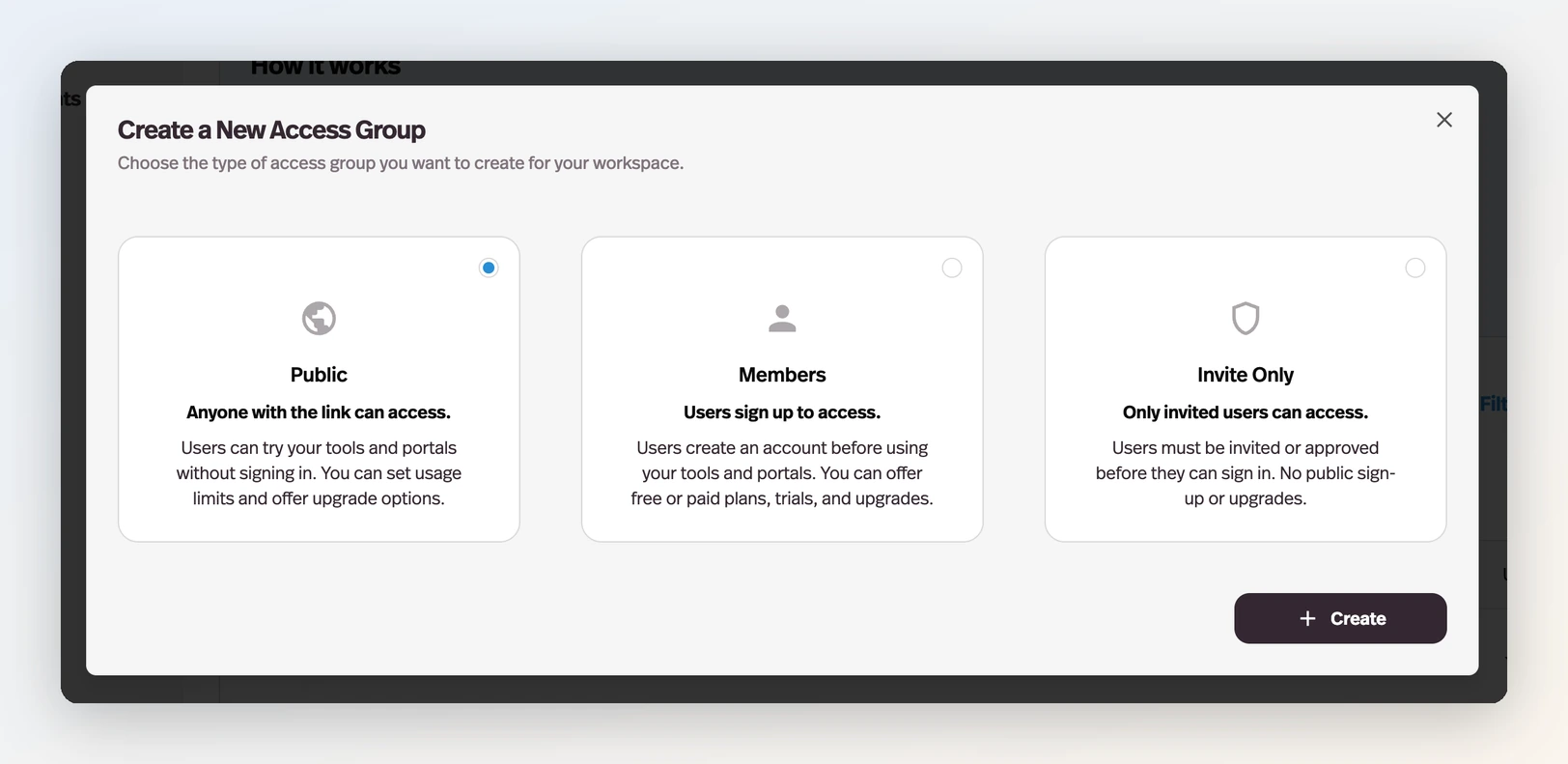
Alongside Public (anyone with the link) and Members (users sign up), Invite Only is the third access group type in Pickaxe. You choose the type when you create the group — from the Access page, click New Access Group and pick Invite Only.
How invite-only access works
- You create an Invite Only access group and connect it to a portal and deployments, just like any other group.
- You add the people who belong. In the group editor's Users tab, type or paste their emails — separate addresses with a comma — choose whether to send a Studio invitation email, and pick which portal or deployment the invite link should open.
- Invited users sign in and everything just works. They get the group's usage allowance and see the portal like any other member.
- Everyone else is turned away — politely. When someone who hasn't been invited tries to sign in, they're told the portal is invite-only and can submit a request for access with their email.
Approving access requests
Access requests land in the notifications bell on your Users page. From there you can review who's asking and add the ones you want. This gives you a lightweight approval flow: share the portal link openly, and let the requests queue tell you who's interested — you stay in full control of who actually gets in.
The invitation email
When you invite someone with Send Studio invitation email enabled, they receive an invitation that you can fully customize under Settings → Deploy → Mailing, in the Custom emails section. The Invitation Email template has an editable subject and HTML body, an Edit/Preview toggle, and a Reset button to return to the default.
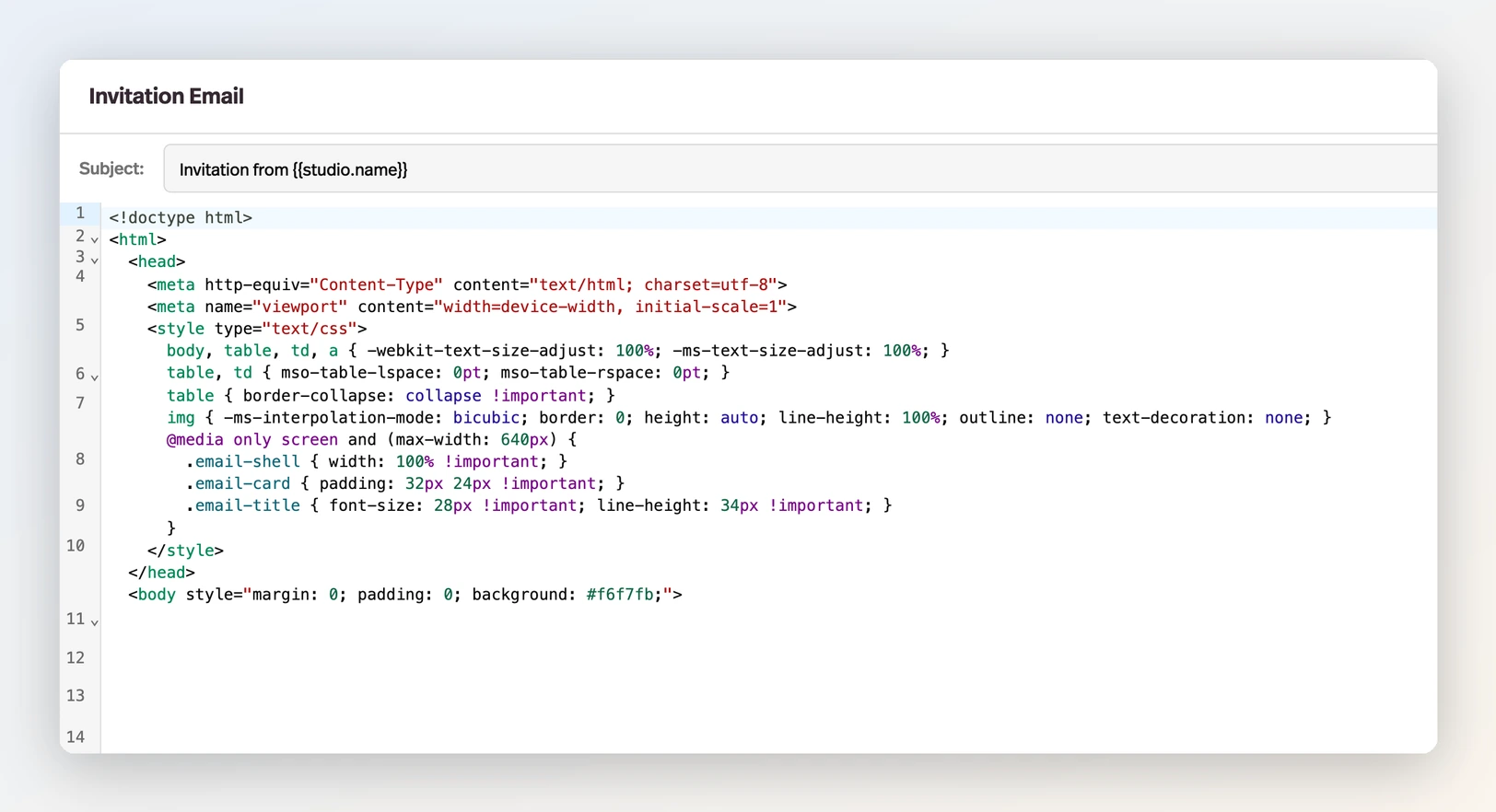
Three variables are available as click-to-copy chips and are substituted automatically:
| Variable | Becomes |
|---|---|
{{studio.name}} | Your studio's name |
{{studio.image}} | Your studio's logo |
{{url}} | The invite link for that user |
The default template is a clean "You have been invited to join {{studio.name}}" email with a join button — most builders just adjust the wording to match their brand voice. The same section also holds your Magic Link, Email Verification, and Password Reset templates, so all of your studio's transactional emails can carry the same look.
Invitations don't have to be emailed at all: the Users page can issue a scannable QR code that signs people straight into a group. See Inviting with a QR code.
What's different about invite-only groups
Invite-only groups behave like member groups with a few deliberate differences:
- No free trials. Trials exist to convert strangers; invite-only groups don't have strangers. The trial option simply doesn't apply to them.
- No upgrade-to-another-group path. Invited users don't self-serve upgrade between tiers — you place each person in the group where they belong. (You can still enable Buy more uses/credits if you want invited users topping up their own wallets.)
- They can be monetized. An invite-only group can carry a one-time price or subscription just like a members group — useful for private client engagements with billing attached.
- They can share portals. Invite-only groups are the one type designed to connect to multiple portals, which makes them a good fit for internal roles that need to see several surfaces.
Making the whole workspace invite-only
If your entire studio is private — an internal company tool, a client-only practice — you can flip the whole workspace at once: Settings → User → Invite only Workspace.
When this is on, all existing and new access groups become invite-only, users must be invited or approved to gain access, and public sign-up and upgrade flows are disabled everywhere. New portals automatically get an Invite-only (Unlimited) primary access group instead of a public one.
This is a one-way door: enabling it permanently converts all access groups to invite-only and cannot be undone, so it's best reserved for workspaces that are genuinely private by design.
When to use invite-only
- Client portals — each client team gets invited to their own group, sees their own portal, nothing leaks between clients.
- Internal tools — employees are invited; the public never sees a sign-up page.
- Coaching programs and masterminds — enrollment happens off-platform; you invite people as they join.
- Beta access — share the link publicly, collect access requests, and approve the testers you want.
Learn more
- Access Overview — how the three group types fit together.
- Member Access Groups — the full editor reference; invite-only groups share the same editor.
- Users — managing the people in your workspace.