
Build
Personal API Keys
Create one account-level key that finds the Workspace API Keys for every workspace you own or belong to, and use it to authenticate API and MCP clients.
A Personal API Key belongs to you, not to a workspace. It's a single credential that finds the Workspace API Keys for every workspace you own or are a member of — so a tool you set up once keeps working as you add workspaces, instead of needing a new key pasted in each time.
Personal keys vs. Workspace keys
| Workspace API Key | Personal API Key | |
|---|---|---|
| Belongs to | One workspace | Your Pickaxe account |
| Lives in | Settings → General → Workspace API Keys | Account Settings → Personal API Keys |
| Reaches | That workspace's data | Every workspace you own or belong to |
A Personal API Key doesn't replace Workspace API Keys — it discovers them. You give a client your personal key, it asks Pickaxe which workspaces you can reach, and it gets back each workspace and its enabled keys. Only keys with the Use toggle switched on are returned.
Every Pickaxe account can create them. There's nothing to enable first.
Creating a key
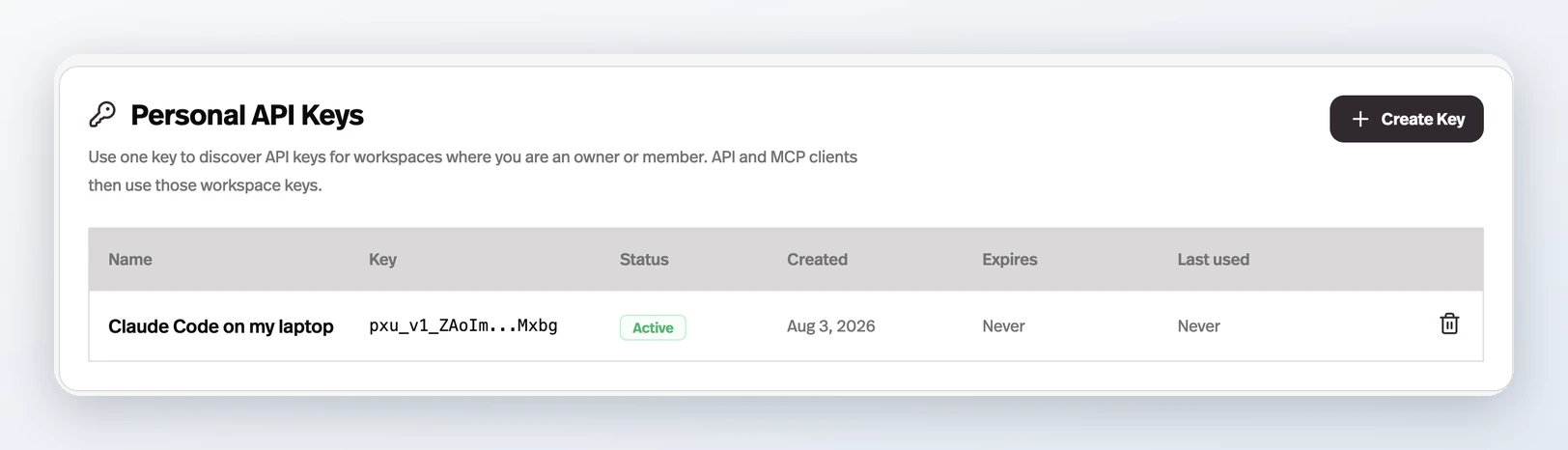
Open Account Settings, find Personal API Keys, and hit Create Key. Name it for where you'll use it — "Claude Code on my laptop," "build server" — because that name is all you'll have to go on when you're deciding which key to revoke later.
Pickaxe then shows you the key once. It stores only a hash, so nobody — including Pickaxe support — can read it back to you afterwards. Copy it somewhere safe before dismissing the dialog; if you lose it, revoke the key and make a new one.
Keys don't expire on a timer, so Expires reads Never. The Last used column is the useful one for housekeeping: a key that's never been used, or hasn't been touched in months, is one you can safely revoke.
What you can do with it
Point an MCP client at every workspace at once. The Pickaxe MCP Server accepts a Personal API Key in place of a Workspace API Key, so the client can name the workspace it wants on each call rather than being pinned to one.
claude mcp add --transport http --scope user pickaxe "https://mcp.pickaxe.co" --header "Authorization: Bearer YOUR_PERSONAL_API_KEY"
Look your workspace keys up over the API. Authenticate a request to GET /user/workspace-keys with your personal key and you get back every workspace you can reach, each with its enabled API keys — handy when a deploy script needs to configure itself. Details are in the Pickaxe API documentation.
Revoking a key
Hit the trash icon on a key's row and confirm. The key flips to Revoked and stops working immediately. Revoked keys stay in the table as a record and can't be reactivated.
One thing to know before you rely on this: revoking a personal key does not revoke the workspace keys it already handed out. The personal key only finds workspace keys, and a client that fetched them earlier still holds them. If a personal key is exposed, revoke it — then rotate the Workspace API Keys it could reach, in each workspace's Settings → General → Workspace API Keys.
Because a personal key is broader than any single workspace key, give each client its own, and keep it out of repos and screenshots. When one workspace is all a tool needs, a Workspace API Key is the safer choice.
Learn more
- Pickaxe MCP Server — connect Claude Code, Codex, Cursor, or VS Code to your workspace
- API — deploy an individual agent behind an API/MCP endpoint
- Pickaxe CLI — work on your workspace from the terminal