Deploy
Direct Link Deployment
Share your agent with a simple, standalone URL.
Direct link deployments are the simplest way to share an agent. Just publish your agent and you get a standalone URL that you can send to anyone.
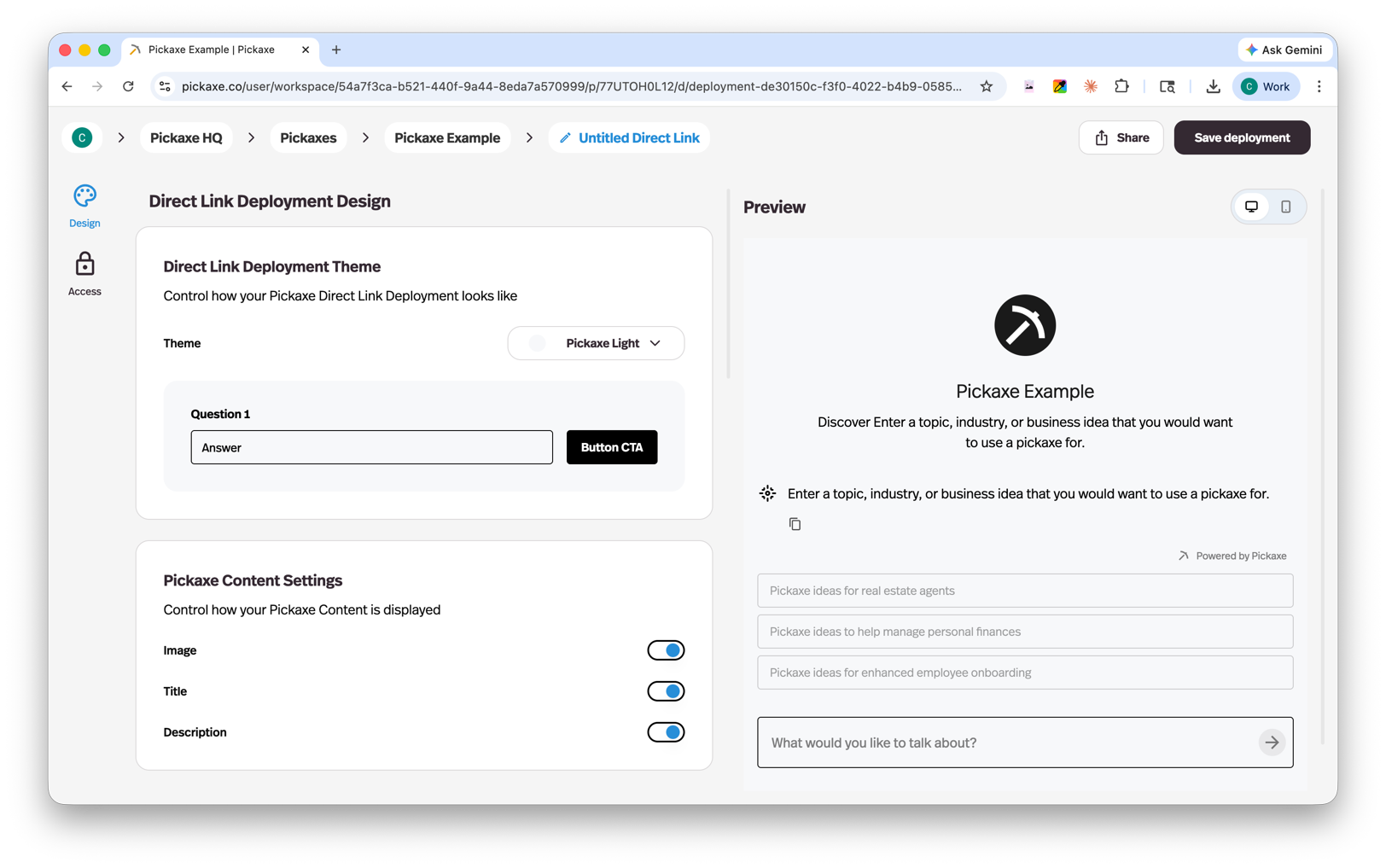
Like portals, direct links can be connected to a custom domain for a branded experience.
Note: Custom deployment slugs are not currently supported, but this is something we plan to add in the future.
Let users connect an AI app
You and your users can talk to a Pickaxe agent from Claude Code, Codex, Cursor, or VS Code. In the agent, choose Use with an AI app (the terminal icon), select your app, and copy its setup command or MCP configuration.
To show the option, enable Design → Submission Through MCP → Show AI app option. New embeds and direct links enable it by default. Requests run as the signed-in user or visitor, with the deployment’s access and usage rules.
Download a response
Users can open Download beneath an agent response and choose TXT, Markdown (.md), HTML (.html), PDF, or DOCX. PDF opens the browser’s print dialog; choose its save-to-PDF option. Downloads include artifacts attached to that response.
Save a favorite
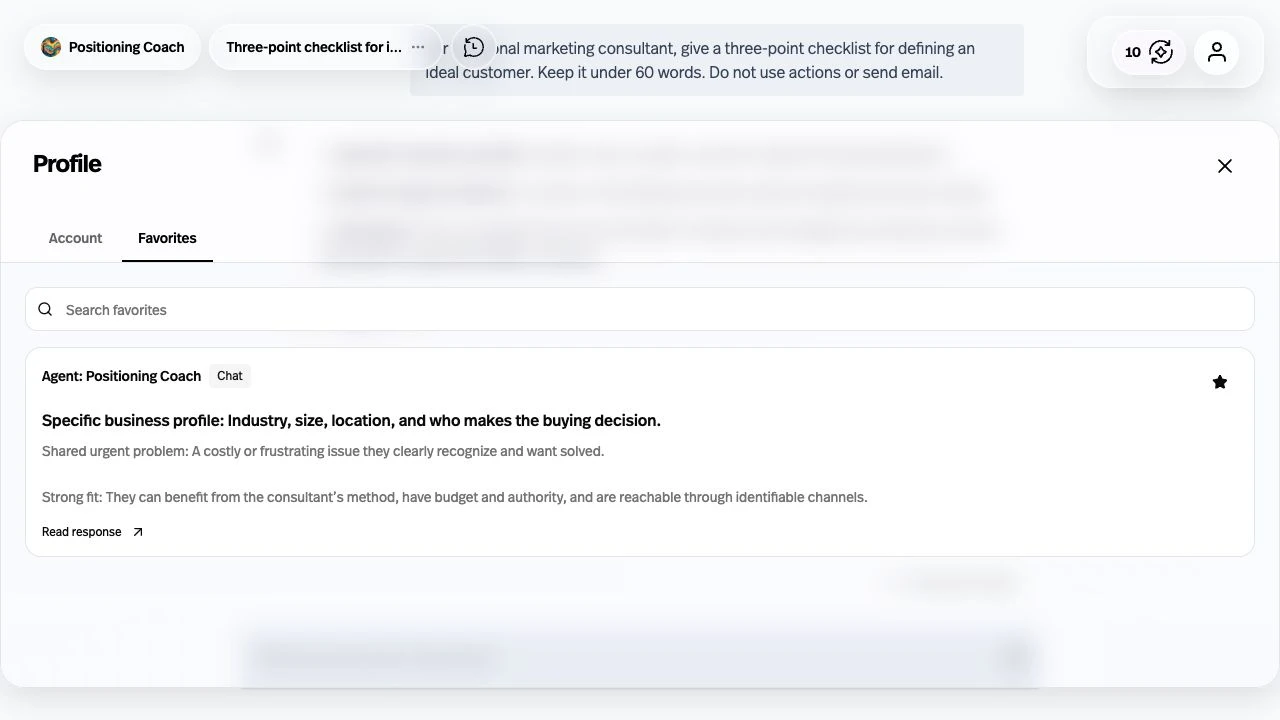
Select the star beneath a reply to save it, then open Profile → Favorites when signed in on desktop, or Favorites in the navigation on mobile and as a guest. Search or filter your saved replies, read them, copy or download them, or choose Open response to return to the original conversation. Only replies you can still access in the current Portal or direct link appear.