
Deploy
Meeting Bot
Send your agent into Google Meet, Zoom, or Teams calls to record the conversation, help in chat, and save meeting reports.
Send your agent into a live video call. The Meeting Bot deployment adds an agent to Google Meet, Zoom, or Microsoft Teams meetings, where it records the conversation, answers questions in the meeting chat, and saves a structured meeting report your workspace can use afterward.
It's the first deployment type that lets an agent participate in something that happens live — a sales call, a coaching session, a weekly team sync — and then carry what it learned back into your workspace: reports become knowledge your agents can draw on, and takeaways can be saved to the memory of the workspace users who attended.
What you get from every meeting
After the meeting ends, the agent prepares a meeting report containing:
- A summary of the conversation
- Decisions that were made
- Action items — each with an owner, due date, and status
- The full transcript
You can optionally record video alongside the transcript, and have the agent save meeting takeaways to user memory for participants who have a workspace account.
Setup
- Open your agent and click New Deployment (or go to Deployments in your workspace).
- Choose Meeting bot from the deployment types.
- Pick the agent you want in the meeting. Meeting bots require a Chat Agent — the agent needs to be able to answer participants.
- Configure the settings below, then click Save deployment.
Adding the agent to a meeting
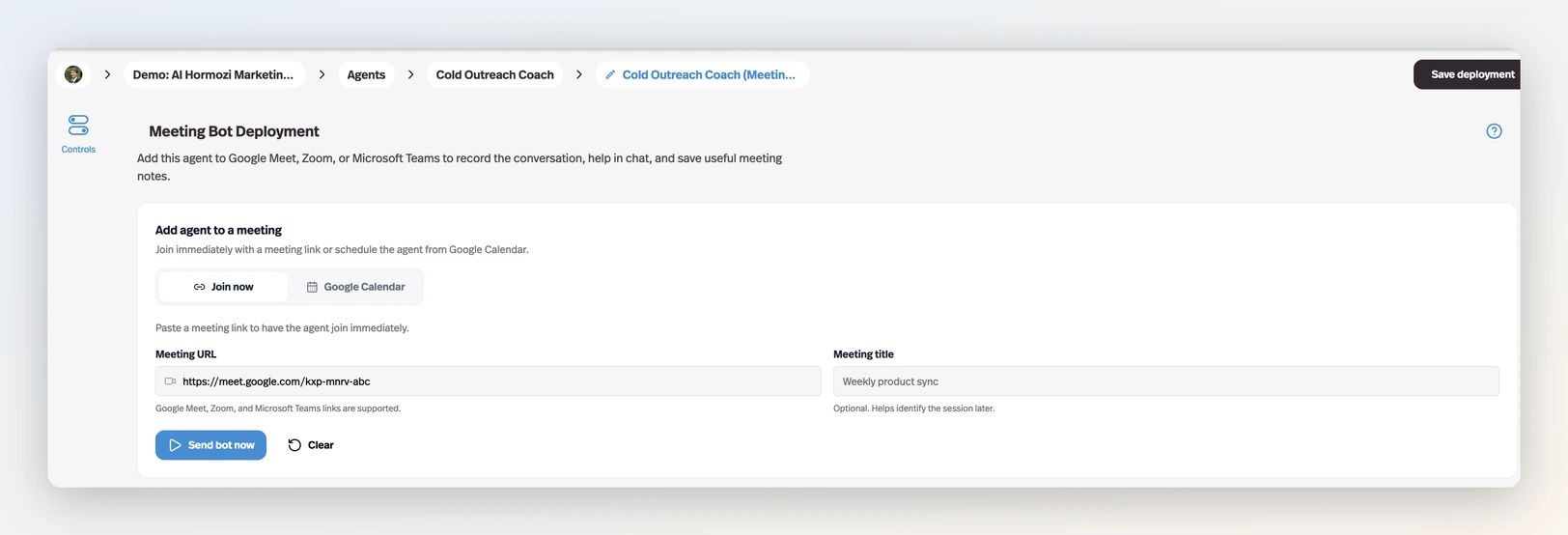
There are two ways to get the agent into a call, side by side under Add agent to a meeting:
Join now
Paste a meeting link into Meeting URL (Google Meet, Zoom, and Microsoft Teams links are supported), optionally give it a Meeting title, and click Send bot now. The agent joins the call within moments, and you can follow its progress in Meeting history.
Google Calendar
Click Connect Google Calendar and approve access. Your upcoming events appear with their meeting links and attendees, and you can click Schedule agent on any event to have the agent join automatically when the meeting starts — or Remove agent to take it off an event. Disconnecting the calendar cancels any agents scheduled from it.
Agent settings
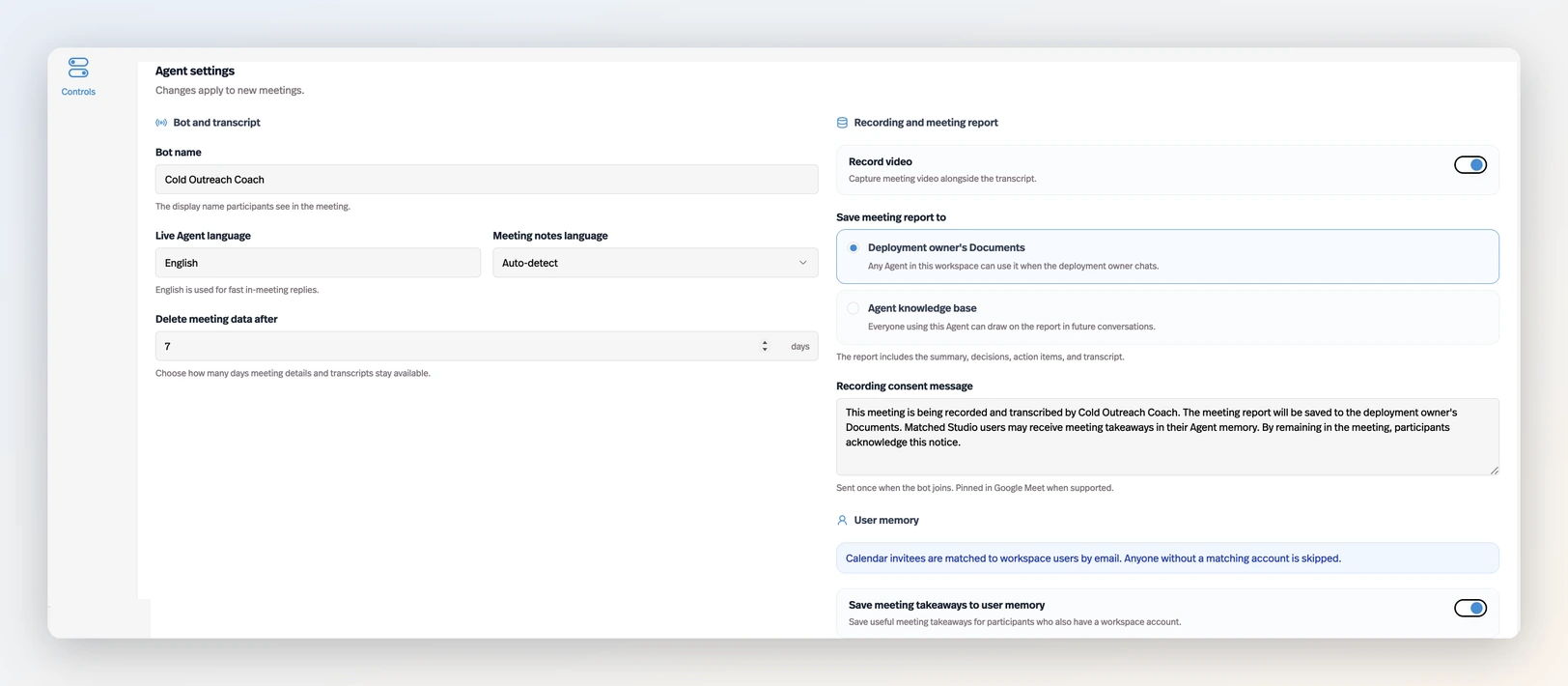
Settings apply to new meetings, and are grouped into four areas:
Bot and transcript
- Bot name — The display name participants see in the meeting.
- Live Agent language — English. Fast in-meeting replies currently run in English only.
- Meeting notes language — The language of the final report and transcript. Choose from about 40 languages, or leave it on Auto-detect.
- Delete meeting data after — How many days meeting details and transcripts stay available (1–365).
Recording and meeting report
- Record video — Capture meeting video alongside the transcript.
- Save meeting report to — Where the report goes:
- Deployment owner's Documents — any agent in the workspace can use it when the deployment owner chats.
- Agent knowledge base — everyone using this agent can draw on the report in future conversations.
- Recording consent message — Sent once when the bot joins (and pinned in Google Meet when supported). This is required — participants should always know they're being recorded.
User memory
- Save meeting takeaways to user memory — Saves useful takeaways for participants who also have a workspace account. Participants and calendar invitees are matched to workspace users by email; anyone without a matching account is skipped.
In-meeting chat
- Respond in meeting chat — Participants can ask the agent questions in the meeting chat without leaving the call.
- Response trigger — Control which messages invoke the agent: Mention the agent (default
@Agent), Use a custom prefix, or Every chat message. - Knowledge available in chat — Agent knowledge + meeting or Current meeting only.
- Welcome message — An optional message sent once after the bot joins, e.g. "Hi! Mention me when you want help during this meeting."
Meeting history
Every meeting the agent joins shows up under Meeting history on the deployment page. For each meeting you can see:
- Its live status — from Getting ready, Scheduled, and Joining through In meeting, Preparing notes, and Complete
- The participants, including who's currently in the meeting
- What was saved from the meeting — the report, user memory updates, and the recording
- The Summary, Decisions, and Action items from the report
You can tell the agent to Leave a meeting in progress, Cancel a scheduled one, retry processing if something went wrong, and open the video recording while it's still within its retention window.
A note on consent
Always inform participants and follow local consent, recording, and retention laws before adding the bot to a meeting. The required recording consent message is sent when the bot joins, but rules vary by region — make sure your use complies with the laws that apply to you and your participants.
Learn more
- Deployments Overview — all the ways to put your agent in front of users.
- Knowledge Base — where meeting reports live when you save them to agent knowledge.
- Users — how workspace users and their Documents and memory work.