

Here's the moment an AI agent stops being a party trick and starts being useful: when it can actually do something in the tools you already run your business on.
A chatbot that answers questions is nice. An agent that reads a customer's order from a Google Sheet, posts a summary to your team's Slack, and logs the whole interaction back to your CRM — that's an employee. The difference between the two isn't the model. It's the connections.
This is the part most people get stuck on. You build a smart agent, you're impressed for an afternoon, and then you realize it lives in a sandbox with no arms and no reach. It can talk about your data, but it can't touch it.
So this is a practical AI agent integrations tutorial. I'll walk through the two ways agents connect to the outside world — Actions and MCP — then show you concretely how to wire an agent up to Google Sheets, Slack, and (through one bridge) thousands of other apps. No code required, and no hand-waving about "just use the API." Let's get into it.
What It Actually Means to "Connect" an AI Agent
Out of the box, a large language model can only do one thing: turn text into more text. It's a brain in a jar. It has no idea what's in your spreadsheet, it can't send a message, and it certainly can't pull a live order status.
An integration is the wire that gives that brain hands. In agent land, those wires come in two flavors, and knowing the difference is 80% of understanding this whole topic.
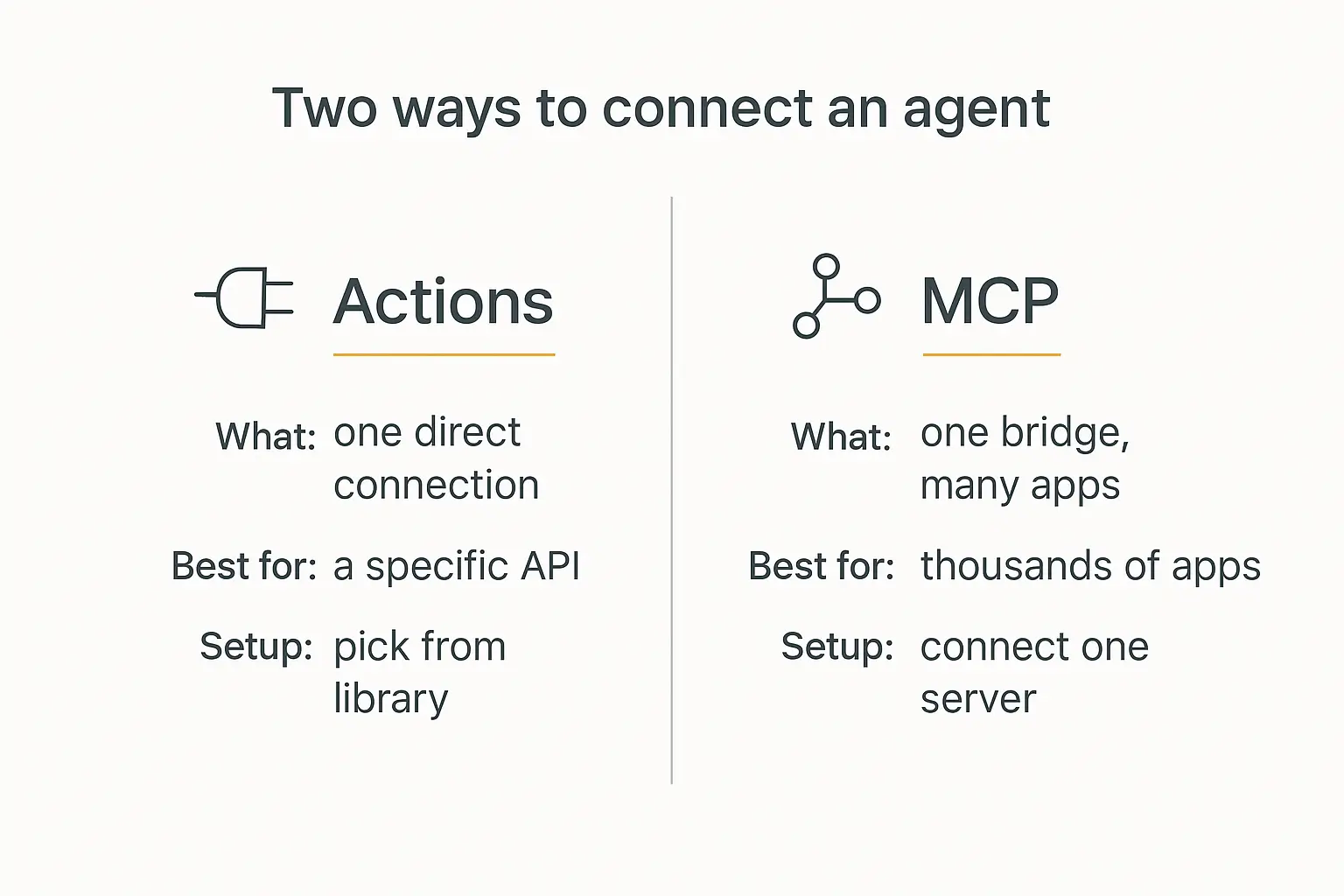
Actions: one direct connection
An Action is a single, direct connection between your agent and one external tool or API. Think of it as handing your agent one specific tool: "here's how to look up a row in Google Sheets," or "here's how to post to this Slack channel."
When the agent decides it needs that tool mid-conversation, it calls the Action, the Action does the deed, and the result comes back into the conversation. Under the hood this is what the industry calls tool use or function calling — the model outputs a structured request, your platform executes it, and the answer flows back.
Actions are great when you know exactly which tools an agent needs. On Pickaxe, for instance, you pick Actions from a built-in library or point one at any API, and the agent starts using it. We wrote a full walkthrough of that in how to use Actions to connect APIs to your agent.
MCP: one bridge to thousands of apps
The second flavor is newer and, honestly, the bigger deal. MCP — the Model Context Protocol — is an open standard that Anthropic introduced in late 2024 to standardize how AI systems plug into the tools where your data actually lives.
Instead of building a separate custom connection for every app, MCP gives you one universal socket. A service publishes an MCP server, and any MCP-aware agent instantly gains access to everything that server exposes. It's the USB-C port of AI integrations.
The adoption numbers are frankly wild. Within about a year, MCP crossed 97 million monthly SDK downloads and 10,000+ active servers, with first-class support in Claude, ChatGPT, Cursor, Gemini, and Microsoft Copilot. Andreessen Horowitz called it the closest thing the agent world has to a universal standard. OpenAI even deprecated its own proprietary Assistants API in favor of it.
If you want the deeper conceptual explanation, we broke MCP down in plain English in What Is the Model Context Protocol (MCP)? and compared it to its cousin in MCP vs A2A Protocol. For this guide, all you need to hold onto is: Actions = one direct wire; MCP = one bridge to thousands of apps.
How One Integration Actually Works, Step by Step
Before we wire anything up, it helps to see the loop. People imagine connecting an agent to an app is some deep technical marriage. It's not. It's a request and a response, and it happens in about a second.
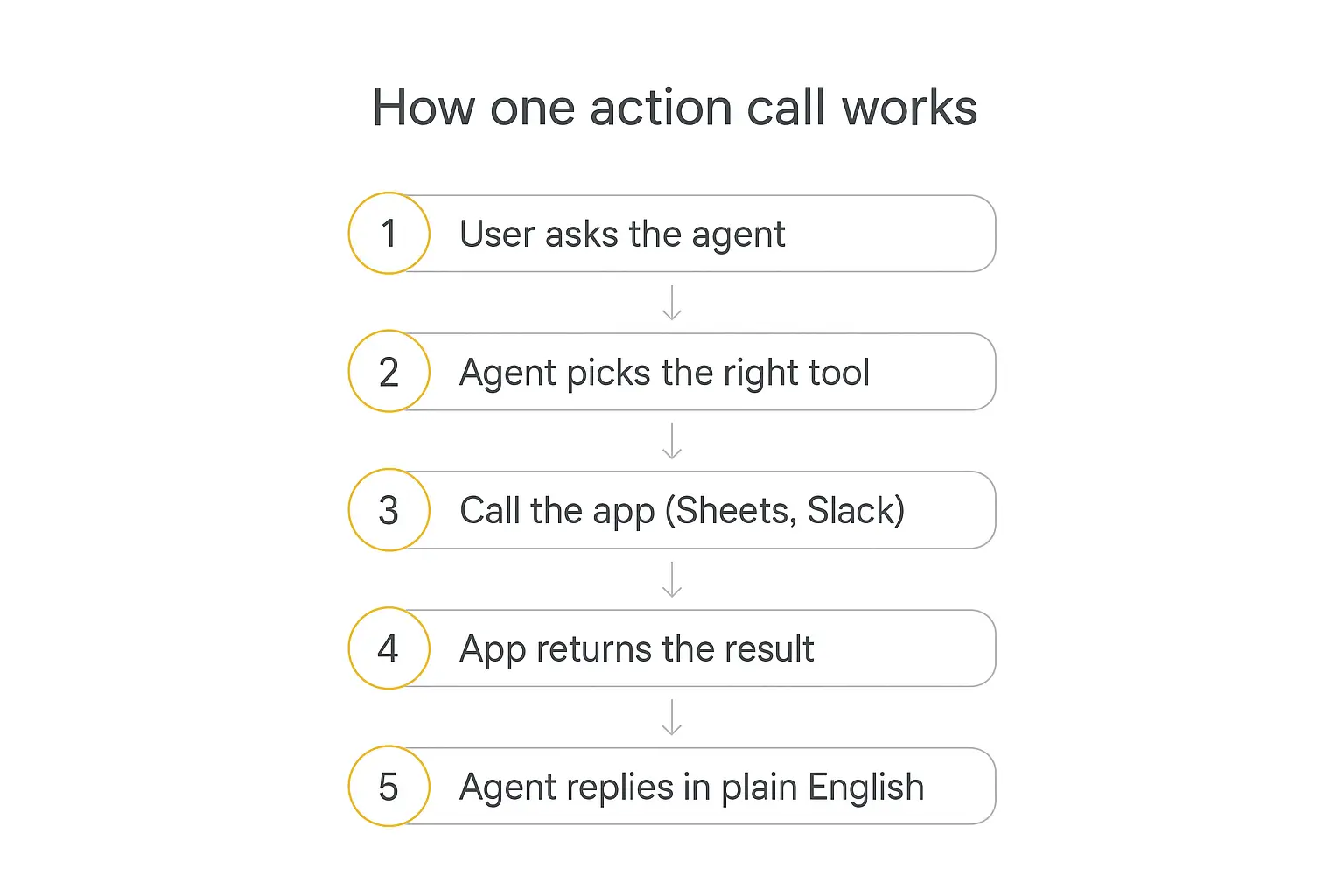
Here's the whole sequence when a user asks your support agent, "Has order #4471 shipped yet?":
- The user asks the agent a normal question in plain language.
- The agent picks the right tool. It recognizes this needs a lookup, not a guess, and reaches for your "check order status" connection.
- It calls the app. The agent sends a structured request to Google Sheets (or your CRM, or Slack) — "find the row where order = 4471."
- The app returns the result. Raw data comes back:
{status: "shipped", carrier: "UPS", eta: "Thursday"}. - The agent replies in plain English. It turns that raw data into "Yes! Order #4471 shipped via UPS and should arrive Thursday."
That's the entire dance. The magic isn't that the agent "knows" your data — it's that it knows when to go get it and how to phrase the answer. Everything below is just choosing which apps to make available for step three.
How to Connect Your AI Agent to Google Sheets
Google Sheets is the single most common first integration, and for good reason. It's the world's most-used database that nobody calls a database. Client intake, inventory, order logs, lead lists — half the small businesses I talk to run on a spreadsheet.
There are two ways to connect an agent to Sheets, depending on how deep you need to go.
The no-code path (recommended for most people)
Using a platform with a built-in Action library, connecting Sheets is a matter of clicks:
- Open your agent's Actions tab and add a Google Sheets action (read a row, append a row, or update a row).
- Authenticate once. You'll do a standard Google OAuth sign-in that authorizes the connection. Your agent never sees your password — it uses a scoped token.
- Point it at the sheet. Choose the spreadsheet and tab, and map which columns the agent can read or write.
- Write a trigger prompt. Tell the agent in plain language when to use it: "When a user shares their email, append it to the Leads sheet with today's date."
- Test it in Preview. Run a few example inputs and confirm the rows actually land where you expect.
That's it. A client-intake agent that saves every submission to Google Sheets is genuinely a ten-minute build. It's one of the most popular use cases we see on Pickaxe, and it's the backbone of the lead qualification agent pattern.
The direct-API path (for custom setups)
If you need something the built-in action doesn't cover — complex formulas, multi-sheet joins, batch operations — you can connect straight to the official Google Sheets API as a custom Action. You provide the endpoint and credentials, describe the parameters, and the agent calls it like any other tool. More flexibility, slightly more setup.
For 90% of businesses, the no-code path is the right call. Reach for the raw API only when you hit a real wall.
How to Connect Your AI Agent to Slack
Slack is where connected agents earn their keep, because it turns a passive bot into a teammate that shows up where work already happens.
There are two distinct things people mean by "connect my agent to Slack," and it's worth separating them.
Deploying the agent in Slack
The first is making the agent itself live in a Slack channel, so your team can @-mention it and get answers without leaving Slack. That's a deployment channel, not really an integration — you flip on the Slack bot and your agent is now answering in-channel. We cover that end-to-end in how to deploy an AI agent to your website, WhatsApp, and Slack.
Giving the agent a Slack action
The second — the one this guide is about — is letting an agent that lives elsewhere (your website, a portal) reach into Slack to post messages. Think of a support agent that escalates a tricky ticket by dropping a formatted alert into your #support channel, tagging the on-call human.
Setup mirrors the Sheets flow:
- Add a Slack action to your agent (usually "send a message to a channel").
- Authorize the Slack workspace via OAuth and choose which channel(s) the agent may post to.
- Write the trigger prompt: "If a user reports a bug or asks for a refund over $200, post a summary to #support and tell the user a human will follow up."
- Test the escalation path so you know exactly what lands in Slack and when.
If you want to go deeper on message formatting, permissions, and events, the Slack API docs are the canonical reference. But for most agent use cases, "post this summary to that channel" is all you need.
Connect an agent to your stack without touching code
Pickaxe's Action library wires agents to Sheets, Slack, and thousands more apps in a few clicks.
How to Reach 50+ Apps at Once (Zapier, Make, and n8n)
Wiring up Sheets and Slack one action at a time is fine when you need a handful of connections. But what if your agent needs to touch HubSpot, Airtable, Gmail, Notion, Calendly, Stripe, and a dozen others?
You don't build fifty custom actions. You connect one automation platform, and it becomes your bridge to everything it already integrates with. This is where MCP quietly changed the game.
Zapier: the widest net
Zapier's MCP server exposes its entire library — thousands of apps and tens of thousands of actions — to your agent through a single connection. You set it up once (no terminal, no config files), pick which apps and actions the agent is allowed to use, and it can now send a Gmail draft, update a Salesforce record, or drop a row in Airtable on command.
The security model here is smart: the agent never receives your actual API keys. It makes requests, and Zapier fulfills them using the connections you already authorized. You can even scope it — let the agent read calendar events but not modify them, or read emails but never send.
Make and n8n: more control, more logic
Make (formerly Integromat) and n8n are the other two big names, and Pickaxe integrates with all three via MCP. Make gives you a visual canvas for multi-step logic; n8n is open-source and self-hostable, which developers love for data-sensitive workflows. If your integration needs branching, filters, or conditional steps between the agent and the app, these are worth a look.
My rule of thumb: use Actions for the two or three apps your agent touches constantly, and an automation platform via MCP for the long tail. If you're weighing the platforms themselves, we ranked them in the top AI integration platforms.
What a Connected Agent Can Actually Do
Once the wires are in, the question becomes: what should the agent actually do with them? Every integration falls into one of three buckets.
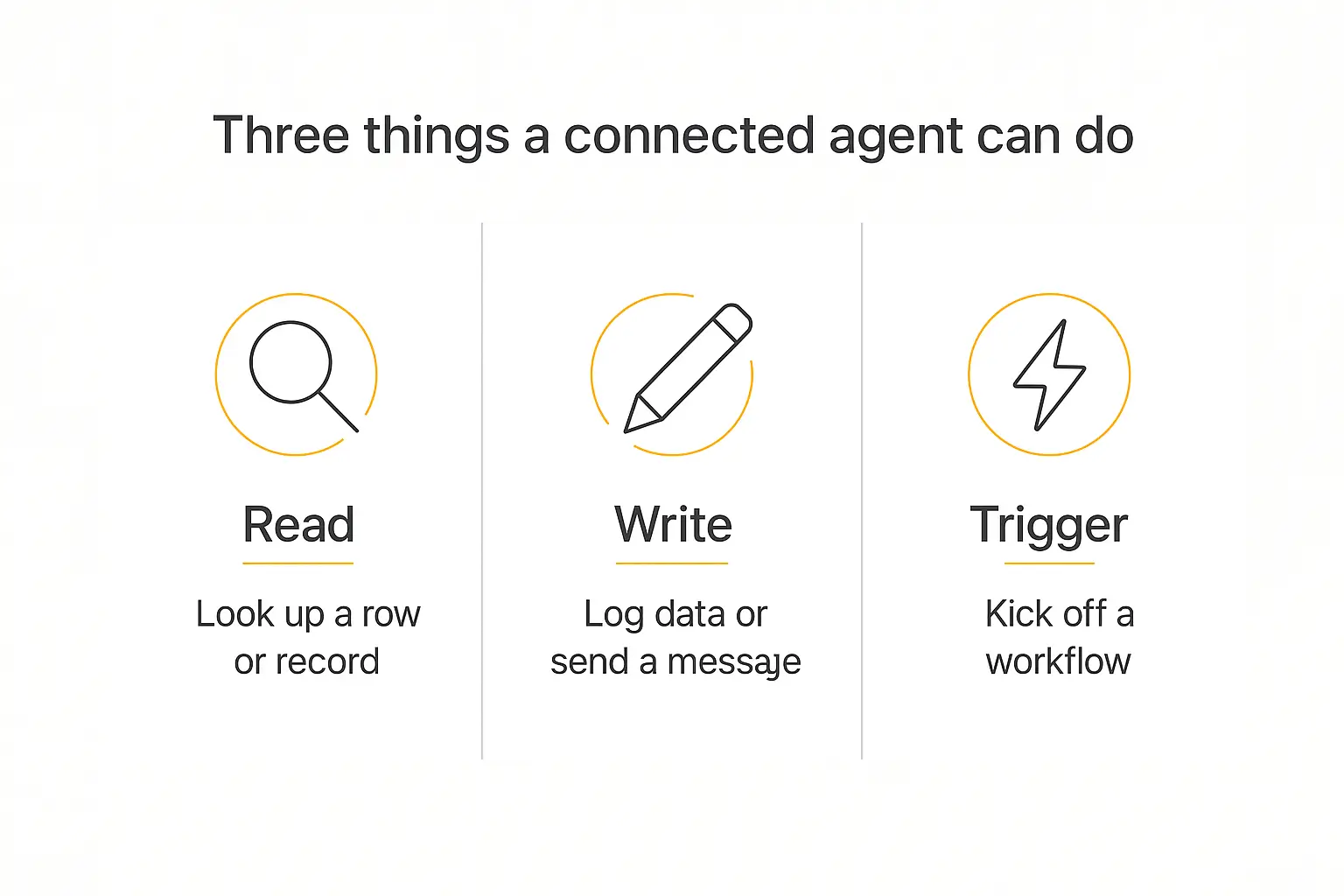
- Read. Pull live information — an order status, a customer record, a calendar opening, an inventory count. This is what turns an agent from "guesses based on training data" into "knows your actual business."
- Write. Create or update something — log a lead, append a row, update a CRM field, send a message. This is the leap from talking to doing.
- Trigger. Kick off a larger workflow — start an onboarding sequence, fire off an invoice, notify a team. The agent becomes the front door to your whole automation stack.
Here's a quick map of common integrations and what they unlock:
| App | Type | What the agent does |
|---|---|---|
| Google Sheets | Read + Write | Log leads, look up orders, update inventory |
| Slack | Write + Trigger | Escalate tickets, post daily summaries, alert on-call |
| HubSpot / Salesforce | Read + Write | Create contacts, update deal stages, pull history |
| Gmail / Outlook | Write | Draft replies, send follow-ups |
| Calendly | Read + Trigger | Check availability, book demos |
| Stripe | Read + Trigger | Check payment status, issue invoices |
| Notion | Read + Write | Search docs, create pages, update databases |
The pattern that ties these together is bigger than any one app. When you combine reads, writes, and triggers, you can build agents that run whole processes — the lead qualification and client-onboarding flows, or the daily-report bots we covered in how to build an AI agent that runs on a schedule.
Integration Best Practices (Learned the Hard Way)
Connecting apps is easy. Connecting them well is where most agents fall down. A few rules that save a lot of pain:
Keep it to a handful of actions per agent
It's tempting to give an agent every tool under the sun. Don't. Past about four actions, models start getting confused about which tool to reach for and when. On Pickaxe we recommend a max of four actions per agent. If you need more, that's a signal to split the work.
Use a waterfall for complex workflows
When one agent genuinely needs a dozen capabilities, don't cram them in — build a waterfall. A primary "router" agent hands off to specialized sub-agents, each with its own small, focused set of actions. It's cleaner, more reliable, and far easier to debug. We go deep on this in multi-agent systems explained.
Write ruthlessly clear trigger prompts
The agent only calls an action when it decides the moment is right — so that decision lives entirely in your instructions. Be explicit: name the action, describe the exact condition, and give an example. Vague triggers ("use tools when helpful") produce agents that either never act or act at the wrong time. Our prompt engineering guide covers how to write instructions that hold up.
Test every path before you ship
An action that writes to your real CRM or posts to your real Slack is not something to discover bugs in live. Run every trigger in a preview environment first, with edge cases — the empty input, the weird phrasing, the "what if the order doesn't exist" case. Our checklist for this is in how to test and debug your AI agent before deploying it.
Build an agent that does the work, not just the talking
Connect Actions, add a knowledge base, and deploy anywhere — all in one place.
Keep Your Integrations Secure
The moment your agent can write to systems and send messages, security stops being optional. Two principles matter most.
Least privilege. Give each integration the narrowest scope that gets the job done. If an agent only needs to read a calendar, don't grant it write access. If it only posts to #support, don't let it post everywhere. The automation platforms make this easy — scope permissions per action.
Never expose raw credentials to the model. This is exactly why the token-and-OAuth model exists. Your agent makes a request; your platform (or Zapier, or Make) fulfills it using stored credentials the model never sees. Done right, a prompt-injection attempt can't exfiltrate keys that were never in the conversation to begin with.
Connected agents widen the attack surface, so it's worth understanding the failure modes before you go live. We laid them out in AI agent security risks: shadow AI, data leaks, and how to protect your deployment. If you're operating in a regulated space, the same care applies to which data your integrations touch.
Where This Is Heading
The reason MCP matters so much is that it's turning integrations from a bespoke engineering project into a plug-and-play commodity. Anthropic has since donated the protocol to a vendor-neutral foundation, which is a strong signal it's here to stay rather than being one company's moat.
Developers who were lukewarm at launch have come around fast — the protocol is now iterating quickly, with recent changes like going stateless for better scalability showing how seriously the ecosystem is investing. The official modelcontextprotocol.io is the place to track it.
For you, the practical upshot is simple: the list of apps your agent can reach only grows, and the effort to reach them keeps shrinking. Understanding where integrations sit in the broader picture — alongside the model, memory, and deployment — is worth your time; we mapped the whole thing in the AI agent tech stack.
Frequently Asked Questions
Do I need to know how to code to connect my AI agent to apps?
No. With a platform that has a built-in Action library and MCP support, connecting to Google Sheets, Slack, and thousands of apps is a matter of authenticating once and writing a plain-language trigger. You only touch raw APIs for unusual custom setups.
What's the difference between Actions and MCP?
An Action is one direct connection to a specific tool or API. MCP is a universal bridge — connect one MCP server (like Zapier's) and your agent instantly reaches everything that server exposes. Use Actions for a few constant tools, MCP for breadth.
Is it safe to give an AI agent access to my business tools?
Yes, when you follow least-privilege scoping and use OAuth/token connections so the model never sees raw credentials. Grant each integration the narrowest permission it needs, and test every write action before going live.
How many apps can one agent connect to?
Technically thousands, through an automation-platform bridge. Practically, keep each agent focused — around four direct actions is the sweet spot — and use a waterfall of specialized sub-agents when you need broader coverage.
Can my agent both read and write to Google Sheets?
Yes. Sheets actions typically include reading a row, appending a row, and updating a row. A single agent can be granted whichever combination it needs, scoped to a specific spreadsheet and tab.
The Takeaway
An AI agent without integrations is a very articulate brain in a jar. The connections are what give it hands — the ability to read your live data, write to your systems, and trigger the workflows that actually move your business.
Start small. Wire up the one app your agent touches most — usually Google Sheets or Slack — get the loop working end to end, then expand. Add an automation bridge when you need the long tail, keep each agent focused, and scope every permission tightly.
If you want to try this without stitching together five separate tools, Pickaxe lets you build the agent, connect Actions to Sheets, Slack, and thousands of apps via MCP, add a knowledge base, and deploy it anywhere — all from one place. The brain and the hands, in the same build.