

Your website is the one place every customer already comes to. And for most of its life, it just sits there — a brochure that answers nothing, asks nothing, and lets visitors bounce the second they can't find what they need.
Embedding an AI agent changes that. Suddenly the page can answer questions, qualify leads, book calls, and handle support — right there, in the moment someone's curious, without making them email you and wait.
The best part: you don't need a developer or a rebuild. Most of the time it's a single snippet of code you paste once, and a smart assistant shows up on every page.
This is the complete, plain-English guide to embedding an AI agent on your website: the different ways to do it, which one to pick, the exact steps, how to keep it from slowing your site down, and the security and styling details that separate a polished embed from a janky one.
If you're still fuzzy on what an agent even is versus a plain bot, start with what AI agents are and how they differ from chatbots — this guide assumes you know the basics and want to get one live on your site.
Why Embed an AI Agent on Your Website at All?
Because a website that can talk converts far better than one that can't. The numbers on this are not subtle.
Chatbot-led funnels convert at roughly 2.4 times the rate of static web forms, and chat-to-conversion rates average 10–20% versus the 2–3% you get from a traditional form, according to 2026 chatbot statistics compiled by Scalify. For e-commerce, shoppers who engage an AI assistant convert at around 12.3% — nearly four times the rate of those who don't.
On the support side, a strong modern agent resolves 40–60% of incoming questions before a human ever sees them, per eesel AI's 2026 ticket-deflection guide. That's a support team that scales without new headcount.
Beyond the stats, the appeal is simple: your agent works the hours you don't. It greets the visitor at 2 a.m., answers the pricing question, captures the email, and hands you a warm lead in the morning. An embedded agent is the closest thing a small team has to a 24/7 front desk.
What "Embedding an AI Agent" Actually Means
Embedding means placing your agent inside your existing site so visitors can use it without leaving the page. The agent lives on a platform; your site loads a small piece of code that renders it.
That's the key mental model: you don't rebuild the agent on your site — you point your site at an agent that lives elsewhere. The heavy lifting (the model, the knowledge base, the actions) stays on the platform. Your page just displays the interface.
This is why embedding is so low-effort. When you update the agent's instructions or knowledge on the platform, every embed on every page updates instantly — no re-deploying your website.
It's also why the same agent can appear in more than one place at once: a floating helper on your homepage, a full-width assistant on a landing page, and a standalone link you drop in an email — all the same brain, three different embeds.
The Ways to Embed an AI Agent (and When to Use Each)
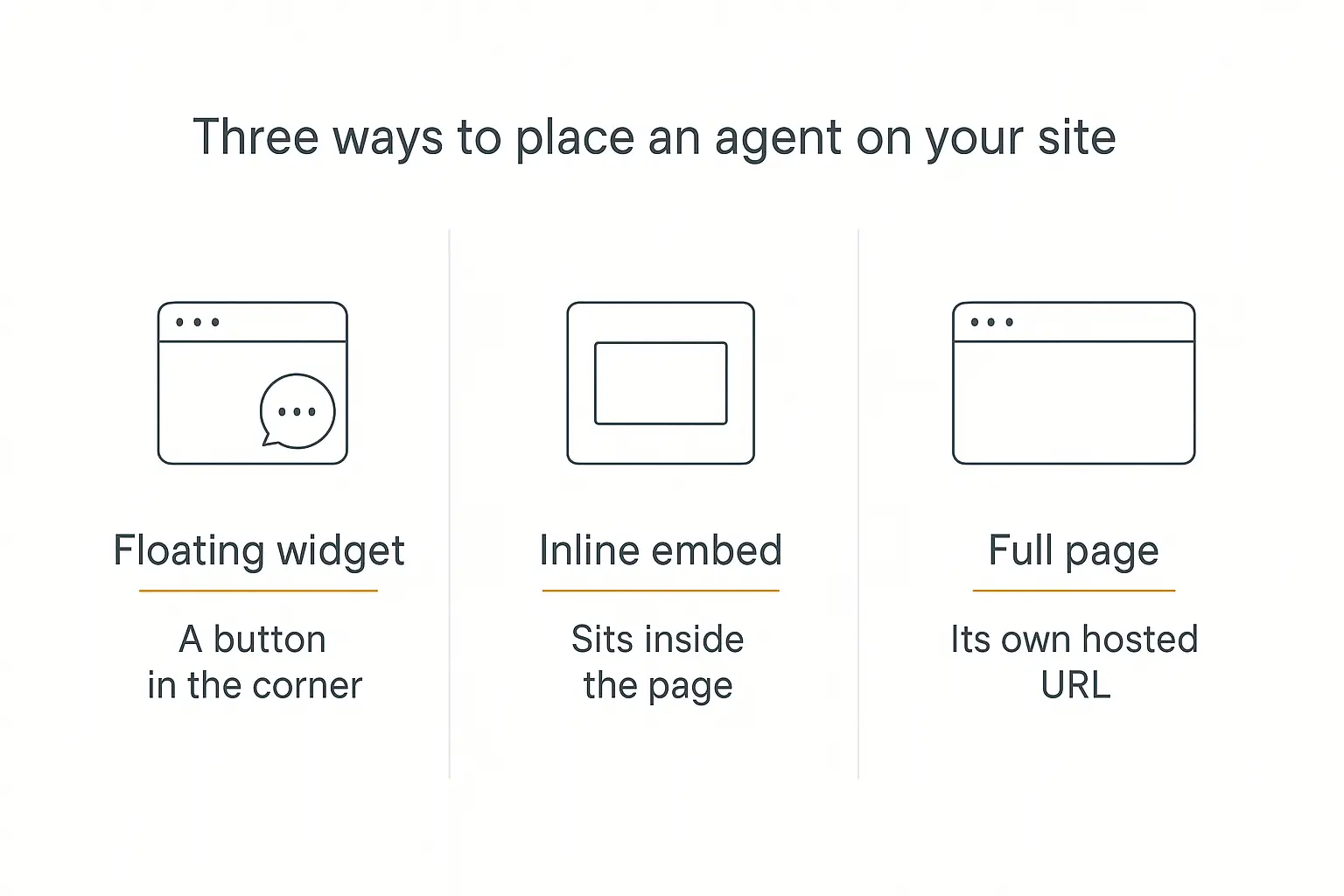
There isn't one "embed." There are a handful of formats, and picking the right one for the job is half the battle. They fall into three families.
1. The floating widget (FAB and popup)
This is the classic chat bubble in the bottom corner — a floating action button (FAB) that opens a chat window when clicked. It follows the visitor across every page and stays out of the way until needed.
A close cousin is the popup-from-button: instead of a corner bubble, you place your own button ("Ask our AI") anywhere on the page, and clicking it opens the same chat window.
Best for: site-wide support and general help. It's the default choice for most businesses because it's unobtrusive and available everywhere.
2. The inline embed (in-page and iframe)
Here the agent lives inside the page content rather than floating over it. An inline (or "flex") embed is a responsive chat interface that sits in a container on your page and adapts to its width. An iframe embed drops a fixed-size, self-contained chat box into any spot in your layout.
Best for: dedicated pages where the agent is the point — a "Talk to our assistant" page, a product configurator, an interactive FAQ, or a lead-capture section on a landing page.
3. The full page (hosted URL)
Sometimes you don't want the agent inside another page at all — you want it to be the page. Most platforms give every agent a hosted, shareable URL you can link to directly or point a subdomain at.
Best for: a standalone assistant you share in emails, social bios, or QR codes — or a gated, members-only tool. On Pickaxe these hosted experiences are called portals, and they can bundle multiple agents behind one branded login.
The headless option (API)
For teams that want total control over the look and behavior, every serious platform also exposes an API. You build your own UI and call the agent behind the scenes. It's more work, but nothing beats it for a fully custom experience baked into a web app.
Here's a quick way to choose:
| Embed type | Where it appears | Best for | Effort |
|---|---|---|---|
| Floating widget (FAB) | Corner of every page | Site-wide support | Lowest |
| Popup from button | Any button you place | Targeted CTAs | Low |
| Inline / flex | Inside page content | Dedicated sections | Low |
| iframe | Fixed box in a page | Support / FAQ pages | Low |
| Full page (hosted URL) | Its own web address | Standalone tools, links | Lowest |
| API (headless) | Wherever you build it | Fully custom apps | Highest |
For a deeper look at one of these formats specifically, our older walkthrough on embedding an AI chatbot step by step covers the widget flow in detail.
Before You Embed: Build the Agent Worth Embedding
An embed is just the delivery mechanism. What actually matters is the agent behind it. Paste a half-baked agent onto your site and you've just given every visitor a fast way to be disappointed.
Three things make an embedded agent genuinely useful:
A clear prompt. Write its instructions like a job description — who it is, what it helps with, what it should never do, and the tone. "You're the support assistant for Acme. Answer questions about our plans and shipping. If asked about refunds, collect the order number and offer to create a ticket. Keep replies under 120 words."
A knowledge base. An agent that doesn't know your product will confidently make things up. Upload your docs, FAQs, pricing, and policies so it answers from your reality. This is the difference between a helpful assistant and a hallucination machine — I broke down the setup in the guide to the Pickaxe knowledge base.
Actions. A support agent that can only chat is a dead end. Give it actions so it can actually do things — look up an order, book a meeting, create a ticket, capture a lead into your CRM. Keep it to four or fewer per agent; a lean agent is a reliable one.
And before it ever touches your homepage, test and debug it like real customers will. The embed makes it public — you want the awkward answers ironed out first.
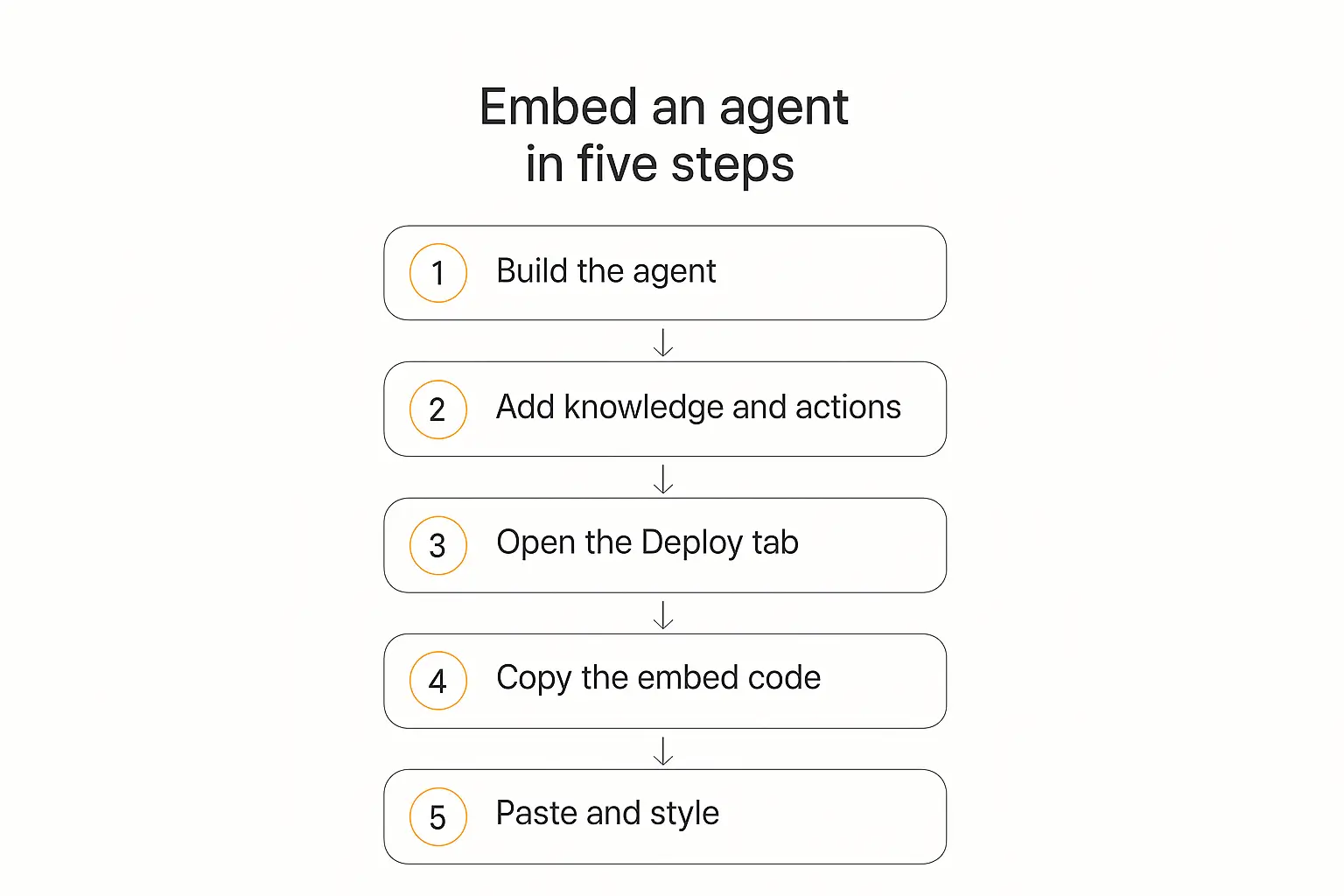
How to Embed an AI Agent in 5 Steps
Once the agent is solid, getting it onto your site takes minutes. The flow is nearly identical across no-code platforms — here's how it works, using Pickaxe as the example.
Step 1: Build the agent
Create your agent and write its prompt. In Pickaxe's builder that's the Prompt tab for instructions and the Configure tab to pick your model, temperature, and a friendly starter message that greets visitors.
Step 2: Add knowledge and actions
Use the Knowledge tab to upload the documents and URLs your agent should reference, and the Actions tab to connect the tools it needs — Gmail, a calendar, web search, your CRM, or a custom API.
Step 3: Open the Deploy tab
Every distribution option lives in one place. In Pickaxe, open the agent's Deploy tab, where you'll find website embeds, a hosted page, and integrations side by side. Choose the embed type that fits — Inline Flex, FAB, Popup from Button, Chat Input, or Inline (iframe) — and hit Create Embed.
Step 4: Copy the embed code
The platform generates a small snippet — usually a single <script> tag (for widgets) or an <iframe> tag (for inline embeds). Copy it. That one line is everything your site needs to render the agent.
Step 5: Paste it and style it
Paste the snippet into your site's HTML where you want it to appear, publish, and you're live. Then style it to match your brand — good platforms let you tweak colors, avatar, and greeting from the dashboard without touching the code on your site, so changes update live.
That's the whole loop: build → configure → deploy → copy → paste. The first time your own site answers a visitor's question on its own, it clicks why this is worth doing.
Put a real agent on your site today
Build the brain in Pickaxe, pick an embed type, and paste one snippet. No developer required.
Where to Paste the Code (Platform by Platform)
"Paste it into your HTML" is easy on a raw site and slightly different on each website builder. Good news: the embed snippet is universal — it works anywhere you can add custom HTML. Here's where that lives on the popular platforms.
- WordPress: Add a Custom HTML block to a page, or paste a site-wide widget into your theme's footer (Appearance → Editor, or a "header/footer scripts" plugin).
- Shopify: For a site-wide widget, add the script to
theme.liquidbefore the closing</body>tag. For a single page, use a Custom Liquid or HTML section. - Webflow: Drop an Embed element on the page for an inline agent, or paste a site-wide script in Project Settings → Custom Code → Footer.
- Wix: Use the Embed HTML / Custom Code element (Add → Embed), or add it site-wide under Settings → Custom Code.
- Squarespace: Add a Code Block to a page, or a site-wide snippet under Settings → Advanced → Code Injection.
- Framer: Add an Embed component for inline, or paste site-wide scripts in Site Settings → Custom Code.
- Plain HTML: Paste the snippet directly before
</body>. Done.
The rule of thumb: widget scripts go site-wide (footer/body), inline embeds go on the specific page where you want the agent to appear. If you're wiring up one of the major builders, our dedicated guide on integrating AI into Wix, Webflow, Squarespace, and WordPress walks through each one.
Keep It From Slowing Your Site Down
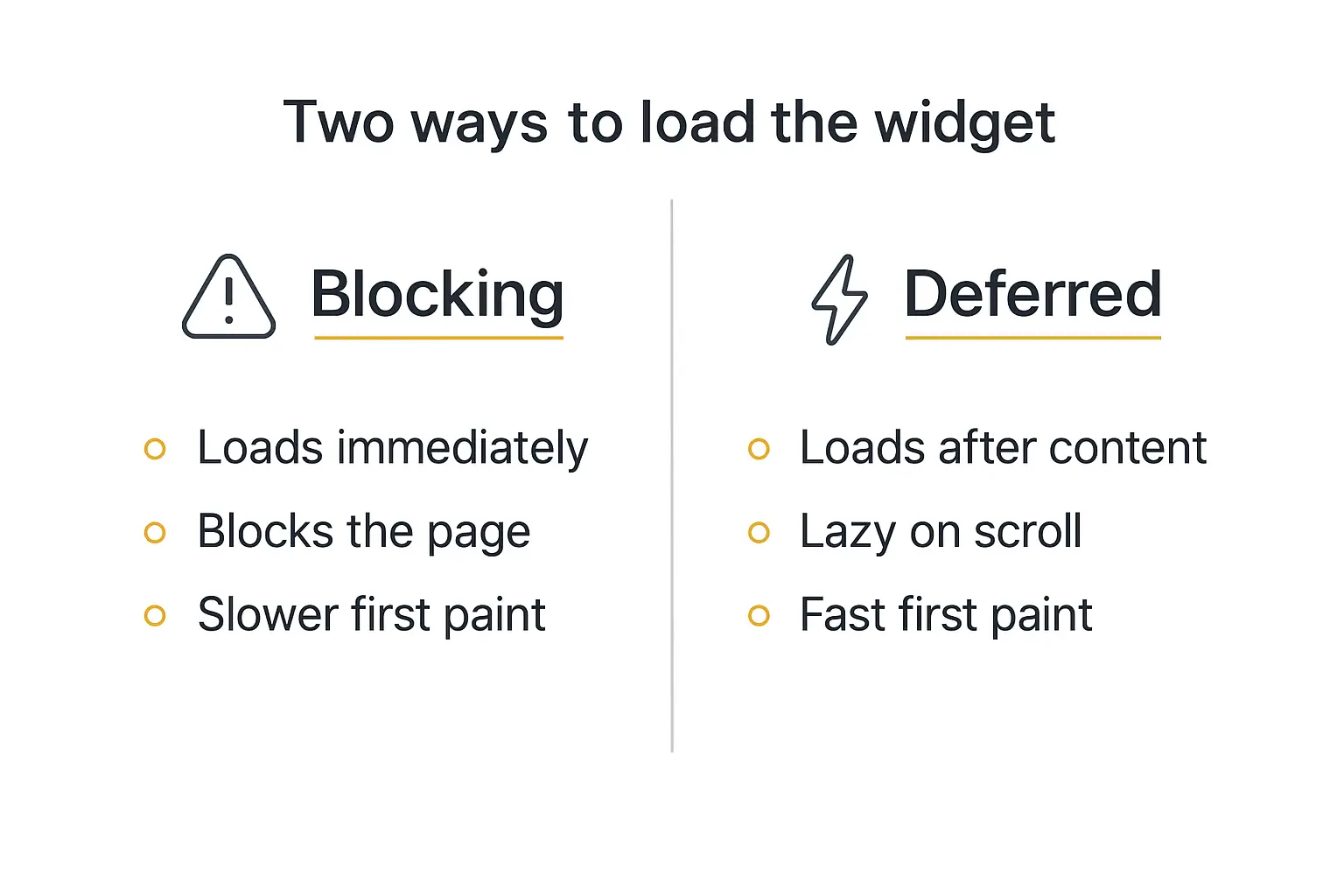
Here's the part most people skip until their site feels sluggish: chat widgets are heavy. Some load hundreds of kilobytes of JavaScript just to render a button in the corner.
Zendesk's classic widget, for example, downloads over 500KB of JavaScript — an entire React app — before a visitor even clicks it, as DebugBear's analysis of chat widget performance details. Loaded carelessly, that tanks your Core Web Vitals, which feed into Google rankings.
A few habits keep an embedded agent fast:
- Use
deferorasync. Adddeferto the script tag so it loads after the page finishes parsing instead of blocking the content. For chat widgets,deferis almost always the right call. - Lazy-load it. Don't load the widget until it's likely to be used — after a short delay, on scroll, or on first interaction. A three-to-four-second delay recovers most of the performance while keeping the agent ready before anyone reaches for it.
- Use the facade pattern. Show a lightweight fake button first and load the real widget only when someone clicks it. Google's engineers recommend exactly this in their write-up on third-party facades — most visitors never open the chat, so most visitors never pay the cost.
- Consider a web worker. For advanced setups, tools like Partytown run third-party scripts off the main thread so they never block rendering at all.
The good news is that a well-built modern embed handles most of this for you. But if your platform hands you a raw blocking script, wrapping it in defer takes ten seconds and is worth it every time.
Styling and UX: Make It Feel Like Yours
An embedded agent that clashes with your site erodes trust. The ones that convert feel like a native part of the brand, not a bolted-on third-party box.
A few UX details that punch above their weight:
- Match the brand. Set the accent color, avatar, and font to your site's. A gray default bubble screams "generic bot."
- Write a real greeting. "Hi! Ask me about pricing, shipping, or booking a demo" outperforms a blank box — it tells people what the agent is for.
- Don't ambush people. An auto-opening popup that fires the instant someone lands is annoying. Delay it, or let visitors open it themselves.
- Respect mobile. The widget should be tappable, not cover the whole screen, and not fight with your cookie banner. Test it on a phone.
- Be honest that it's AI. A quick "You're chatting with our AI assistant" builds trust — and under the EU AI Act's Article 50, disclosing that users are interacting with AI is a legal obligation, not just good manners.
Security and Privacy When You Embed
The moment your agent is public, anyone can talk to it — including people probing for weaknesses. Embedding safely comes down to a few principles.
Scope it tightly. Give the agent only the actions and data it genuinely needs. A homepage support agent has no business with write-access to your database. Least privilege is your best defense.
Mind what it can reveal. Anything in the knowledge base can potentially surface in a conversation. Don't upload internal-only documents to a public-facing agent.
Watch for prompt injection. Public agents get poked and prodded. Set clear boundaries in the prompt and don't let user input silently override its instructions. I go deeper on this in AI agent security risks.
Use iframe isolation where it helps. An iframe sandboxes the agent from the rest of your page, which lowers the risk of certain cross-site scripting issues — a reason inline iframe embeds are popular for support pages.
Rate-limit and cap usage. A public agent is a public cost center. Set usage limits so a bad actor (or a viral moment) can't run up your bill. On Pickaxe, usage limits and access controls are built in.
Embed once, control everything
Pickaxe gives you five embed types, live styling, usage limits, and access controls out of the box.
After You Embed: Measure and Improve
An embedded agent isn't "set and forget." The first version is a hypothesis; the conversations tell you whether it's right.
Watch a handful of numbers once it's live:
- Engagement rate — what share of visitors actually open and use it. Low? Your placement or greeting needs work.
- Resolution / deflection rate — how often it fully answers without a human handoff. This is the number that maps to saved hours.
- Conversion events — leads captured, demos booked, carts recovered. Tie the agent to a business outcome, not just chat volume.
- Fallback and "I don't know" rate — where it's stumbling. Every one of these is a gap in your knowledge base to fill.
Read the transcripts weekly for the first month. They're a goldmine — real questions in your customers' real words, showing you exactly what to add to the knowledge base or fix in the prompt. I cover the full measurement loop in AI agent analytics.
Builders on X have made a sport of this — sharing before-and-after screenshots of deflection rates climbing from 30% to 60% after a few rounds of reading transcripts and patching the knowledge base. The pattern is always the same: the embed is easy, the tuning is where the value compounds.
Common Mistakes When Embedding an AI Agent
Most bad embeds fail for the same handful of reasons. I've made a few of these myself.
- Embedding an untested agent. Going live before the agent is good just gives visitors a fast route to a bad impression. Test first.
- A blocking script. Pasting a heavy widget without
deferor lazy-loading, then wondering why the page got slow. Load it lazily. - The default gray box. Skipping styling so the agent looks like it belongs to someone else's site. Match your brand.
- Aggressive auto-popups. Firing an intrusive popup on load and training visitors to close it reflexively. Let them come to it.
- Over-scoped permissions. Wiring a public agent to sensitive actions or data it doesn't need. Scope tightly.
- No AI disclosure. Hiding that it's a bot. It's easy to disclose, builds trust, and is increasingly required by law.
- Embedding and walking away. Never reading the transcripts, so the agent never gets better. Review and tune.
Frequently Asked Questions
Do I need to know how to code to embed an AI agent?
No. On a no-code platform you build the agent in a visual editor, click to generate an embed, and paste one snippet into your site — the same way you'd add any other widget. Every major website builder supports pasting custom HTML.
What's the difference between an embed script and an iframe?
A <script> tag typically renders a floating widget that follows the visitor across your site and can be styled to blend in. An <iframe> drops a fixed, self-contained box into one spot on a page and sandboxes the agent from the rest of your site. Scripts suit site-wide help; iframes suit dedicated support or FAQ pages.
Will embedding an AI agent slow down my website?
It can if you load it carelessly, since chat widgets are heavy. Adding defer to the script and lazy-loading the widget (after a delay, on scroll, or on click) keeps the impact on page speed minimal. A well-built modern embed handles most of this automatically.
Can I put the same agent on multiple pages or sites?
Yes. The agent lives on the platform, so you can embed it on as many pages and sites as you like, and every embed updates automatically when you change the agent. You can also mix formats — a widget on one page, an inline embed on another.
How do I make the embedded agent match my brand?
Most platforms let you set the colors, avatar, greeting, and fonts from the dashboard, so the widget matches your site without editing the snippet. On Pickaxe you can adjust styling live and it updates everywhere the agent is embedded.
Is it safe to embed an AI agent on a public page?
It is, with basic precautions: scope the agent's actions and data to the minimum it needs, keep internal documents out of a public knowledge base, set usage limits, and disclose that it's AI. Iframe embeds add a layer of isolation for extra safety.
The Bottom Line
Embedding an AI agent is the moment your website stops being a brochure and starts being a teammate. It answers, qualifies, and resolves — right where your visitors already are, around the clock.
The recipe is short: build an agent worth embedding, pick the format that fits (floating widget, inline, or full page), paste one snippet, style it to match, and load it lazily so it stays fast. Then read the transcripts and keep making it sharper.
You can have the first version live this afternoon. Start with a single support or lead-capture agent on your busiest page — it's the kind of small change that quietly pays for itself.
If you want to build the brain, choose from five embed types, and control styling, usage, and access in one place, Pickaxe is where I'd start. Spin up your first agent, grab the embed code, and let your website start earning its keep.