

AI models are trained on hundreds of gigabytes of data scraped from across the internet, and after years of refinement they are remarkably capable of handling broad, general questions. But most real-world use cases need something more specific. A small business owner wants their agent to know every product, policy, and FAQ on their site. A baker wants their agent to recall the contents of their favorite cookbooks back to front. A consultancy wants its agent to draw on internal SOPs that no public model has ever seen. In situations like these, retrieval-augmented generation (RAG) using the Pickaxe Knowledge Base is the key to getting reliable, on-brand answers out of your agent.
The Knowledge Base has changed quite a bit over the past year, so this guide walks through what it is today, where it lives, the file types and connected apps it supports, the settings that control how it behaves, and how to optimize it for your use case. If you are still finding your bearings in Pickaxe more generally, the Pickaxe user manual is a great companion piece.
What is the Knowledge Base?
Put simply, RAG enhances your existing AI model by drawing from sources of information you provide, so it can answer queries with content the base model was never trained on. In Pickaxe, those sources go into your Knowledge Base. You can read more about how RAG works under the hood here, but the short version is: your files are split into searchable chunks, the most relevant chunks are retrieved at query time, and the model uses them as grounding context when it writes a reply.
The Knowledge Base now lives in two places, which is one of the biggest changes worth knowing about:
- Workspace-level Knowledge Base — sits in your Portal and is shared across every agent in the workspace. Upload a file once and any agent in that workspace can connect to it.
- Agent-level Knowledge Base — lives in the Knowledge tab of the Agent Builder, scoped to the individual agent you are editing. This is where you decide which workspace files this specific agent should use and add anything that is unique to it.
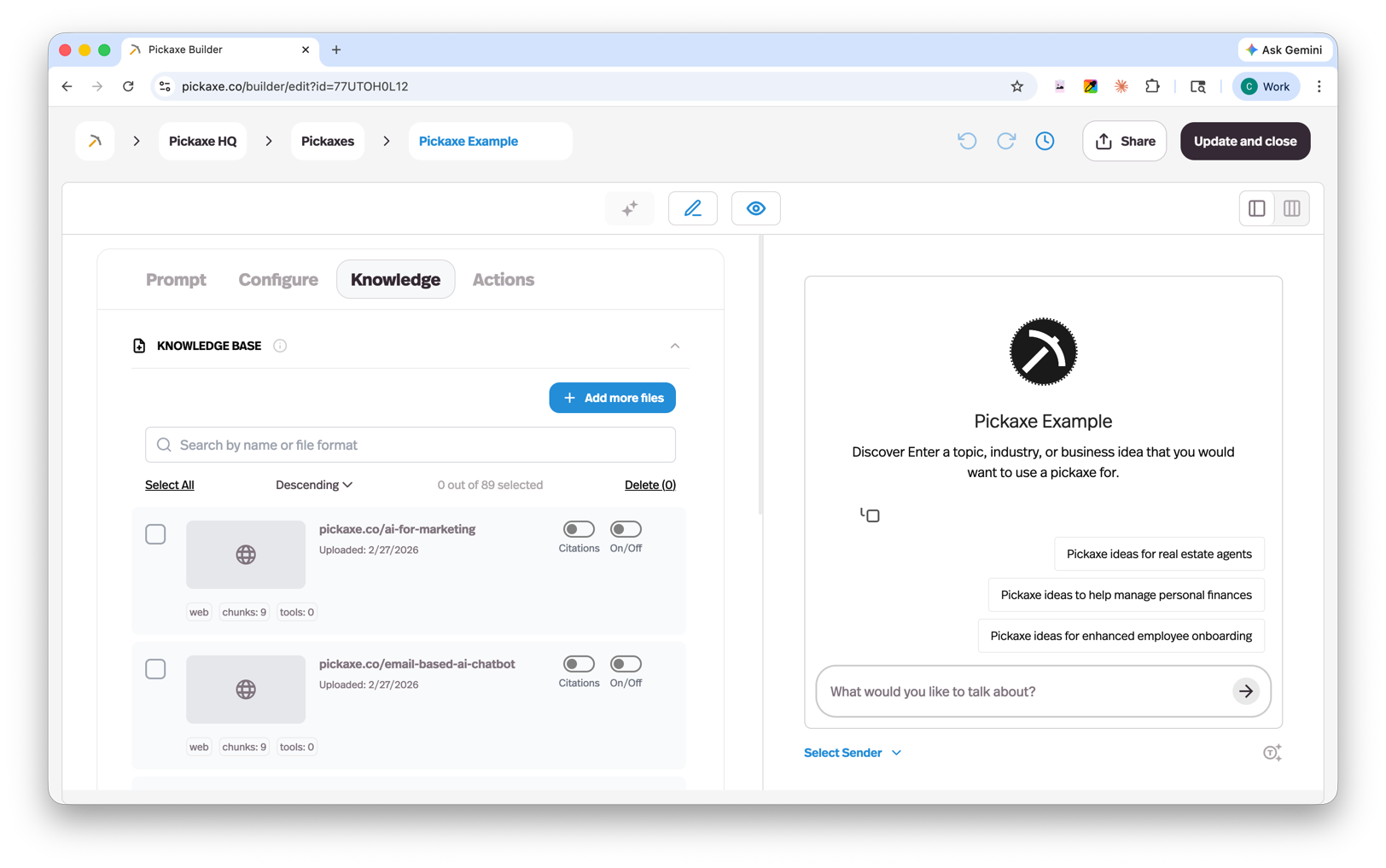
When you click Connect files from inside the Agent Builder, you can pick from anything already uploaded to your workspace and you can add new items on the spot. Each item has an On/Off toggle so you can keep something in your library without forcing the current agent to reference it. This split makes it much easier to maintain a single canonical set of documents and remix them across agents — useful if, say, you are building an FAQ answer bot for your website alongside a separate sales-enablement agent that draws on overlapping material.
Connected apps and supported formats
The Knowledge Base supports a much wider set of inputs than it used to. Today you can pull in content from:
Connected apps (auto-syncs daily)
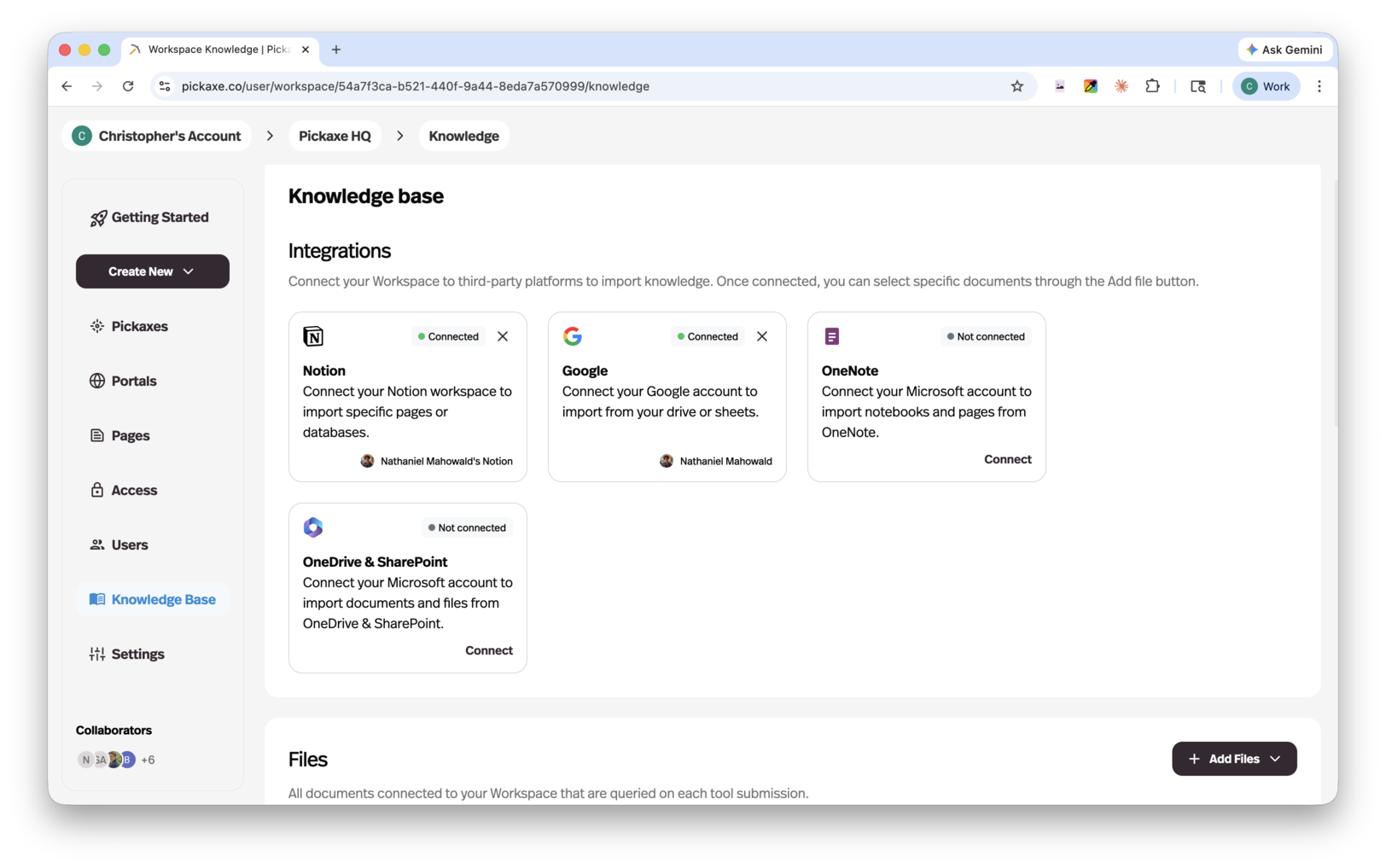
- Notion — connect a workspace and select pages or databases
- OneNote — connect notebooks and sections
- Google Drive — connect Docs, Sheets, Slides, PDFs, and folders
- OneDrive / SharePoint — connect files and folders from Microsoft 365
Connected apps auto-refresh once a day, so when you update a Notion page or a Google Doc, your agent picks up the new version without you having to re-upload anything. This is a huge upgrade over the old workflow, where any edit to a source meant deleting and re-adding the file.
Direct uploads and links
- Web: a URL that gets scraped at the moment it is added
- Text files: pdf, docx, txt, xml, pptx, md
- Audio: mp3 (transcribed automatically)
- Video: mp4 (transcribed automatically)
- YouTube: a single video, a playlist, or an entire channel
- Images: png, jpg, jpeg, webp, gif (processed via OCR)
- Data files: json, csv
- RSS: any feed URL, which keeps refreshing as new items are published
- Plain text: paste content directly with manual entry
For static URLs, keep in mind that the page is scraped at the moment it is added. If the page changes after that, you'll want to remove and re-add it (or use a connected app instead, since those auto-sync). For step-by-step walkthroughs of getting documents in, see how to upload documents into a chatbot on Pickaxe.
How the Knowledge Base accesses information
To make all of this content retrievable, the Knowledge Base breaks each file into chunks, which are the units your agent searches over and pulls into its context. Chunks are created automatically when a file is uploaded. For most file types, chunks land at around 250 words each. Spreadsheets are different — they are chunked by row, so each row (or small group of rows) becomes its own chunk, which can be much larger.
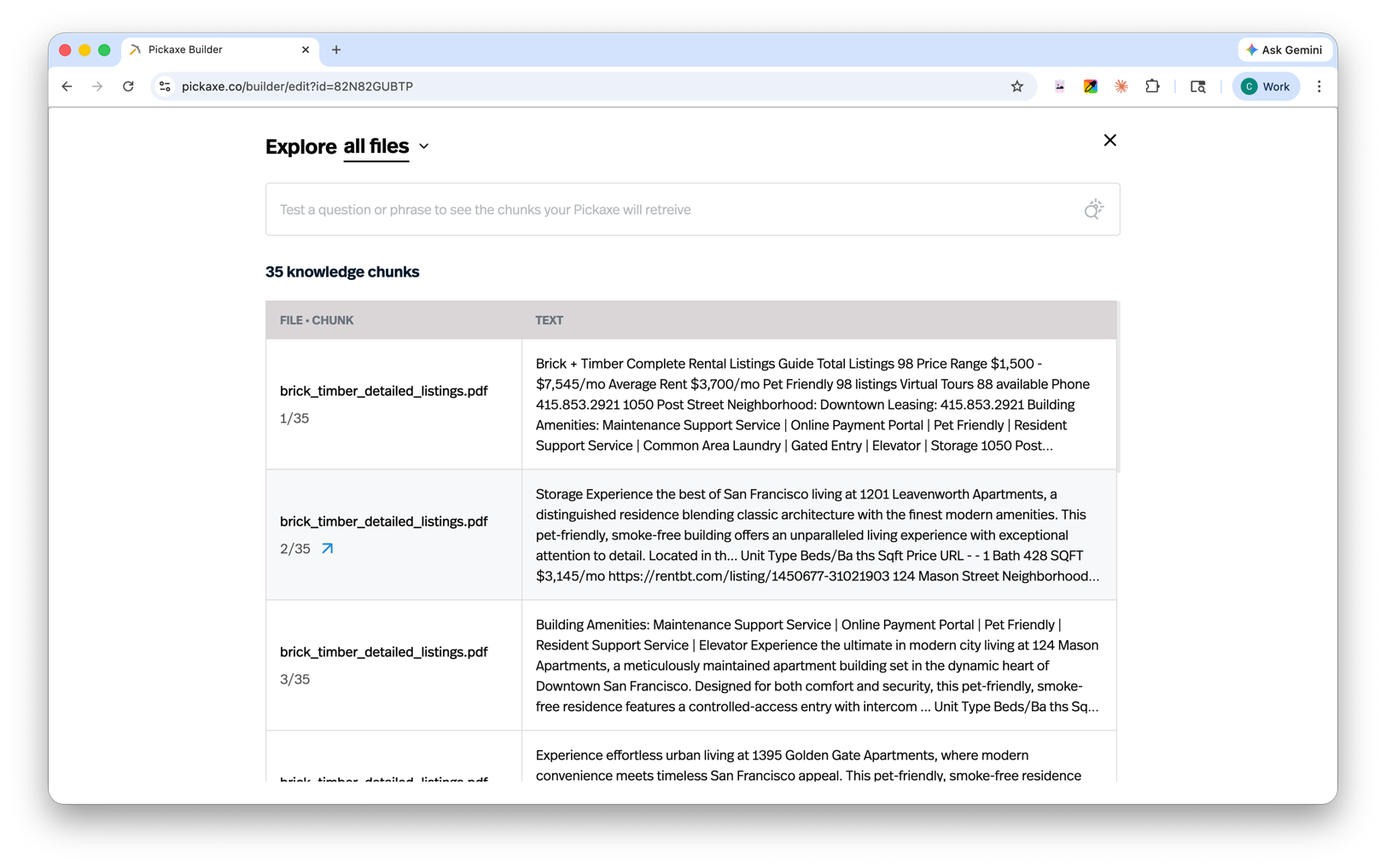
Click any file or webpage in your Knowledge Base to open the Chunk Explorer. This shows exactly how the file has been segmented and lets you test which chunks come back for a given query. You can review chunks one file at a time or select all of them at once for a broader view of how your library actually behaves at retrieval time. Pro accounts can also edit and delete chunks directly, which is the fastest way to fix a stubborn answer that keeps pulling from the wrong section of a document.
There is a second debugging surface that lives inside the agent itself: Message Insights. After your agent responds to a query in the preview pane, look for the small magnifying glass icon below the response (next to the copy button). Click it to see exactly which chunks were retrieved for that message, along with token and Action usage. If your agent is hallucinating or ignoring something obvious, this is the first place to look.
Knowledge Base settings
Three settings determine how aggressively your agent leans on the Knowledge Base:
Relevance Cutoff
When a query comes in, every chunk in your connected sources is scored from 0 to 100 based on how relevant it looks to the question. The Relevance Cutoff is the minimum score a chunk needs to clear to be eligible for retrieval. A high cutoff means only very tightly-matched chunks come through; a low cutoff is permissive and will surface more loosely-related material.
Amount
The Amount sets the upper limit on how many words from the Knowledge Base your agent will pull into context per query. An Amount of 1,000 means up to 1,000 words of chunks (most relevant first) will be included. Only chunks that fully fit inside the Amount get processed, so if you set the Amount low and your chunks are large, you may end up using less than you expect — err on the larger side when in doubt.
Cutoff and Amount work together to pull the smallest set of chunks that satisfy both rules. With a cutoff of 99 and an Amount of 1,000, only the chunks that clear that very high bar get pulled, even if the total ends up well under 1,000 words. With a cutoff of 20 and an Amount of 1,000, retrieval will stop at 1,000 words even if more relevant chunks exist beyond it.
Context
The Context field is a short description of what is in your Knowledge Base and when the agent should reach for it. A sentence or two here helps the model decide whether a question is one it should answer from your sources versus from its general training. Don't skip this — it's some of the highest-leverage text in the whole agent.
Waterfall Allocation: how the token budget gets divided
One thing that often surprises people: the Knowledge Base does not get an unlimited share of your agent's context window. Pickaxe uses a Waterfall Allocation system to split the available tokens between memory features in priority order:
- Memory fills first — your agent's persistent memory of the user gets the first slice.
- End-User Docs come next — anything the end user uploaded to the conversation gets fitted in.
- Knowledge Base gets the remainder — whatever room is left, capped by your Amount setting.
In practice this means a long-running conversation with rich user memory will leave less room for Knowledge Base chunks than a fresh chat. If your agent suddenly seems to "forget" parts of its Knowledge Base after a few turns, this is usually why. Even today's long-context models from Anthropic and OpenAI have hard ceilings, so allocating between competing demands is unavoidable. The fix is usually to tighten your Knowledge Base scope (fewer, more targeted files) rather than to grow the Amount endlessly.
How to optimize your Knowledge Base
With all those settings in hand, how do you actually tune things? It depends on the use case, but here are the moves that consistently help:
- Lean hard on KB for grounded use cases. If your agent should rarely answer outside your sources (FAQ bots, support, internal docs), set the Relevance Cutoff low and the Amount high. Reinforce in the Context field — and if needed, in the Model Reminder — that the agent should reference the Knowledge Base first.
- Prefer text over images. Real text files (docx, txt, md, native pdf) get parsed cleanly. Image files and scanned PDFs go through OCR, which is more error-prone. If you must use images, pick a more intelligent model — OCR quality scales with model intelligence.
- Use connected apps for anything that changes. Notion, Google Drive, OneDrive, and OneNote all auto-sync daily, so you don't have to re-upload files when you make edits. For static reference material, direct uploads are fine.
- Combine smaller files into bigger ones to dodge file-count limits. Free workspaces are capped at 3 files, Gold gets generous limits, and Pro is unlimited — but per-file size limits are roomy, so merging related docs is an easy way to stretch a tier.
- Use spreadsheets when you want larger or more predictable chunks. Spreadsheet chunks are split by row and can run up to ~1,000 words, versus ~250 for text files. If you want full control over chunk boundaries without a Pro plan, structuring your data as a CSV is the simplest path.
- Write to be chunked. Pickaxe aims for 200–300 word chunks on text files. Clean paragraph breaks, descriptive headings, and self-contained sections all make for more useful chunks because each one carries more meaning on its own.
- Use Message Insights as a debugging loop. When something goes wrong, click the magnifying glass to see what was actually retrieved before you start tweaking settings. Most "the KB is broken" issues are really "the wrong chunks won the relevance race," and the fix is editing source content, not the Cutoff.
Spend a little time setting up your Knowledge Base thoughtfully and your agent will start answering with the kind of specificity your users actually want — without the hallucinations that come from leaning on the base model alone.

.png)
.png)