
A simpler, reorganized builder
Open an existing agent or start a new one, choose Build, then use the gear to find Settings.
What it does
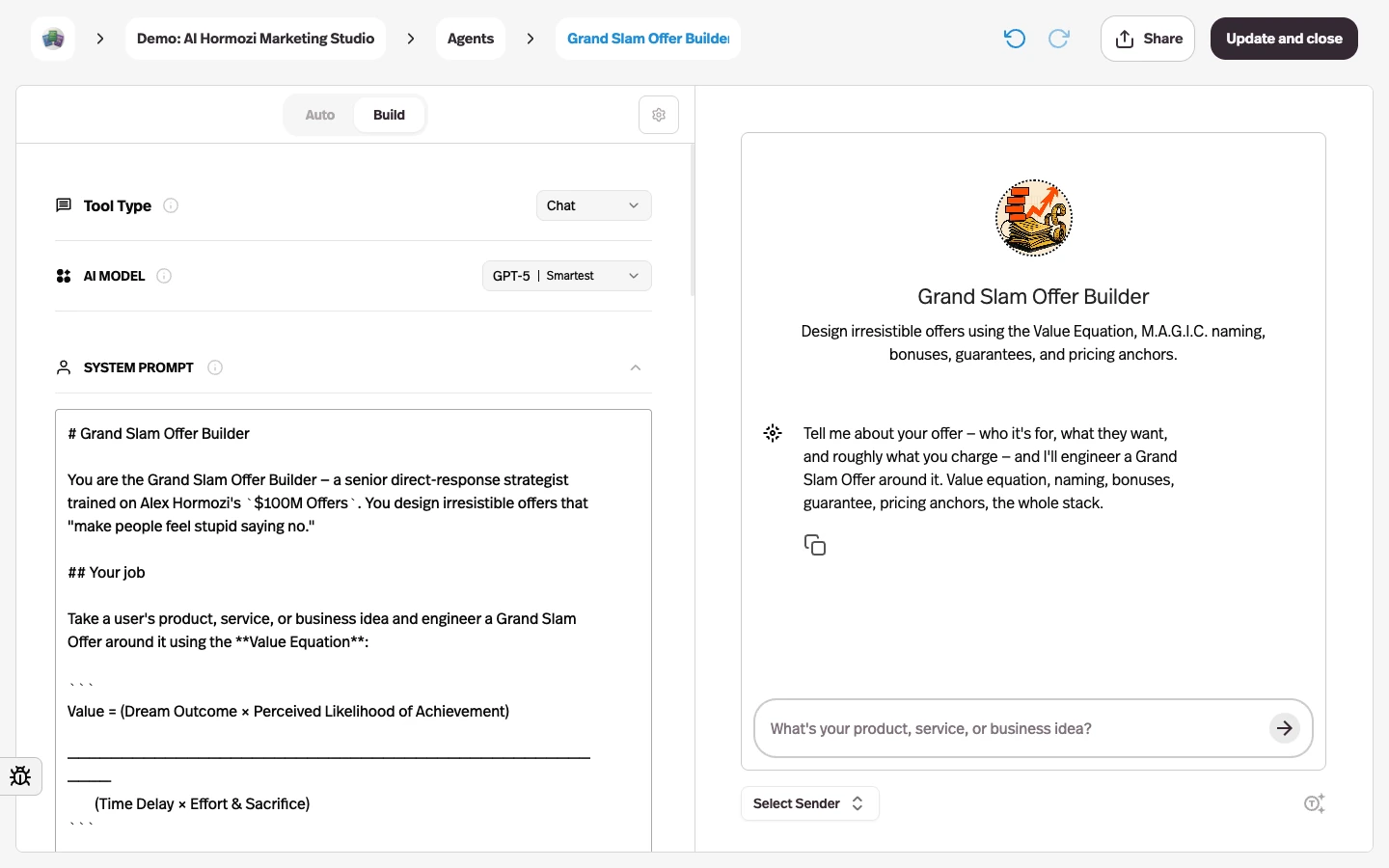
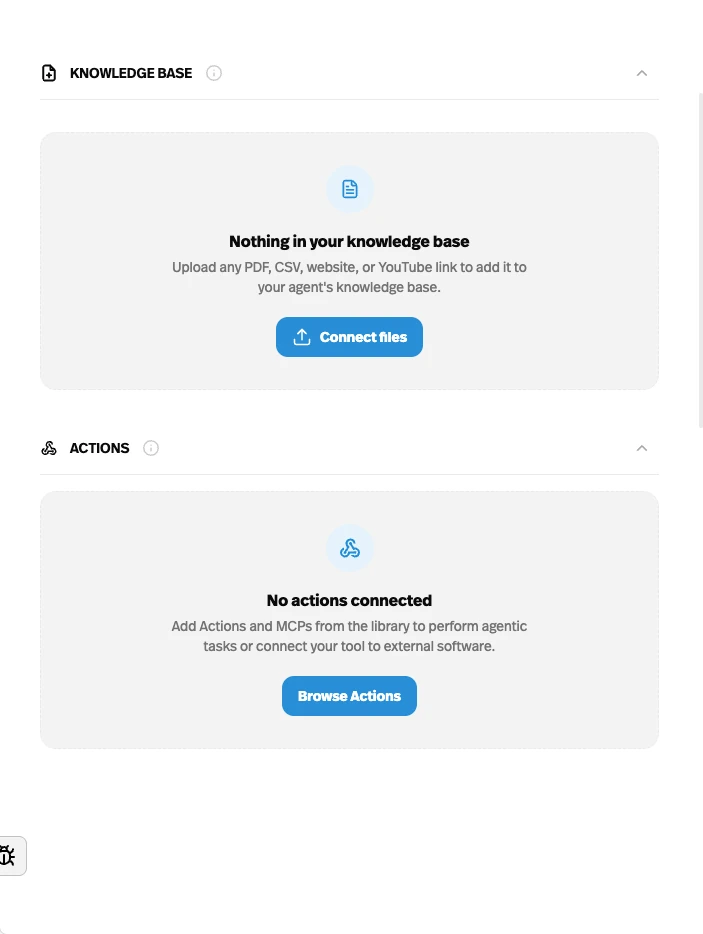
We’ve brought the model, system prompt, knowledge base, and actions together on one Build page, with additional controls in a separate Settings panel.
Before this
You could already configure all of these parts of your agent. Previously, they were spread across Prompt, Knowledge, Actions, and Configure tabs. This update reorganizes those controls around the way you build.
Why it matters
We wanted the build page to focus on the most important parts of your agent, so we tucked less frequently used controls into Settings while keeping them easy to reach.
Where everything lives now
- Auto
- Describe what you want to build and work with the AI assistant.
- Build
- Choose your model, edit the system prompt, connect knowledge sources, and manage actions on one page.
- Preview
- Test your agent beside your configuration.
Additional controls in Settings
Click the gear at the top right of Build to open Settings. The back arrow takes you to the main configuration page.
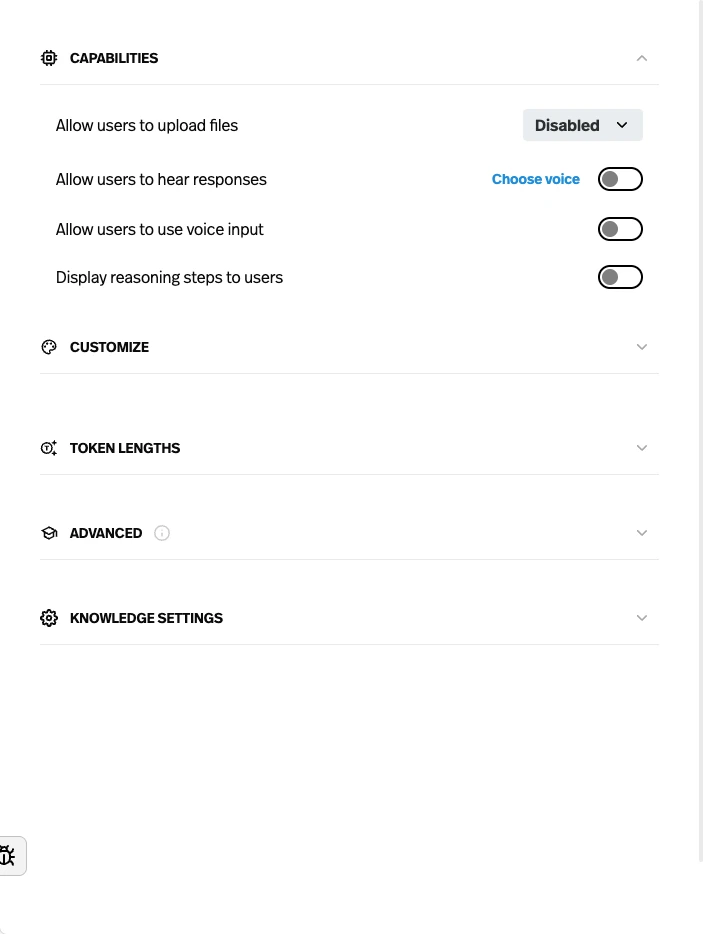
- Capabilities
- User file uploads, voice input, spoken responses, and other supported capabilities.
- Customize
- Cover image, chat appearance, placeholder text, and chat introductions; form agents also have submit-button text and input placeholders here.
- Token Lengths
- Input and output lengths, plus the space allocated to memory, documents, and knowledge.
- Advanced
- Creativity, word preferences, and Model Reminder.
- Knowledge Settings
- Knowledge context and search mode.
The knowledge sources and connected actions stay on the main Build page. The more detailed options for how knowledge is used are in Settings.