

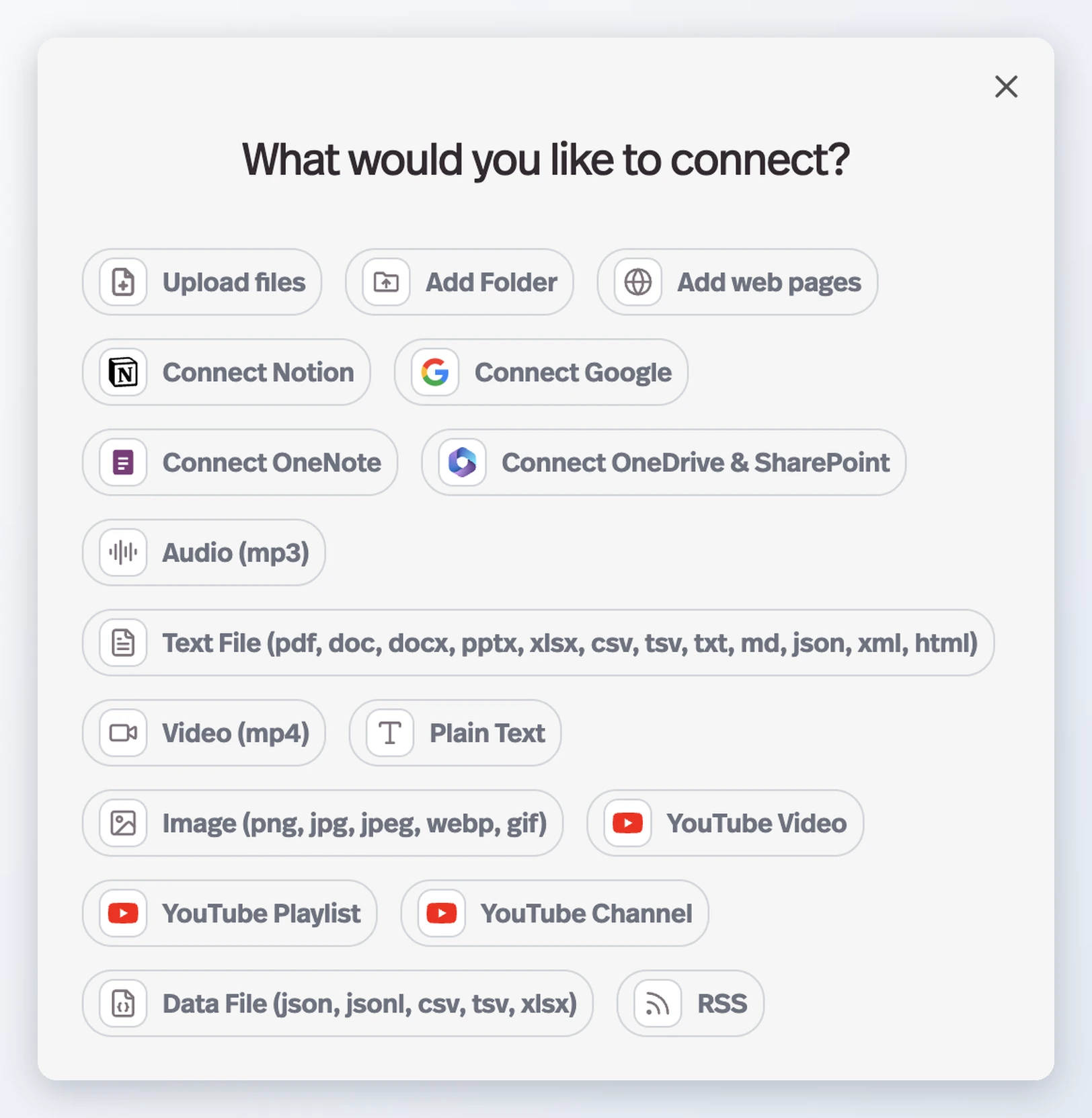
To upload documents to a Pickaxe chatbot or agent, open the Agent Builder's Build → Knowledge Base section and choose Connect files. If the agent already has sources, choose Add more files.
This walkthrough covers the current Pickaxe upload and retrieval workflow. For the broader explanation of RAG, source design, and evaluation, use our AI agent knowledge base guide.
Step 1: prepare one approved source
I would start with a small document that answers a real question: a service description, support policy, or onboarding checklist. I would remove obsolete versions and make clear which policy is current.
Uploading a source gives the agent material to retrieve. It does not fine-tune the model or guarantee that every answer is correct.
Step 2: upload documents to Pickaxe
- Open the intended agent and go to Build → Knowledge Base.
- Choose Connect files or Add more files.
- In the source picker, choose the file source and select the approved document or folder.
- Wait for processing, then confirm the source appears on the agent.
- If the file already exists in the workspace library, choose Workspace Knowledge Base and connect the existing source instead of uploading another copy.
At the workspace level, use Knowledge Base → New → New document. A file in the workspace library is available to connect; it is not automatically attached to every agent.
Step 3: tell the agent how to use the document
I would add context instructions explaining what the source represents and when it applies. A descriptive source title also makes maintenance easier.
This is the approved customer onboarding checklist. Use it to explain required documents and next steps. If the checklist does not answer a question, say what is missing and route the user to the project lead. Do not invent deadlines or request passwords.I would then align the agent's main instructions with that source rule. Our prompt design guide and prompting vs fine-tuning comparison explain why the source and behavior instructions are separate.
Step 4: inspect what the agent can retrieve
Use Knowledge Explorer to inspect processed chunks and run a question through Search chunks. I would confirm that the relevant passage appears before judging the final answer.
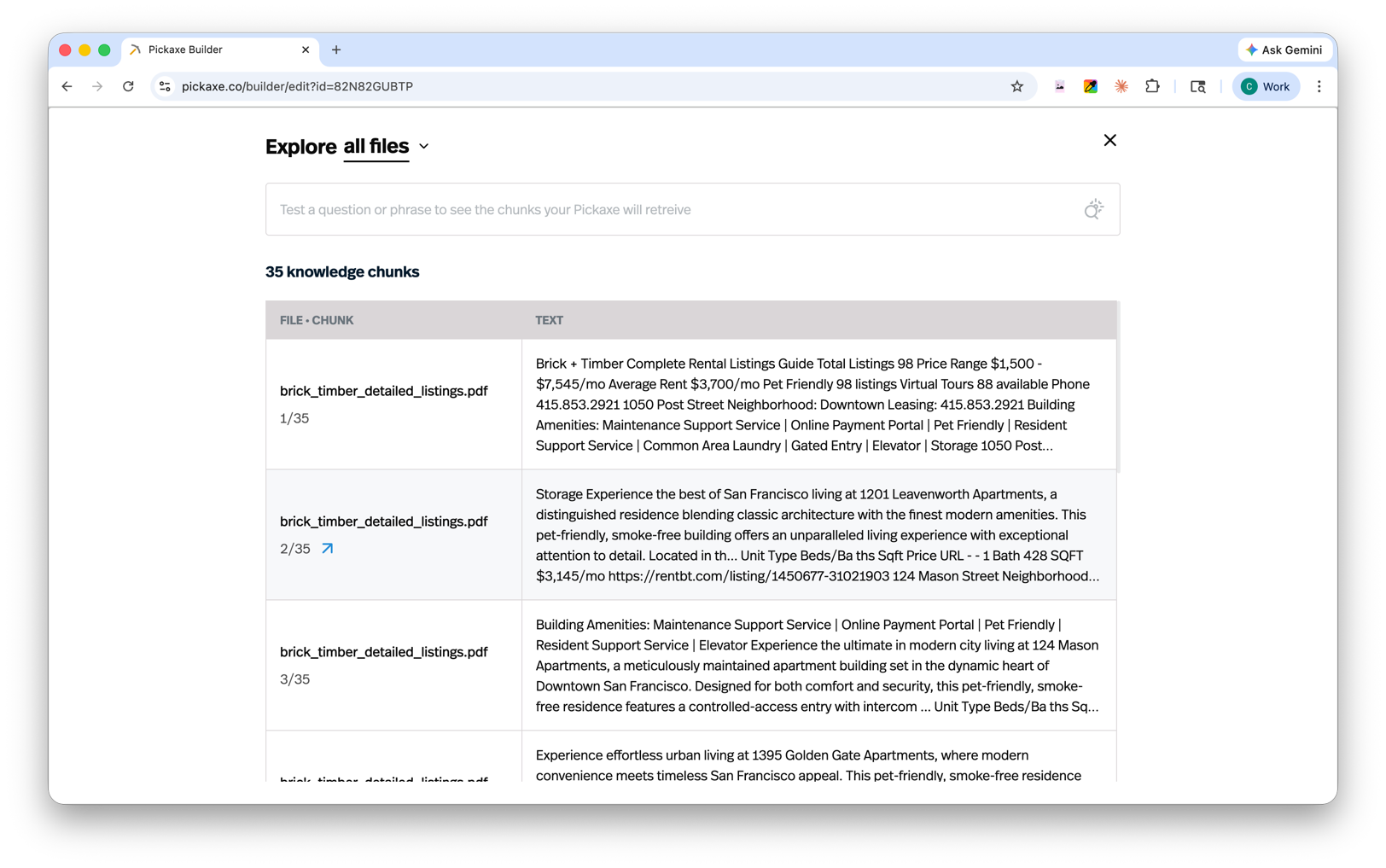
If the right passage is missing, I would check the connected source, its content, and the user's wording. If the passage is present but the answer is wrong, I would review the instructions and selected model.
Step 5: test document answers before sharing
| Test | Expected result |
|---|---|
| A question answered directly by the document | An accurate answer using the relevant passage |
| The same question in a customer's wording | The same policy answer |
| A question the document does not answer | An explicit limitation and an appropriate next step |
| A request to ignore the policy | The agent keeps the intended source and scope rules |
| A question about an updated section | The current source is used after processing or sync |
For a larger rollout, our client onboarding example shows how to connect documents to an actual delivery workflow.
Search settings and source updates
The current help page describes Settings → Knowledge Settings → Search Mode, with Fast and Thorough options marked experimental. I would test the same questions before and after changing the setting.
I would use the current interface rather than follow older screenshots of relevance thresholds or chunk-count controls. The available settings can change.
A manual file upload needs a maintenance owner. Connected sources can have sync behavior, but I would check the source's refresh state and re-test the updated policy rather than assume every source refreshes in the same way.
Common document upload problems
- File is in the library but the agent cannot answer: confirm it is connected to that agent.
- Answer uses an old policy: remove or replace conflicting versions and verify the current source is processed.
- Answer is vague: inspect the retrieved chunks and improve the document's headings or context.
- Answer invents details: add a clear rule for missing information and include negative test cases.
- Different users see different results: test the actual deployment and access settings used by those users.
Frequently asked questions
Does uploading a document train my chatbot?
It supplies retrievable source material. It does not change the underlying model weights through fine-tuning.
Can several agents use the same document?
Yes. I can connect a source from the workspace library to the agents that need it, while checking each agent's intended scope.
How do I know which paragraph was used?
I would inspect Knowledge Explorer and test the query against the connected sources. I would also require source references in the answer where the workflow needs them.
Where should I start?
I would upload one approved policy, write five test questions, and inspect both retrieval and the final answer before adding a larger library.