
Lock individual tools and folders
Choose the workspace you want to configure, then follow the steps below.
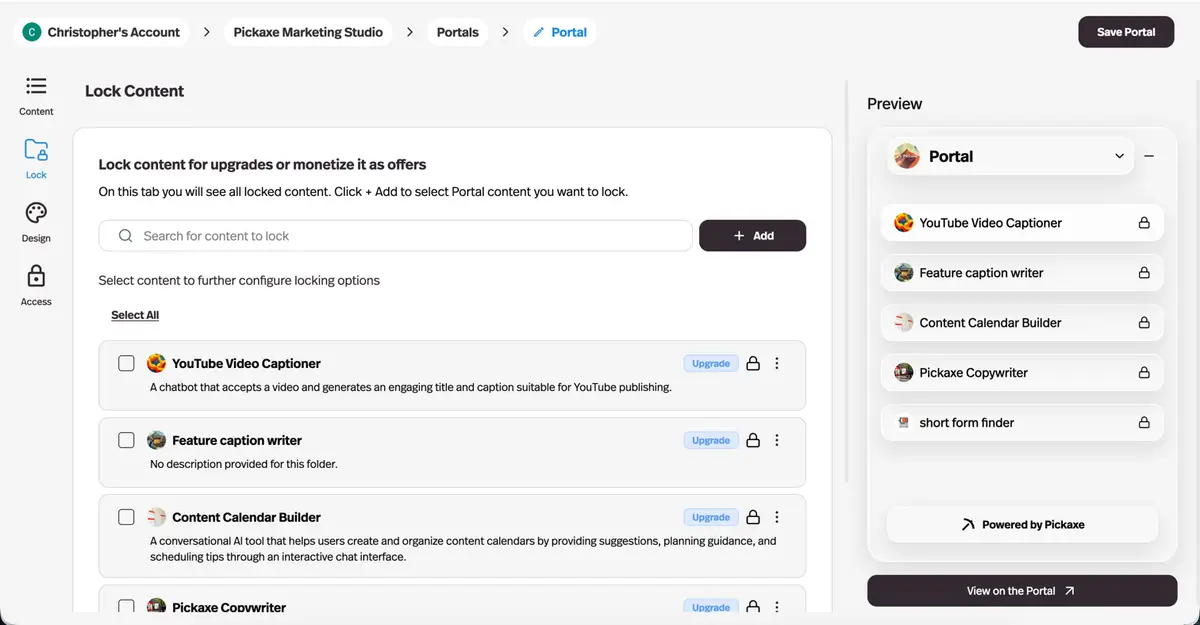
What it does
Lock a single agent and sell access to just that, or lock a whole folder and sell the bundle. Locked content stays visible as a preview with an upgrade or unlock offer attached.
Before this
An expansion. A portal could be locked as a whole. The agents, pages, and folders inside it could not, so selling access to one specific thing meant building a portal around it first.
Why it matters
You can monetise a portal without restructuring it — and test whether people will pay for one specific thing before rebuilding your pricing around it.
How it works
Locking happens in a portal's Lock tab. You can lock a single agent or page, or put several into a folder and lock the folder to sell the bundle.
- Lock as upgrade preview
- The content stays visible but gated until the user upgrades. Needs a portal version where the content is unlocked, connected to the access group listed as the upgrade.
- Lock as offer
- Sells one-off access to that content. You configure how the offer appears, what it costs, and how many extra credits it comes with, and you can see and manually add the users who hold it.
The point is that neither one requires restructuring your portal. Testing whether people will pay for one specific agent used to mean building a separate portal and access group for it first — which is enough work that most people never ran the test.