
Generative AI is one of the fastest ways to make your website smarter. That means turning static content like webpages, PDFs, or videos into dynamic conversations that can answer real questions in real time. Embedding a custom AI agent into a website is one of the most common use cases we see on Pickaxe, and FAQ agents (agents trained to answer reliably on a specific body of knowledge) are at the top of the list.
Today we're going to show you how to build a reliable, accurate FAQ agent for your website or business in 2026. The workflow has gotten dramatically easier over the last year, but the fundamentals still come down to a few simple steps:
- Writing a strong prompt
- Loading a curated Knowledge Base
- Maintaining a Known Answer Directory
- Wiring up Actions for advanced workflows
This is the same strategy we used to build the Pickaxe Doorman, the friendly greeter on pickaxe.co that answers hundreds of visitor questions every day. We also walk through the approach in our video tutorial on building FAQ bots. Let's break it down.
Why Add an FAQ Agent to your Website?
Before you build, it's worth asking why an FAQ agent is worth the effort. The short answer: it scales high-quality customer support to every visitor at once. If you run any kind of high-volume business, you probably end up answering the same handful of questions over and over (and over).
The classic fix is a static FAQ page. But customers still email you the same questions, because static content feels impersonal. People want to feel like their unique question is being answered specifically for them — that's just human nature.
A well-trained FAQ agent gives them exactly that. It pulls from your real documentation, speaks in your brand's voice, and is available 24/7. Once you embed it on your website, you'll be surprised how many visitors take it for a spin — and how much support time you reclaim.
Step 1: Writing the Prompt
Every agent starts with a prompt. The prompt is a set of instructions describing who the agent is, what it knows, and how it should behave. You'll write this in the Prompt tab of the Agent Builder inside your Pickaxe Portal.
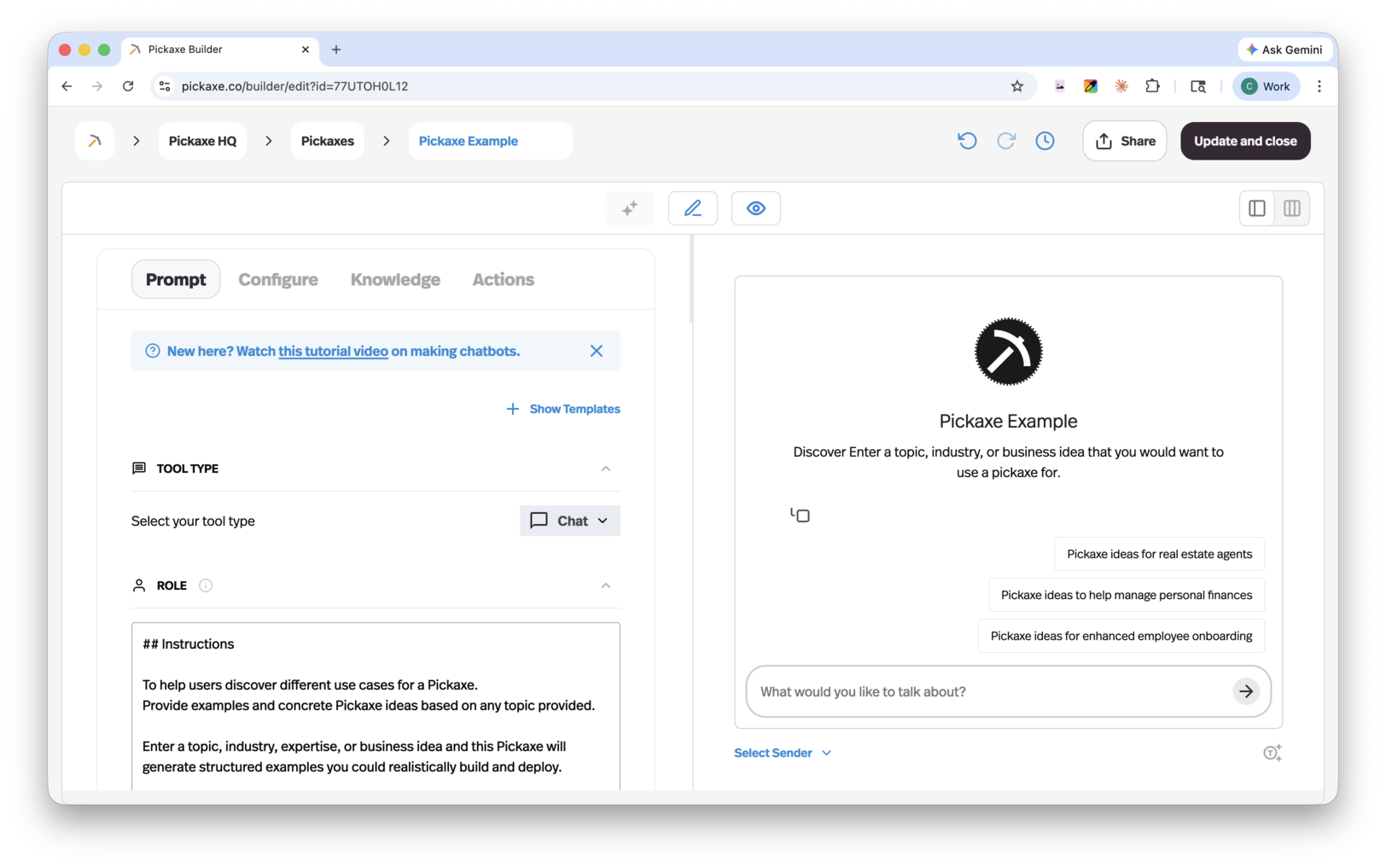
Here's a simple starting template you can adapt for almost any FAQ agent:
You are the friendly support agent for [Company Name].
Your job is to answer visitor questions about our product, pricing,
and policies using only the information in your Knowledge Base.

Rules:
- Always answer in a warm, helpful, on-brand tone.
- If a question is covered in the Knowledge Base, answer it
  directly and cite the relevant page or doc when useful.
- If you don't know the answer, say so clearly and offer to
  connect the visitor with a human teammate.
- Never invent product features, prices, or policies.
- When relevant, link to one of our approved URLs:
   * Pricing: https://example.com/pricing
   * Docs: https://example.com/docs
   * Contact: https://example.com/contact

Keep answers short (2-4 sentences) unless the user asks for detail.
Once you have a baseline prompt, start testing it and add rules as you go. You might add a section like "Approved URLs to share" so the agent never invents links, or a "Tone guide" with examples of how you want answers phrased. The art of prompt engineering is just describing exactly what you want in plain language — for a deeper dive, see anatomy of a good prompt.
Step 2: Adding a Knowledge Base of documents & webpages
A Knowledge Base is a curated repository of information about your business that your agent can reference at runtime. Anything that describes your product, services, or policies belongs here. For the Pickaxe Doorman, we included:
- Blog posts
- Hand-picked community forum threads
- YouTube tutorial videos
- Marketing and informational pages
- Product docs
High-quality source material is the single biggest lever for FAQ agent accuracy. Garbage in, garbage out — but curated knowledge in means precise, on-brand answers out.
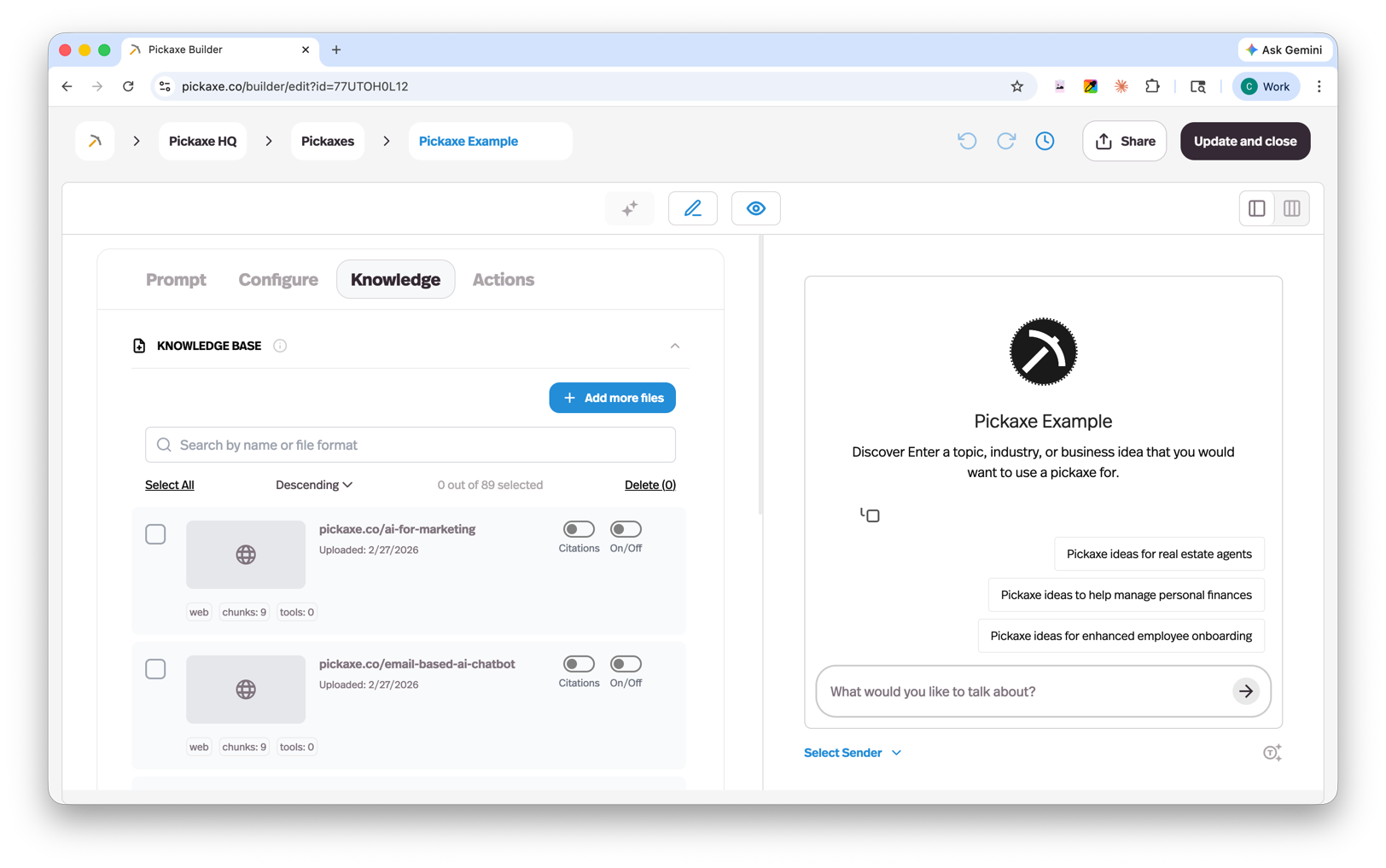
Pickaxe gives you two layers of knowledge to work with:
- Workspace Knowledge Base — a shared library available to every agent in your workspace. Great for evergreen content that multiple agents need (brand guidelines, core product docs, pricing).
- Agent-level Knowledge tab — knowledge attached to one specific agent. Use this for material that only this FAQ agent should reference.
You can mix and match. The Doorman, for example, pulls from the workspace KB plus a handful of agent-specific docs that only it needs.
Connect your existing tools
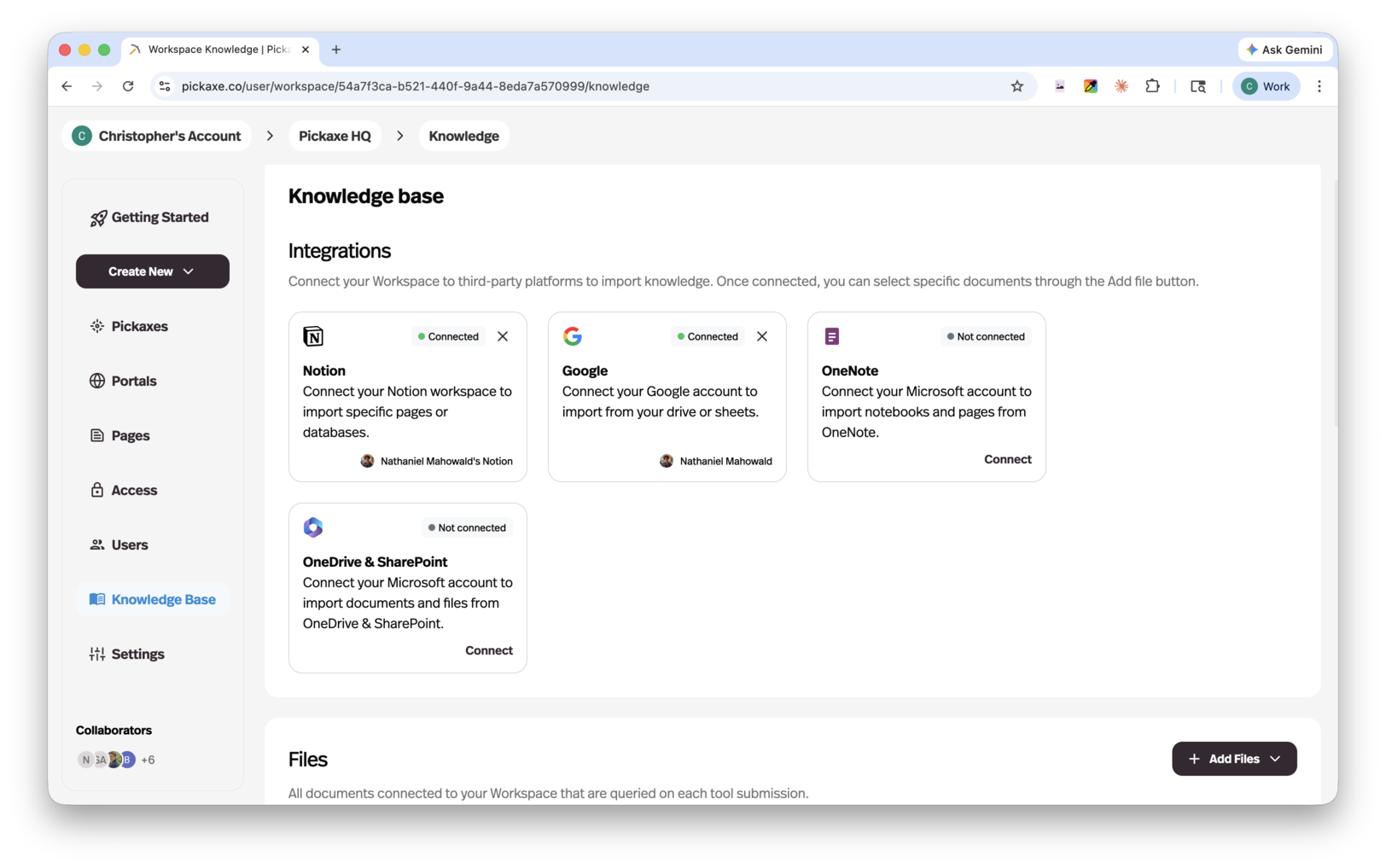
The biggest upgrade to the Knowledge Base over the last year is connected apps. Instead of manually uploading files, you can connect:
- Notion
- OneNote
- Google Drive
- OneDrive / SharePoint
Once connected, Pickaxe auto-syncs your sources daily — no manual refresh button to remember. Update a Notion doc in the morning, and your FAQ agent reflects the change by the next day.
Upload anything else
Beyond connected apps, the Knowledge Base supports a wide range of formats:
- PDFs and Word/Google Docs
- MP3 and MP4 audio/video (transcribed automatically)
- YouTube videos (transcript pulled automatically)
- URLs and full sitemaps
- RSS feeds
- JSON and CSV data
- Images
When you paste a URL, Pickaxe will offer to crawl child pages so you can scope to just the section you want. For the Doorman, I didn't want to ingest our entire community forum — too much unverified content. Instead I pointed it at the How To Guides section, where only approved authors post, and selected just the threads I wanted.
Inspect what your agent actually sees
Two newer features make tuning the Knowledge Base much easier:
- Chunk Explorer — open any source and see exactly how it was chunked for retrieval. If a chunk looks weirdly split, you can fix the source.
- Message Insights — for any answer the agent gives, see which specific chunks it pulled to generate the response. This is gold for debugging "why did it say that?"
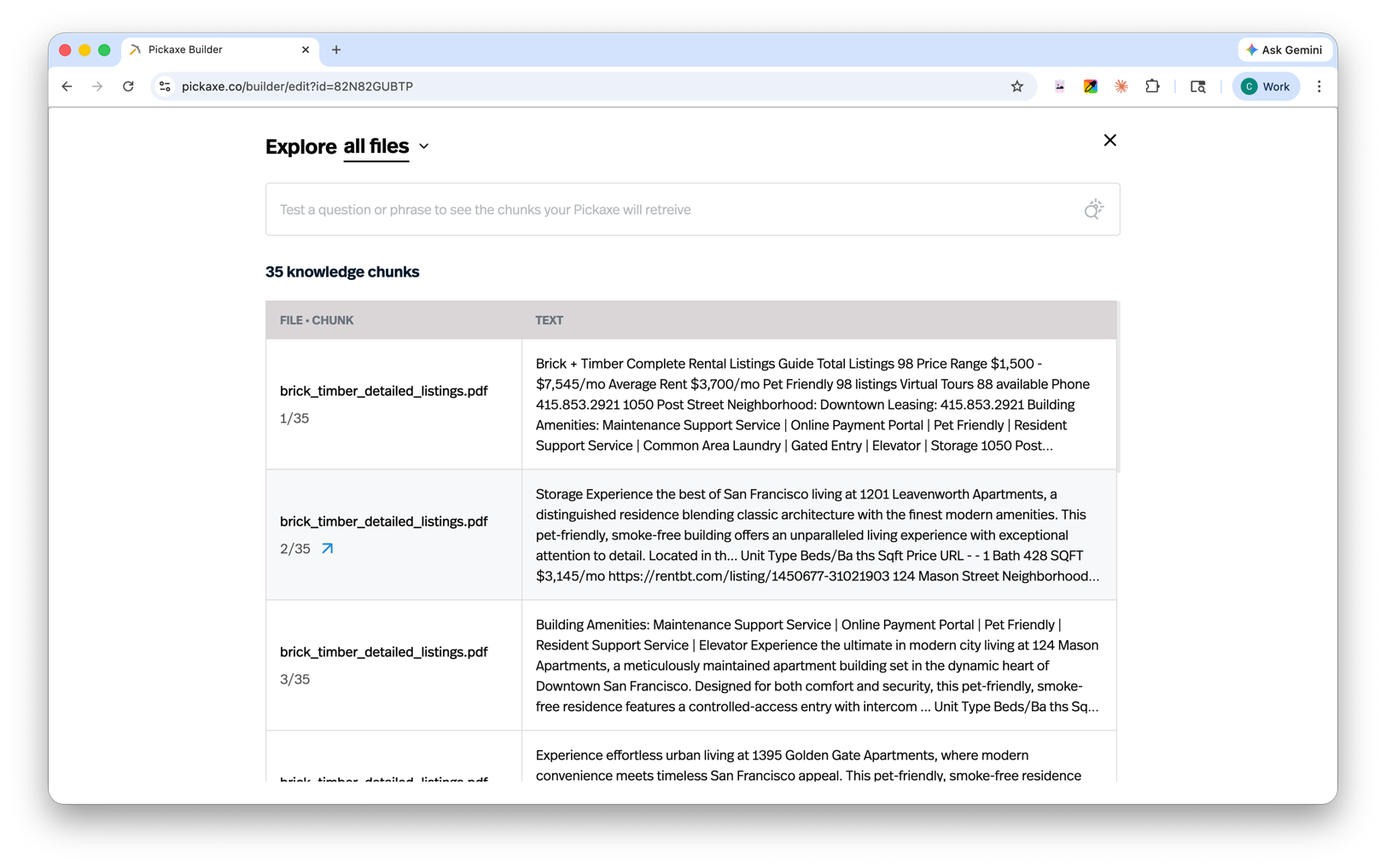
For a deeper tour, see how to get the most out of the Pickaxe Knowledge Base.
Step 3: Build a Known Answer Directory
A solid prompt plus a curated Knowledge Base will get you 80% of the way there. Your FAQ agent will handle expected questions confidently. So how do you push it from "good" to "reliably great" — especially for tricky or unusual questions?
By curating a Known Answer Directory.
It's exactly what it sounds like: a running document of question / answer pairs that you've personally verified. You add it to the Knowledge Base, and the agent treats your curated answers as authoritative.
There's no trick to building one. Open your agent's chat logs (Pickaxe stores all conversations), find the questions that were answered poorly or incorrectly, and write your own version of the right answer. Save the question and your answer to a doc.
At first the doc may have only three or four pairs. Within a few weeks, you'll have a powerful reference document that closes most of your agent's blind spots. Once it's in the Knowledge Base, the agent will start handling those questions — and their variations — correctly going forward.
Many of the trickiest visitor questions on the Doorman were solved this way, not by tweaking the prompt.
Step 4: Adding Actions (advanced)
At this point, you have a powerful FAQ agent with a feedback loop for continuous improvement. For many users, that's the finish line. But if you want your agent to do things — not just answer — you'll head to the Actions tab.
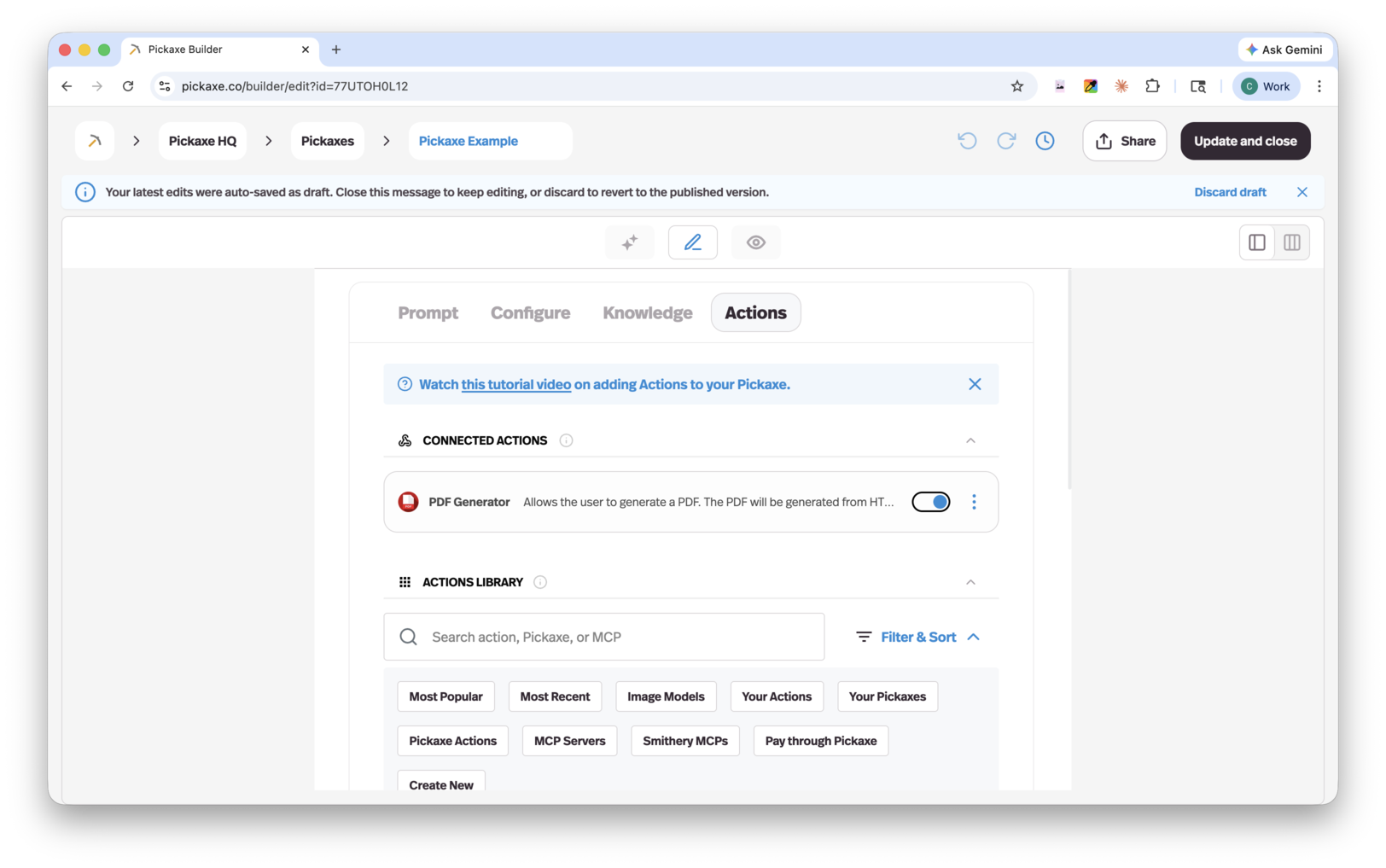
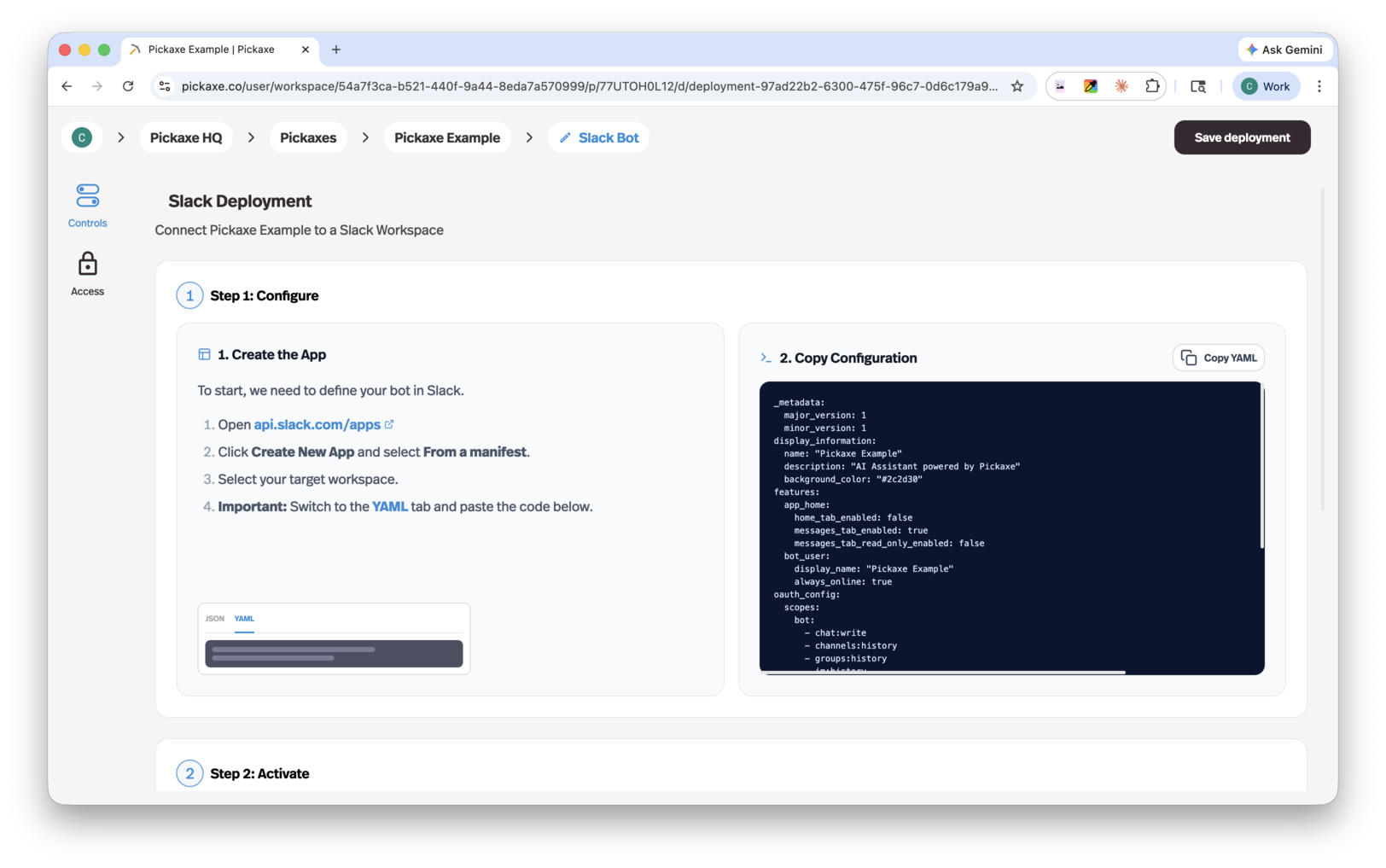
If you want users to reach a human teammate, you can also deploy your FAQ agent as a Slack bot directly — that way questions land in your team's existing Slack workspace.
Pickaxe ships with an Action Library full of pre-built integrations: Slack, Gmail, Zapier, webhooks, email send, and more. You can connect them in a couple of clicks and define when each one should fire.
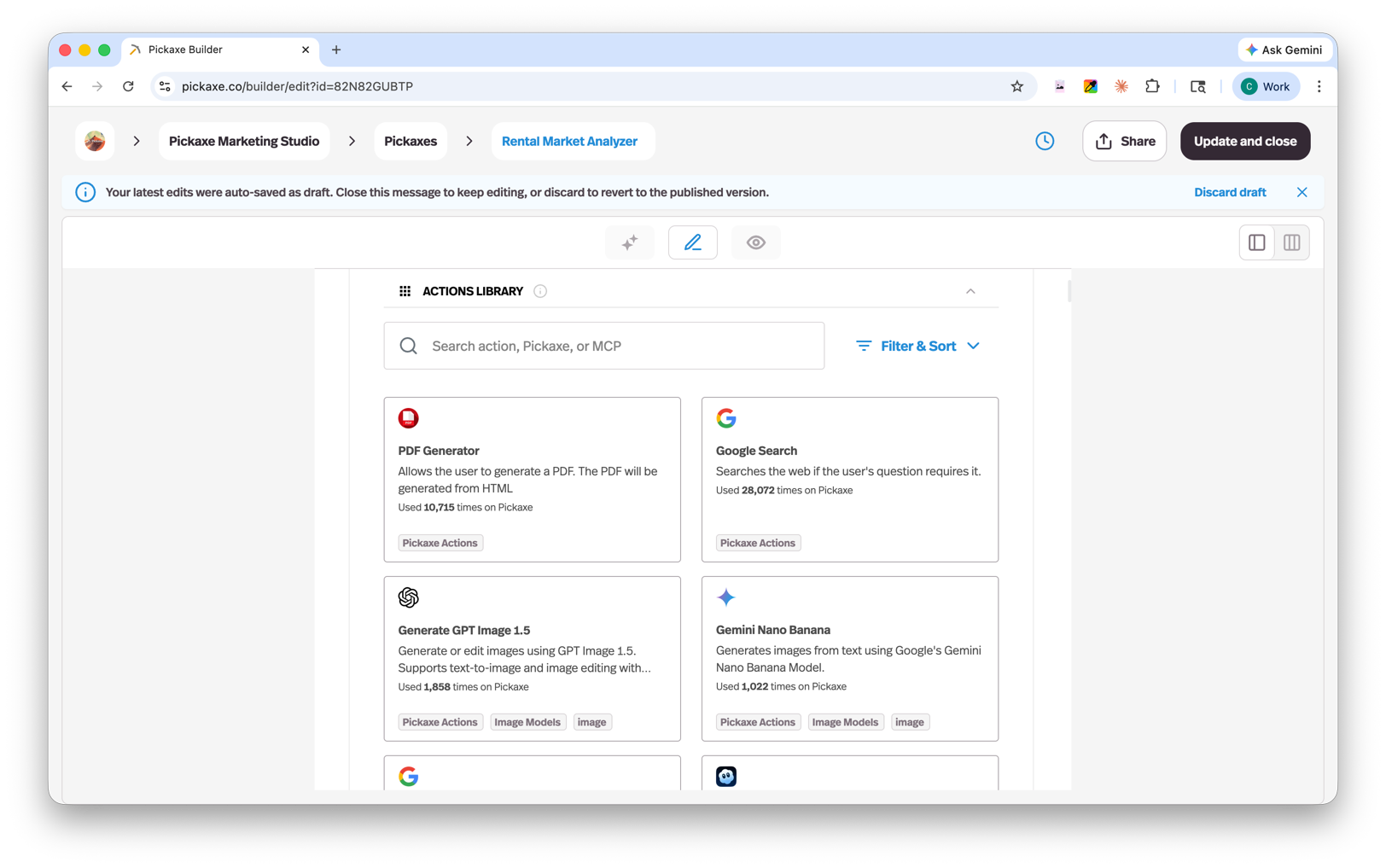
Let's take a common example: notifying your team in Slack when a visitor needs human help.
- Open the Actions tab in the Agent Builder
- Click Add Action and pick Slack from the Action Library
- Connect your Slack workspace and choose the destination channel
- Write a clear Trigger prompt (when should this action fire?)
- Write a clear Role prompt (what should the action do, and how?)
Both prompts matter. The Trigger prompt is the agent's instruction for when to act — for example: "Send a Slack message whenever the visitor explicitly asks to talk to a human, expresses frustration, or asks a question that isn't covered in the Knowledge Base." The Role prompt is the instruction for how to act — for example: "Summarize the conversation in 2-3 sentences and include the visitor's email if they shared it." Be specific in both for reliable triggering.
A few tips from production:
- Cap actions at four per agent. More than that and trigger reliability drops fast.
- If you genuinely need more, use the Waterfall setup and chain agents — one specialist agent per cluster of actions.
- Test trigger prompts in the playground with edge cases. "What if the user never says 'human' but is clearly frustrated?" — write that case into the prompt.
Embed your FAQ Agent into a Website
Once your agent is dialed in, deploy it. Pickaxe makes it easy to embed an AI chatbot on any website with no code.
From the Agent Builder, click Deploy, then Embed. You'll land on a customization screen where you can tune the colors, sizing, fonts, avatar, greeting, and placeholder text to match your brand.
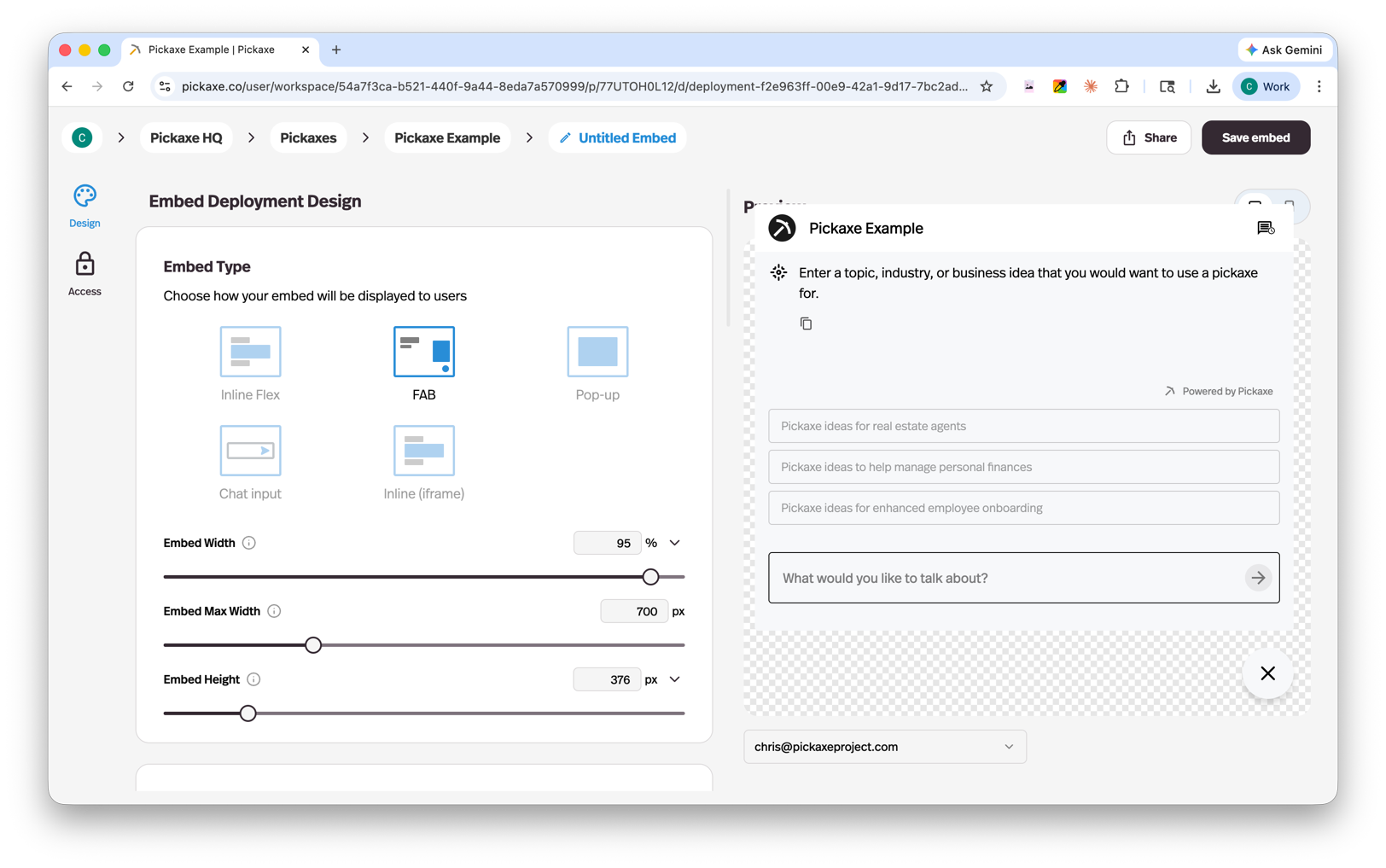
When you're happy with it, copy the iFrame snippet and paste it into your site's HTML. If you want more control, the JavaScript embed gives you finer-grained options — including launching the agent as a chat bubble, a full-page experience, or an inline widget.
Embedding is one of the most popular ways teams ship Pickaxe agents into production, and it's the same path the Pickaxe Doorman runs on.
Get Started Building Today
FAQ agents are one of the highest-leverage AI projects you can ship for your business. Get the prompt right, curate a strong Knowledge Base, maintain a Known Answer Directory, and add a couple of well-scoped Actions — and you have a 24/7 support teammate that scales with your traffic.
If you want a broader walkthrough of the platform, check out the Pickaxe user manual. If you have questions, join the community discussion about FAQ agents.
Ready to build? Head to pickaxe.co, open the Portal, and create your first agent. Write your prompt, connect your Knowledge Base, and start iterating.