

Implementing AI tools into a newly built website
Artificial intelligence (AI) has grown into an important tool for many companies, but there's still a lot to learn about it and how it might benefit you or your business.
Your website serves as a digital first impression. If you don't have the right tools, your website may leave the wrong first impression, which could cost your organization important business.
The newest AI technologies can take your website to the next level, allowing your customers to have a better experience. If you used a no-code website builder like Webflow or Squarespace to make your site, it's pretty easy to add AI tools into it. Pickaxe, a popular solution for creating AI tools to embed into websites, offers an easy no-code solution to quickly add AI tools to any website.
In this walkthrough, we'll talk about how you can use AI to your advantage by embedding your newly built AI tools on your website, depending on the website builder you've used. We'll cover how to embed AI tools into your website using 5 different popular website builders.
Table of Contents
1. Notion
2. Webflow
3. Wix
4. Wordpress
5. Squarespace
Let's get started!
How to Embed AI Tools on Notion
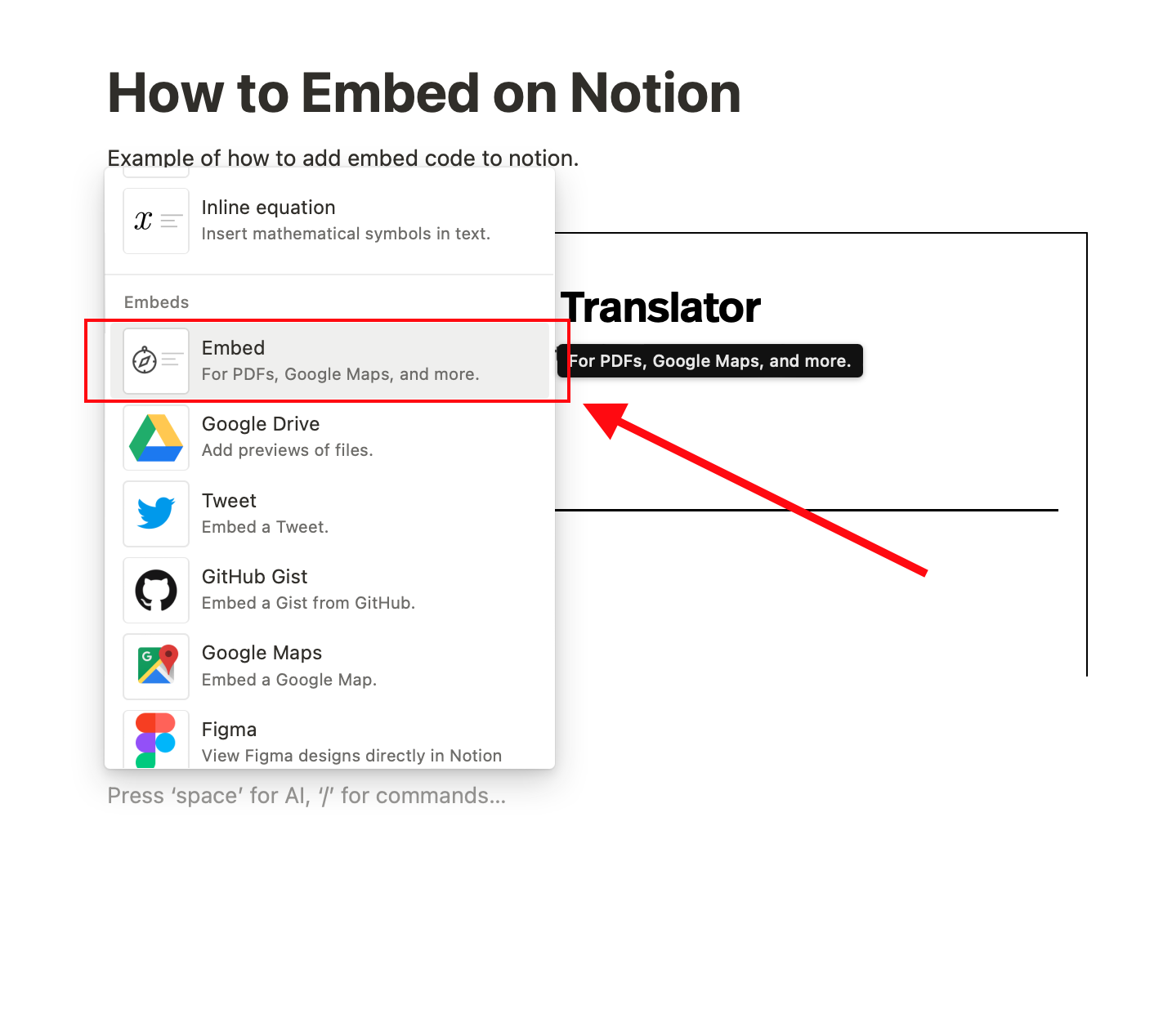
You can embed your AI tools into Notion with ease. Just add a new block by clicking the “+” button. Scroll down to the “Embed” option. Click it and paste it into your Pickaxe’s embed link!
Step 1
Click the + that appears to the left when you hover over a new line. Choose Embed or one of the common embed types listed above. Press enter.
Step 2
You can also type /embed or / followed by the name of the service (i.e. /codepen), then press enter.
Step 3
In the menu that appears, paste your embed link
How to embed AI Tools on Webflow
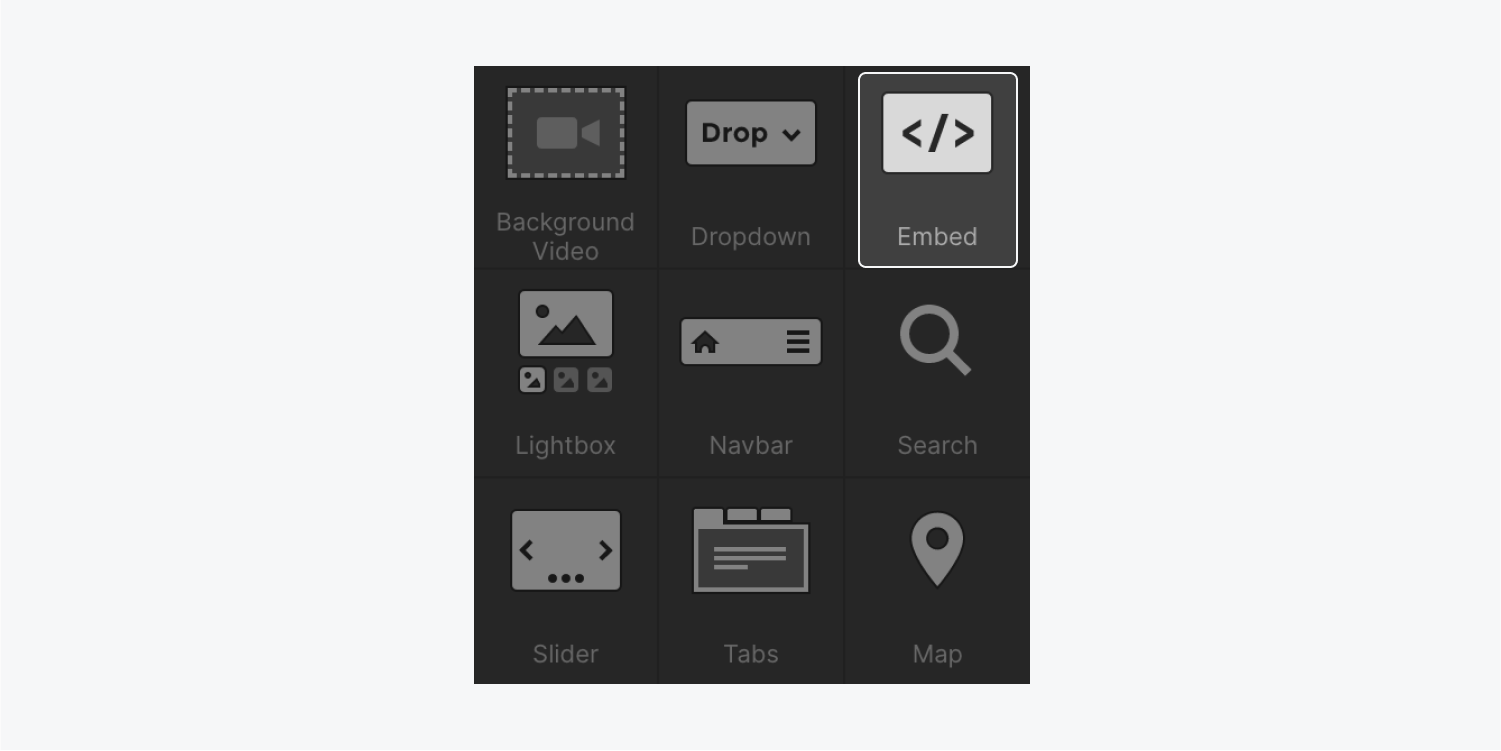
You can just as easily put AI tools into your Webflow site. Adding an "embed element" on the add panel and putting the embed link into the box is all that's needed.
Step 1
Copy the code from your Pickaxe that you’d like to embed
Step 2
Open the Add Panel and add an Embed element by dragging and dropping it onto your website
Step 3
Paste the code that you’ve copied into the editor
Step 4
Save and close the button
How to embed AI Tools on Wix
If you made your website with Wix, you can add apps to it to make it even better. Here's how you can embed Pickaxes and other AI tools into your Wix site to make it even better.
Step 1
Click Add Elements "+" in your Wix's editor
Step 2
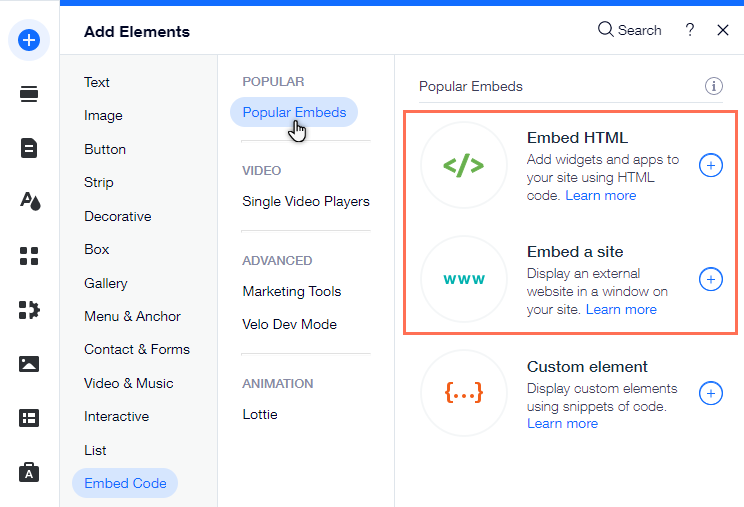
Click Embed Code then Popular Embeds.
Step 3
Under Popular Embeds, click Embed HTML to add it onto your site
Once you’ve added your embed, it’s time to implement your Pickaxe to your site.
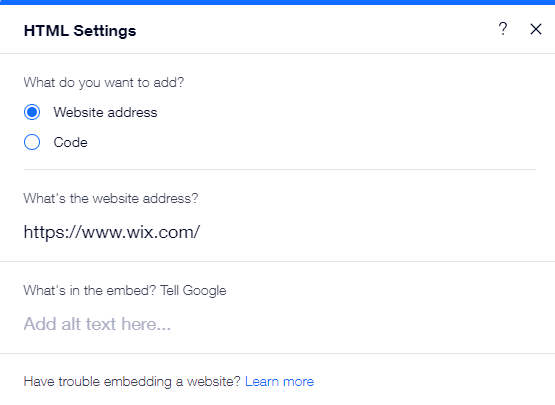
- Click the embed in your Editor and select HTML
- Check off Code
- Click Enter Code and paste your Pickaxe code under Add your code here.
- Click Apply to save your code
How to embed AI Tools on Wix
Follow these steps to add the code from your Pickaxe to your Wordpress site. Make sure your site can use plugins before you do this:
Step 1
To add a Custom HTML block, click on the + Block Inserter icon and search for it, or type /html on a new line and hit enter. You can also type /html on a new line and press enter to quickly add a new Custom HTML block.
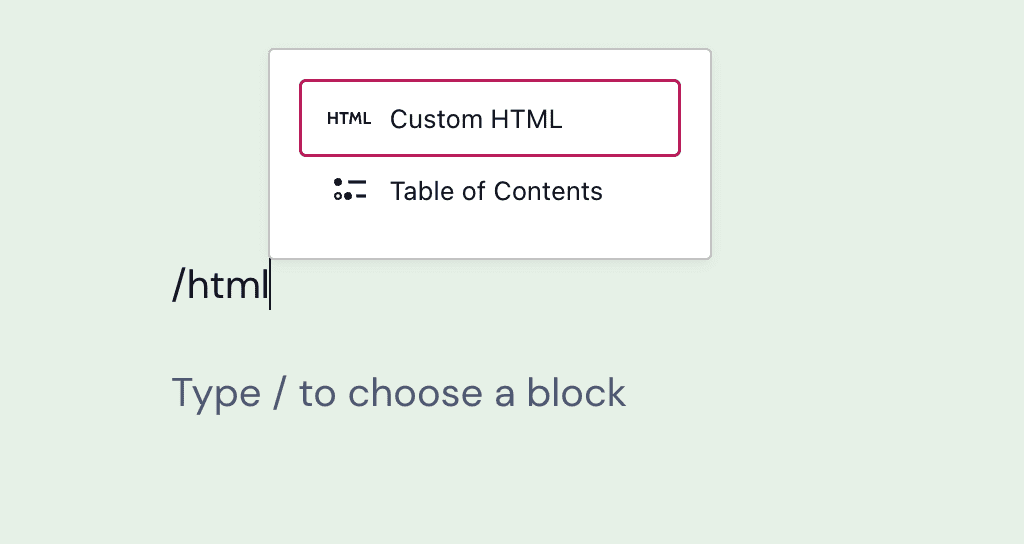
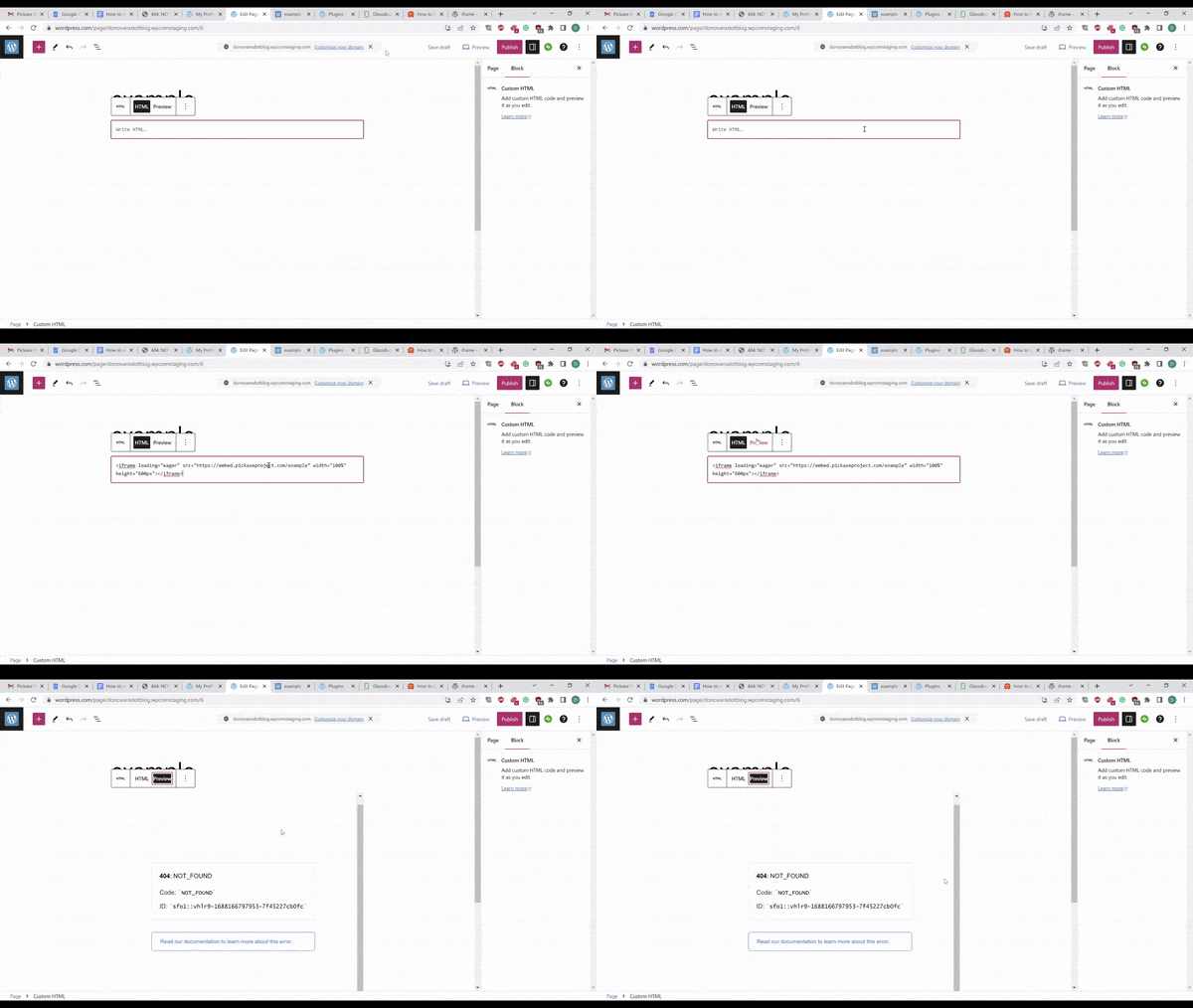
Once you’ve added the block, you can insert your code, edit, and preview it right within the editor.
How to embed AI Tools on Squarespace
If you want to make changes to your Squarespace site that aren't achievable with other blocks, code blocks are a good choice if you want to add tools or code from a third party. You may also employ code blocks to display code snippets or to render HTML and Markdown. To add a code block to your website:
Step 1
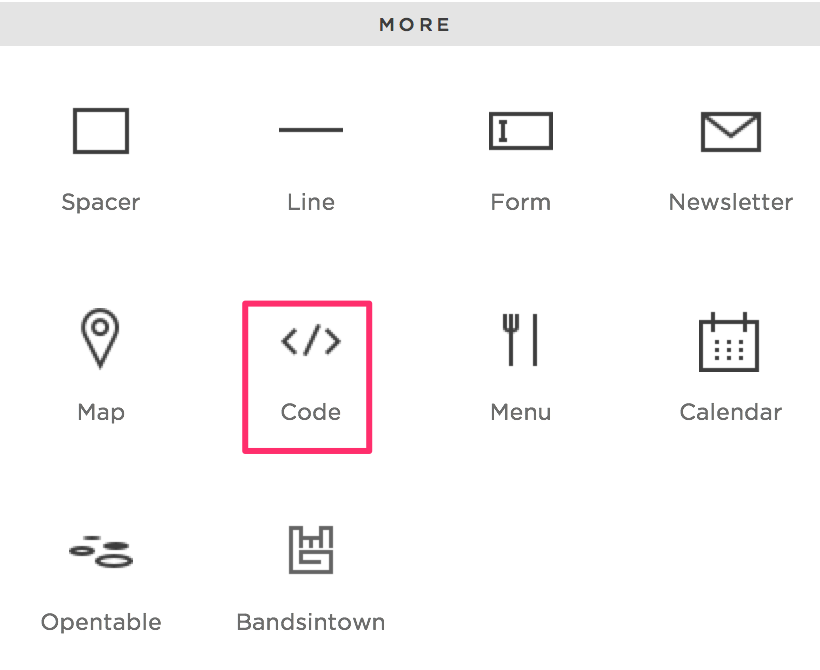
Edit a page or post, click Add Block or an insert point, then click Code.
Step 2
Open the block editor by clicking the pencil icon on the block.
Step 3
Paste your code in the text field. If you're using the code block to display code snippets, switch the Display Source toggle on.
What’s next?
It's truly that simple to incorporate AI widgets into a website or workspace! Once integrated in your site, your pickaxe is quick, adaptable, and simple to administer. You can always modify the prompt and settings without changing the embed code. AI shouldn't be tough to integrate into your freshly built website, but Pickaxe gives you the extra freedom to continuously iterate in real-time.
In the meantime, if you want to get started on building your own Pickaxe, you can create an AI tool here for free. The no-code builder is easy for anyone to get started with. Try our hand at it and see what you can make!
If you're looking for inspiration of how integrate AI into your business, check out how online coach and strategist Wendy Breakstone added AI to her online course.





.png)