

Embedding AI tools in your website
In this blog post, we’ll show you exactly how to embed AI tools and chatbots into a website, step by step.
Businesses are flocking to add AI into their websites. The most creative businesses are adding intelligent chatbots to deliver customer support, funnel sales, and even answer FAQs.
For example, robotics automation provider Formic uses a chatbot to answer customer questions about their products.
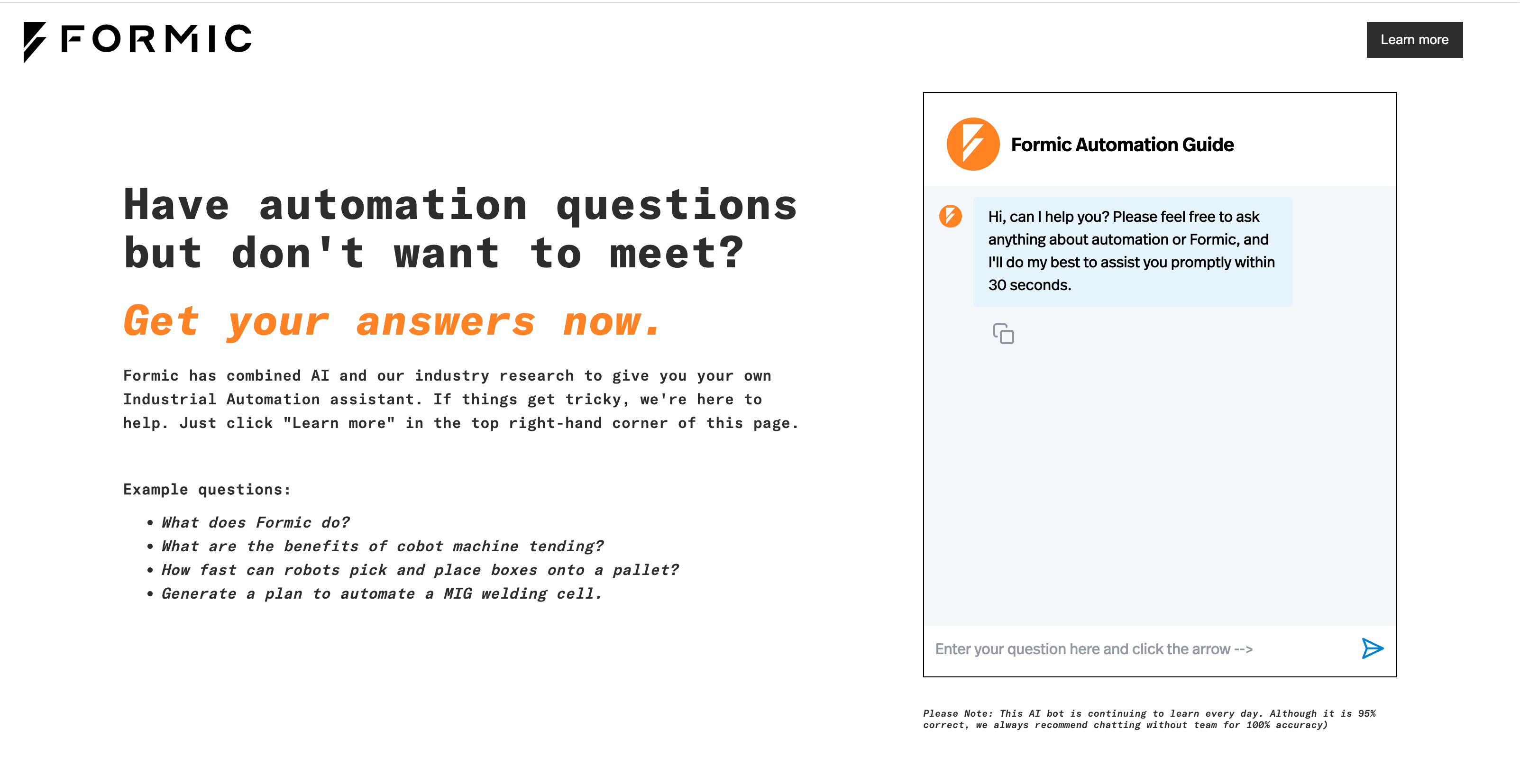
Customers who land on the web page can ask detailed questions and receive detailed answers instantly. No waiting, no customer loss, no friction. Embedded AI chatbots are great for fielding customer question. Embedded AI tools are also great lead generation as well.
The embedded chatbot delivers real value to website visitors.
Let's dive in!
How are businesses adding AI to their online presence?
A common question small online businesses ask is something along the lines of, "How can I add ChatGPT to my website?"
They don’t necessarily mean “How do I put ChatGPT into my website”. What they really mean is how do I customize ChatGPT with directions, save that customized version of ChatGPT, and embed it into my website as an interactive chatbot?
Well, it’s not that hard. With prompt templates, you can create a guided ChatGPT experience and embed it onto your website so customers can use it. Similarly, you can embed AI tools into an internal workspace like Notion or Sharepoint so that co-workers can use the ChatGPT the way you use it.
Pickaxe makes it easy to add AI chatbots into any website.
Check out this website that offers a personal AI writers room for brainstorming, writing, and editing copy.
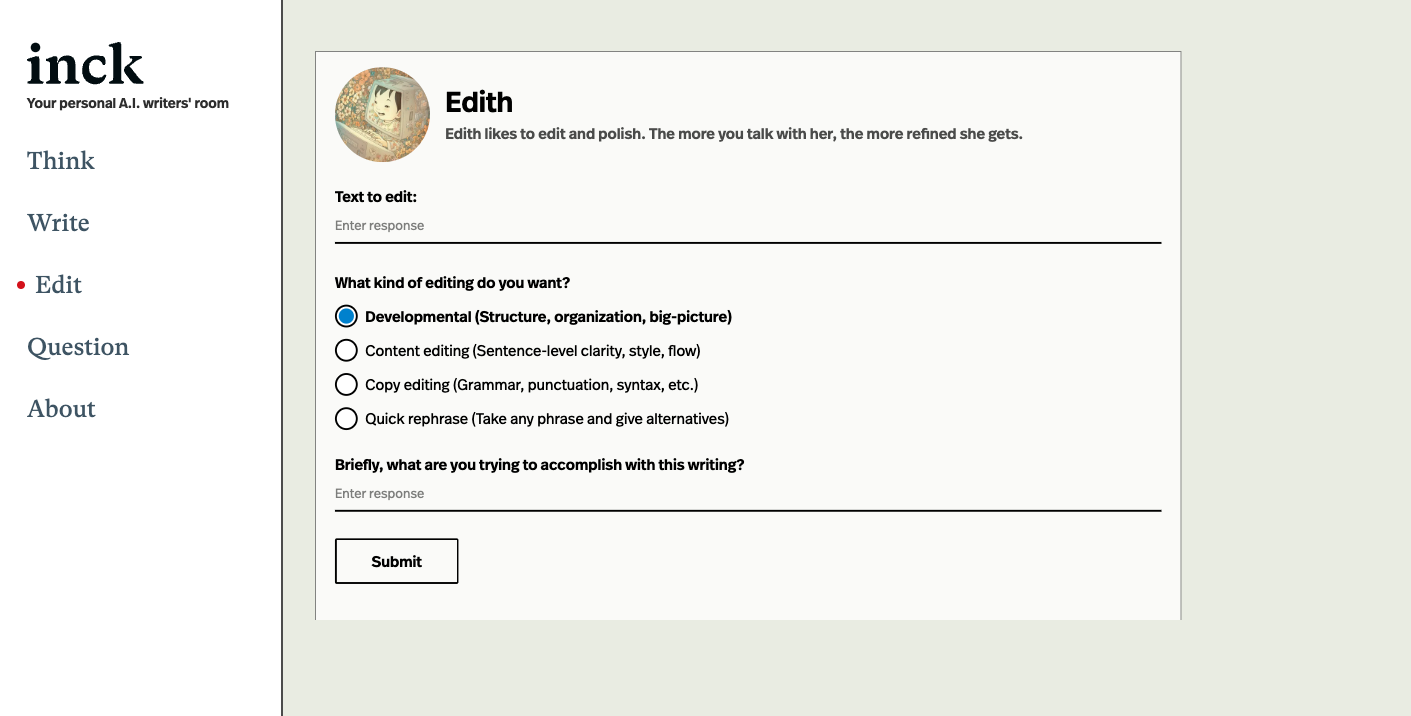
Before we discuss how to add AI to your website natively, let’s quickly discuss WHY.
Why should you add AI to your website?
A lot of small businesses or solopreneurs offer “professional services”. This includes all kinds of “knowledge work” like consulting, marketing, coaching, etc. Services that don’t scale.
Or at least not historically.
However AI, especially Large Language Models like ChatGPT, offer workers to ability to scale previously unscalable services.
If you are a marketing consultant who helps clients rewrite their sales pitches according to your system, you give a lot of the same advice over Zoom calls, email threads, and phone calls. Your time is the limiting factor to your productivity. Since you can’t scale your time, you can’t scale your business and serve more customers.
But with the onset of Large Language Models, now you can. It’s easy to design a prompt that provides that same expertise you do. By turning transforming your expertise into an interactive chatbot, you can now serve numerous customers at once.
Customers' basic needs can be met by your AI chatbot. For more involved needs they still contact you.
You just outsourced a huge part of your job to your AI chatbot!
Delivering dynamic AI content allows small businesses to scale their services. If you can emulate part of your process with a chatbot, you can serve many more customers simultaneously.
How to embed AI chatbots into your website
Let’s dive into how to embed an AI chatbot into your website.
Step 1 - Create a chatbot
The first step is to create an AI chatbot through Pickaxe. Pickaxe is a free, simple way to create a chatbot that requires no code. You can build chatbots or forms in the Pickaxe AI Tool Builder.
Making a tool is fairly simple. Write a prompt, add user inputs where you want people to insert their own values, and then customize the design. For a more detailed walkthrough, you can watch the how to make a pickaxe tutorial video.

Remember, the art of prompt design is important. The better prompt you write, the better your chatbot will perform. The best practices of designing a chatbot are debated, but generally it’s good to follow OpenAI’s GPT Best Practices guide.
Once you're done building the tool, be sure to click the "Publish" button.
Step 2 - Create an Embed
Embedding the chatbot into a website is easy. After you’ve made a chatbot on Pickaxe, you can create an embed. You'll be able to customize its styling and some basic usage restrictions.
Just click on the "Create embed" button on the Pickaxe page.

Clicking this button will take you to an Embed Customization screen. Here you can change the color, font, size, and other styling elements of your Pickaxe. You can also select what type of embed you want (an in-line iframe, a pop-up button, a Floating Action Button, etc.). You can also create some basic restrictions here like how many times someone can use the tool and what messaging they receive when they hit a the usage limit. You can read more about setting usage limits on embedded Pickaxes here.

Once you've customized your embed according to your preferences, be sure to click the "Save Embed" button in the top right of the Embed Customization screen.
Step 3 - Copy & Paste embed code into your website
To add the chatbot to your website, just copy and paste the embed code. It’s that easy!
You can find the embed code on the very top of the Embed Customization screen. Click the "copy code" button to copy the whole thing.

If you’re building your own website, you can embed the chatbot directly into a website’s HTML. Pickaxe also works on a wide range of no-code website builders as well as such as Wix, Wordpress, Webflow, Notion, and more! Users love Pickaxe because the process requires no code! Embedding your chatbot is as simple as copy and pasting.
Here’s a walkthrough for most popular website builders and workspaces.
How to embed AI chatbots using different website builders
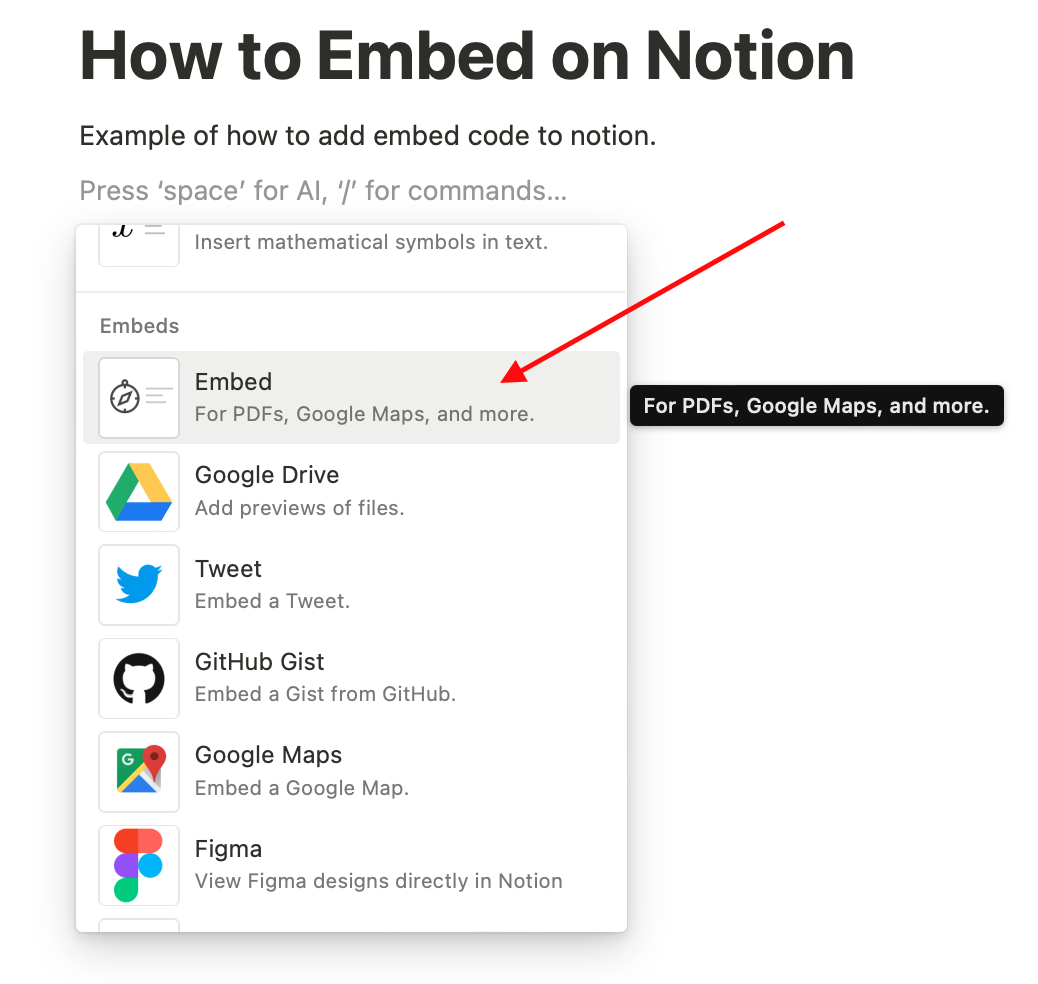
You can embed AI chatbots into Notion with ease. Just add a new block by clicking the “+” button. Scroll down to look for the “Embed” option. Click it and paste in the pickaxe embed link!
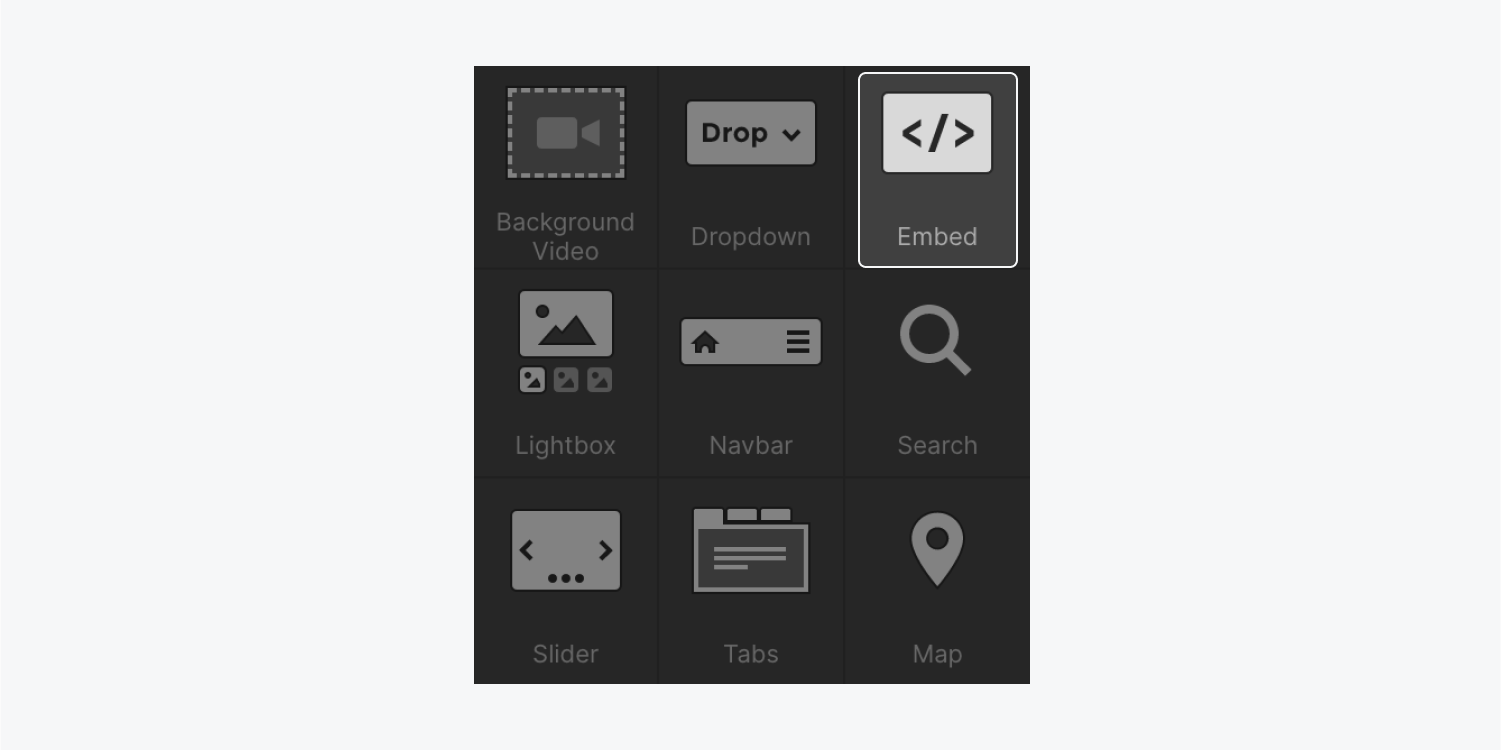
You can embed AI tools into Webflow easily as well. It’s as simple as adding an “embed element” on the add panel. Then just paste the embed link into the box!
Embedding chatbots into Squarespace, Wix, Wordpress, Sharepoint is just as easy. Look for adding an element for "embed code", dragging it into your website, and then pasting in the pickaxe embed code.
Adding AI widgets in a website or workspace is really that simple! Build a tool, customize the embed, paste in the embed link!
Once a pickaxe is embedded, it's fast, flexible, and easy to manage. Users can always adjust the prompt and settings without needing to change the embed code. The chatbot will update automatically.
For more information about building Pickaxes, creating embeds, and other features of Pickaxe, check out the Pickaxe User Manual.