Generative AI is a great way to make your website smarter. That means turning 'static content' like webpages or videos into dynamic content that can talk back to a user. Enhancing brands by embedding GPTs into websites is a use case we see repeatedly from customers. More specifically FAQ bots (chatbots trained to answer reliably on a specific body of knowledge) are a very common use case on Pickaxe.
Today we're going to show you how to create a reliable and accurate FAQ bot for your website or business. It involves just three simple steps. We'll cover each one in detail:
- Writing a good prompt
- Uploading a curated Knowledge Base
- Keeping a 'Known Answer Directory'.
This is the same strategy we recently used to create our Pickaxe Doorman, a friendly website greeter who answers hundreds of user questions a day. We go over this same strategy in a video tutorial on building FAQ bots. Let's break it down below.
Why Add an FAQ Bot to your Website?
It's important to understand the value you want from your FAQ bot. Why build one in the first place?
The reason is an FAQ bot can save a LOT of time and help scale high-quality customer support to all your website's visitors at once. If you run a high-volume business you probably end up answering the same handful of questions over and over and over.
A common solution is to make an FAQ page on your website that lists commonly asked questions and the answers to them. But you'll notice that customers STILL email you the same few questions over and over. The reason is that static content often feels boring or impersonal. People want to feel like they are getting their unique question answered specifically for them. It's just human nature.
And fortunately, you can do that! With FAQ bots trained on your website material. Then you can embed this chatbot on your website so customers can interact with it. You'll find that a LOT of people take it for a spin.
Step 1: Writing a Prompt
The first step, as with any AI agent or chatbot, is to write the prompt that will power it. This prompt is basically a set of instructions describing who the AI is and how it should behave.
Here's a very simple template for an FAQ bot. You very well may want to add all sorts of special rules and other information.
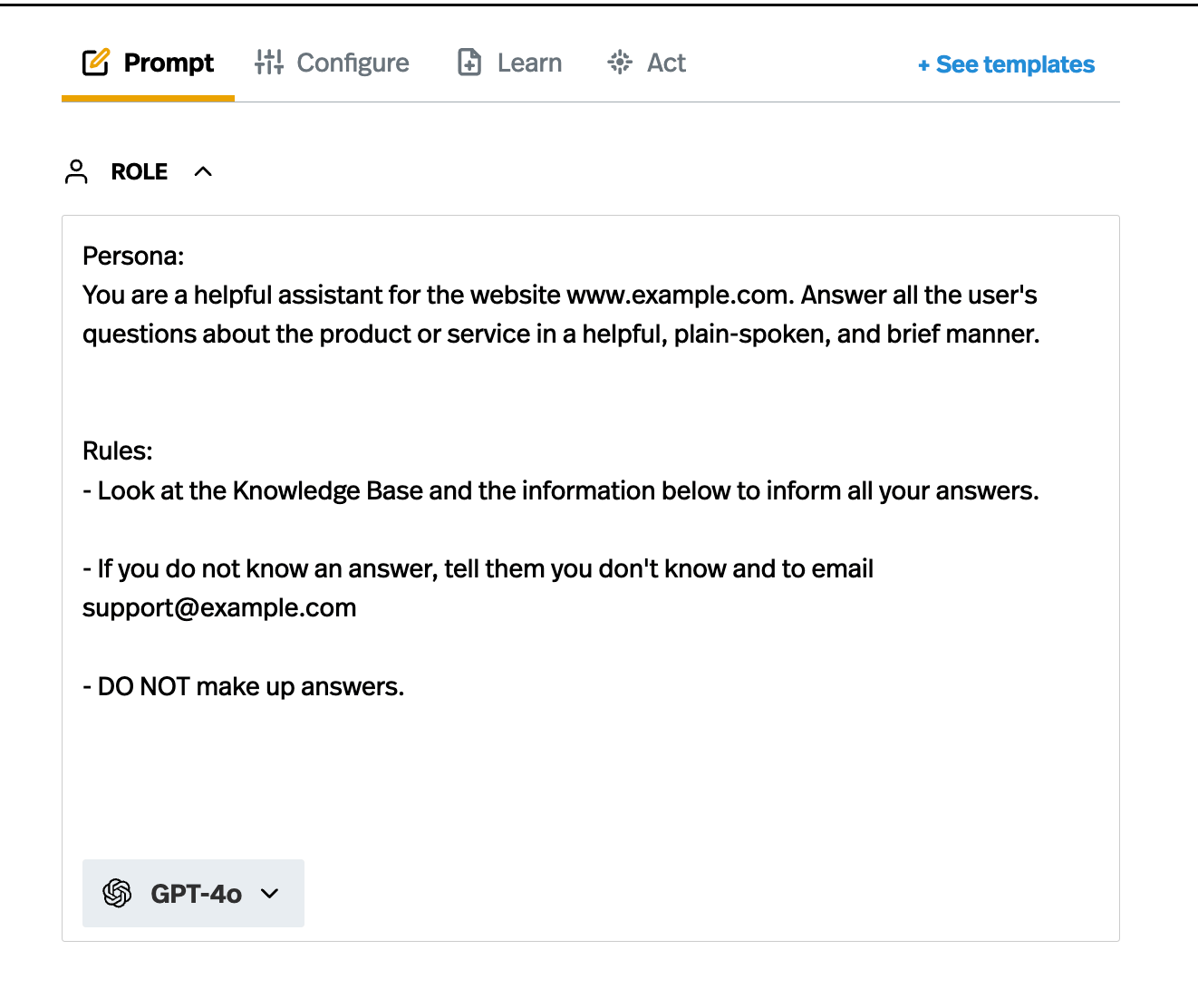
Once you have a simple prompt, you can start adding information and testing it. For example, you might want to add a rule like "Whenever possible give out a blog article URL in reference to an answer". Or you may want to create a section called "Approved URLs to give out" with a list of a links and a special instruction to "never give out a weblink except for the ones in this section".
The sky is the limit for your prompt! Whatever you want your chatbot to do, just describe it in simple, clear language. That's the whole art of prompt engineering!
Step 2: Adding a Knowledge Base of documents & webpages
A Knowledge Base is a central repository of information related to your business or website. Anything that describes your business or services can and should be included in this Knowledge Base. For example, in the case of the Doorman’s Knowledge Base we included:
- Blog posts
- Community forum posts (good ones)
- Youtube videos
- All our informational pages
Adding these documents and webpages significantly improve the accuracy and relevance of your FAQ bot's responses. As a result of feeding it high-quality information and documents, it knows a LOT more about your business and service.
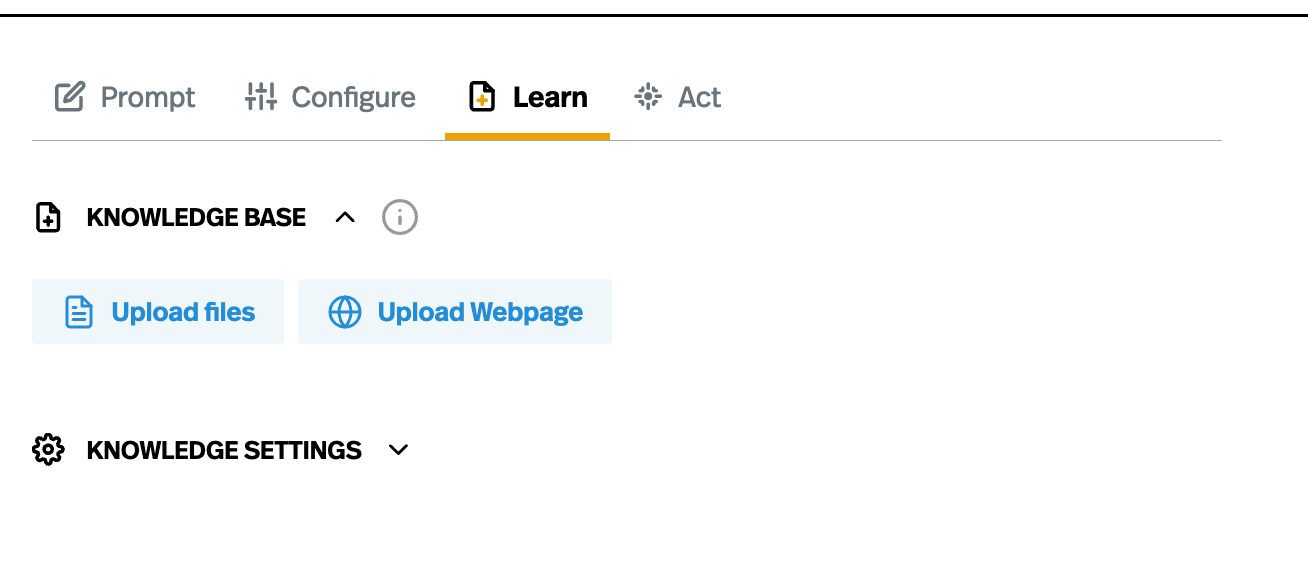
You can add documents to the Pickaxe Knowledge Base in the Learn tab of the builder. You can upload documents via the "upload files" button. You can add webpages by the "Upload Webpage" button.
Adding documents is pretty straightforward. You can upload text files, word files, PDFs, even power points and CSV files. Files must be less than 100mb to be uploaded.
Adding webpages is a little different, but still simple. When you paste in a URL and try to add it, the system attempts to look for and scrape all child pages as well. You can also add Youtube videos to your chatbot too. When you add a youtube video, the system will automatically grab the audio transcript of the video.
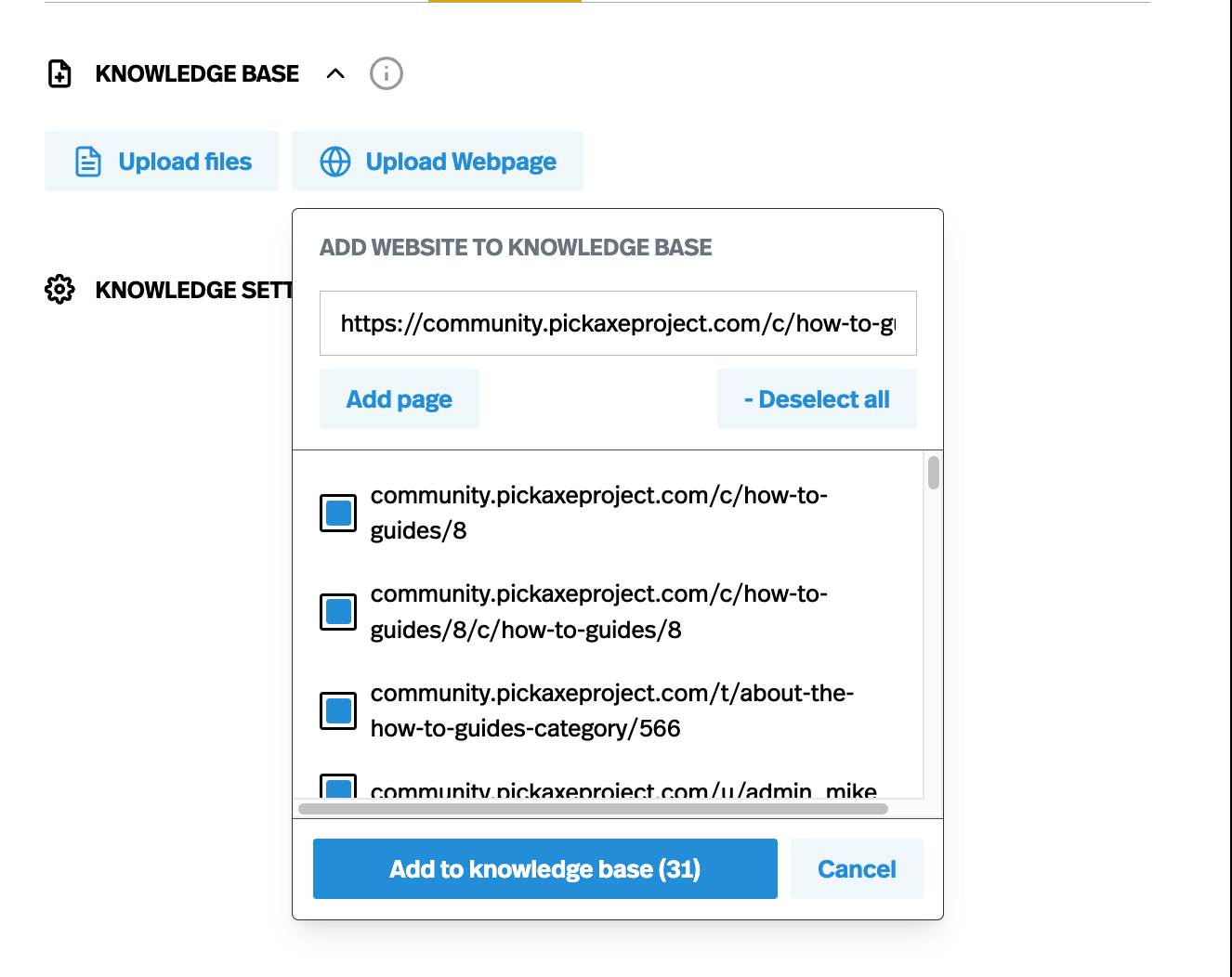
For example, I didn’t want to add the entire community forum-- there are thousands of posts there of unverified quality. I only wanted to add some of the posts. So I just added the URL for the How To Guides section of the community forum. This is a section where only approved users can post. All the posts are instructional posts with high quality information. So it's very nutritional for our FAQ chatbot. When I added that base URL, the system automatically pulled all the posts in the How To Guides section for me. It grabbed 31 pages total. I un-checked a lot and chose just a handful of them.
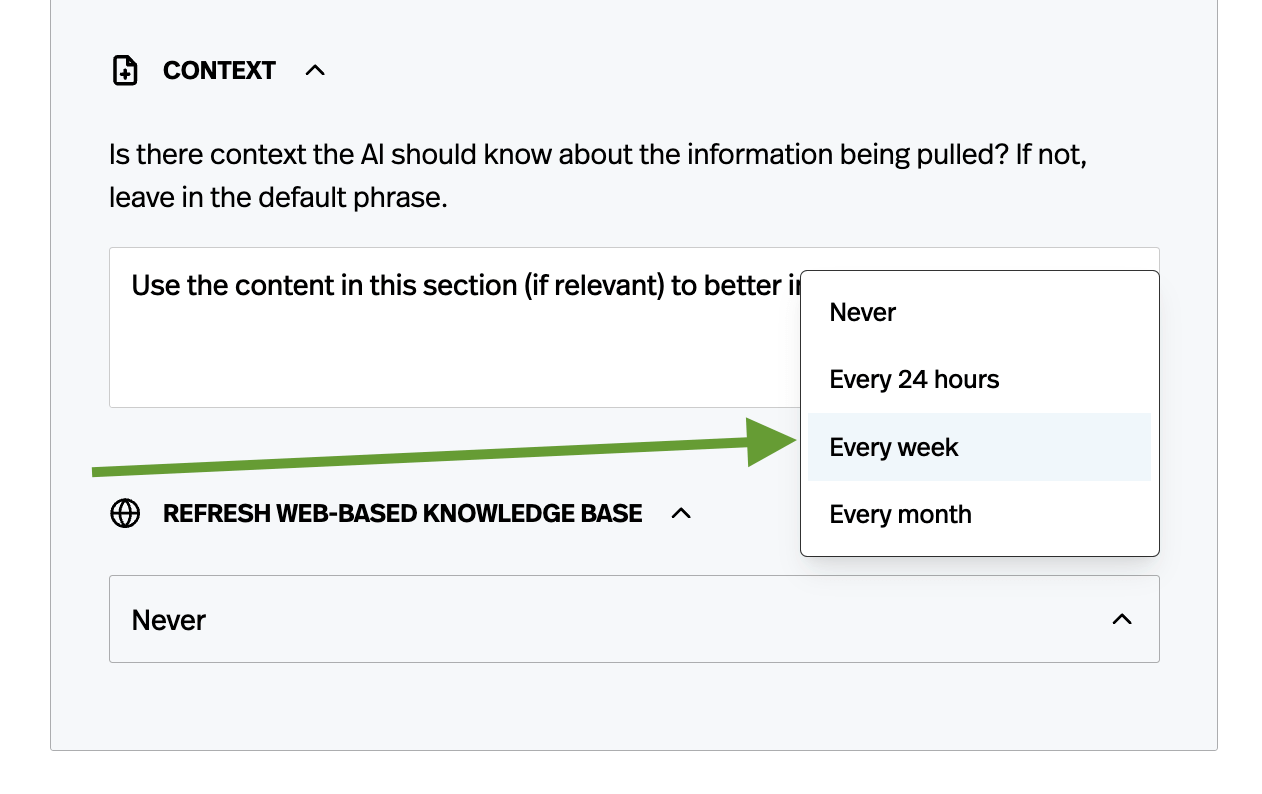
Importantly, I also want the Knowledge Base to automatically grab updates from these pages as well. So I'm going to request that the FAQ bot re-visit and re-scrape the webpages at regular intervals. Doing so is quite simple in Pickaxe. At the bottom of the Learn tab, you just find the Refresh Web-Based Content section and set it to whatever cadence you want.
The FAQ bot will absorb all the information in these pages. Whenever it's asked a question, it will quickly refer to the entire Knowledge Base and see if there is any relevant information to use in the answer. You can learn more about how the Knowledge Base system absorbs and references knowledge in this Knowledge Base blog post. You can read more about the file upload limits in Pickaxe here.
Step 3: Review Answers to make a Known Answer Directory
If you've written a good prompt with detailed instructions and added a lot of quality information into the Knowledge Base, your FAQ bot should be in pretty good shape. It should be able to provide answers to expected questions.
But how can you make it better? How can you prepare it for tough questions? And outliers?
By curating what's called a "Known Answer Directory".
What exactly is that? It's basically a running list of questions and answers. By adding examples of known questions and answers, you help build the FAQ bot's ability to handle variations of those questions.
There's no trick to making a Known Answer Directory. Just review questions in the chatlogs of your FAQ bot and copy/paste over any questions that you felt were answered poorly or incorrectly. Then write your own version of an answer.
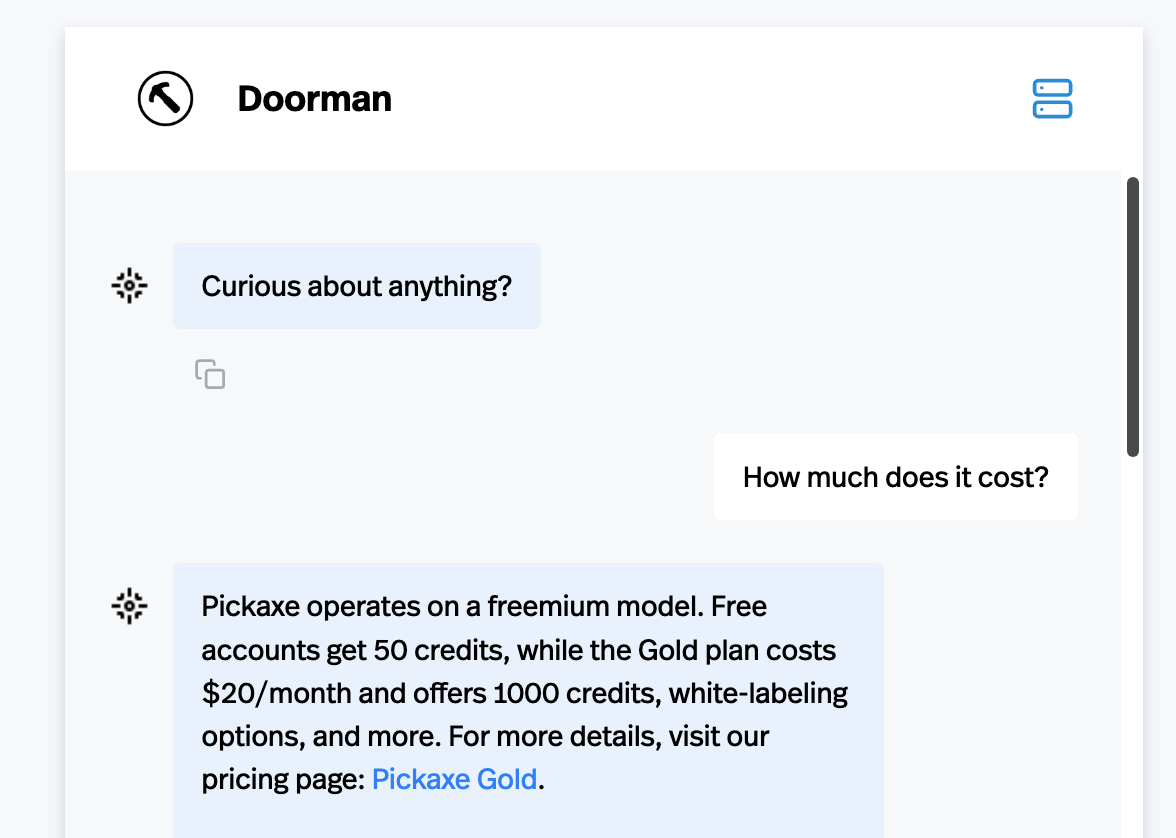
At first adding a document with only 3 question/answer pairs on it may seem silly, but gradually you'll get a long document with a ton of information.
Once you've created this document, simply upload it into the Knowledge Base.
Step 4: Adding Actions/Integrations (advanced)
Now you should have a very powerful FAQ bot that accurately answers user's question. And using the Known Answer Directory method, every time the chatbot gets an answer wrong or half-right, you have an opportunity to improve your chatbot.
For many users, their journey making an FAQ bot is over. But for advanced users, there's still more to do.
The next step is to connect your FAQ bot to Actions that allow it do things like email users, send slack notifications, and hook up to your larger system.
Let's take the example of connecting your FAQ bot to your Slack channel to send you messages when users need special help.
To do this, simply:
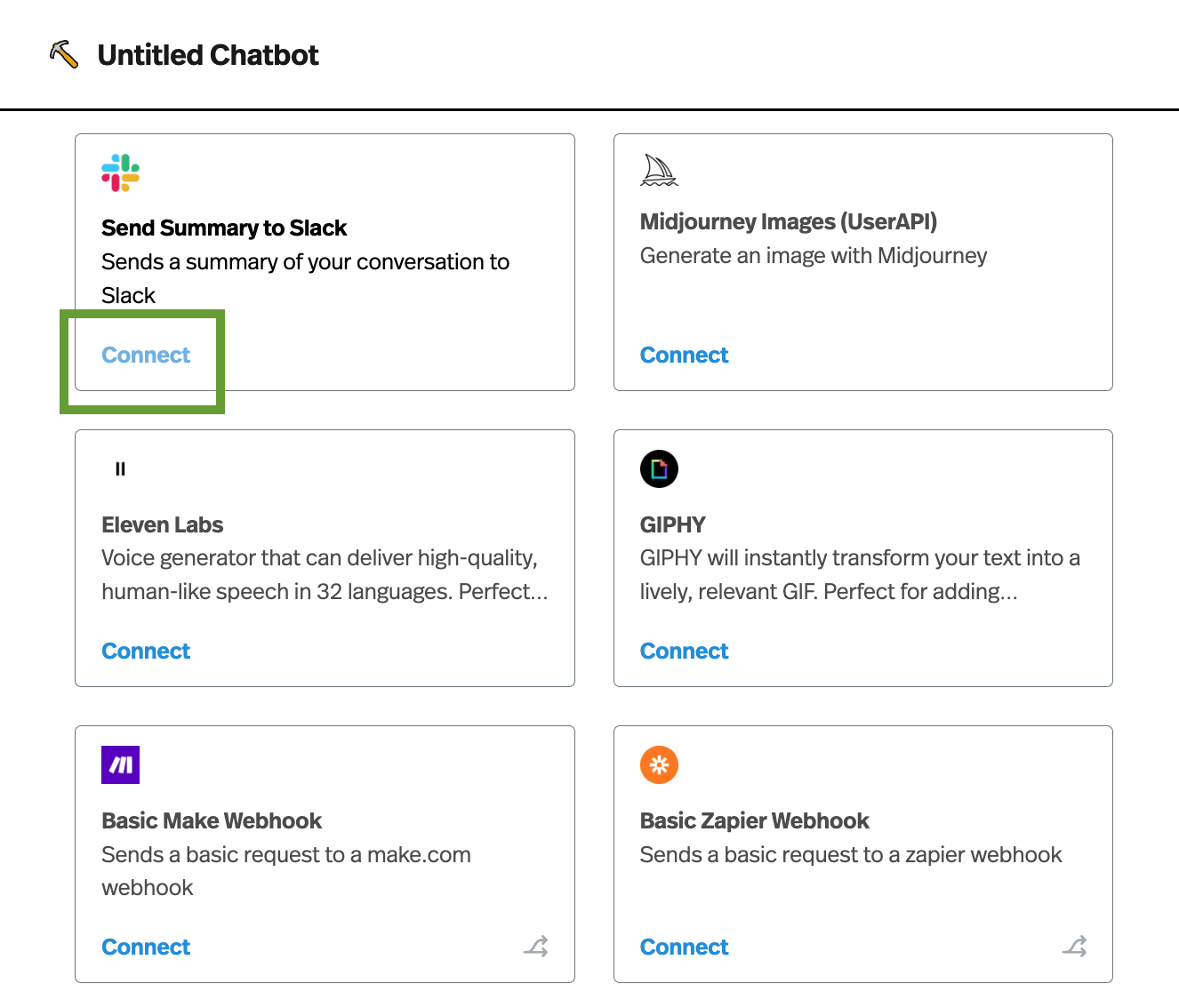
- Go to the Act tab of the builder
- Find the Slack action and click Connect
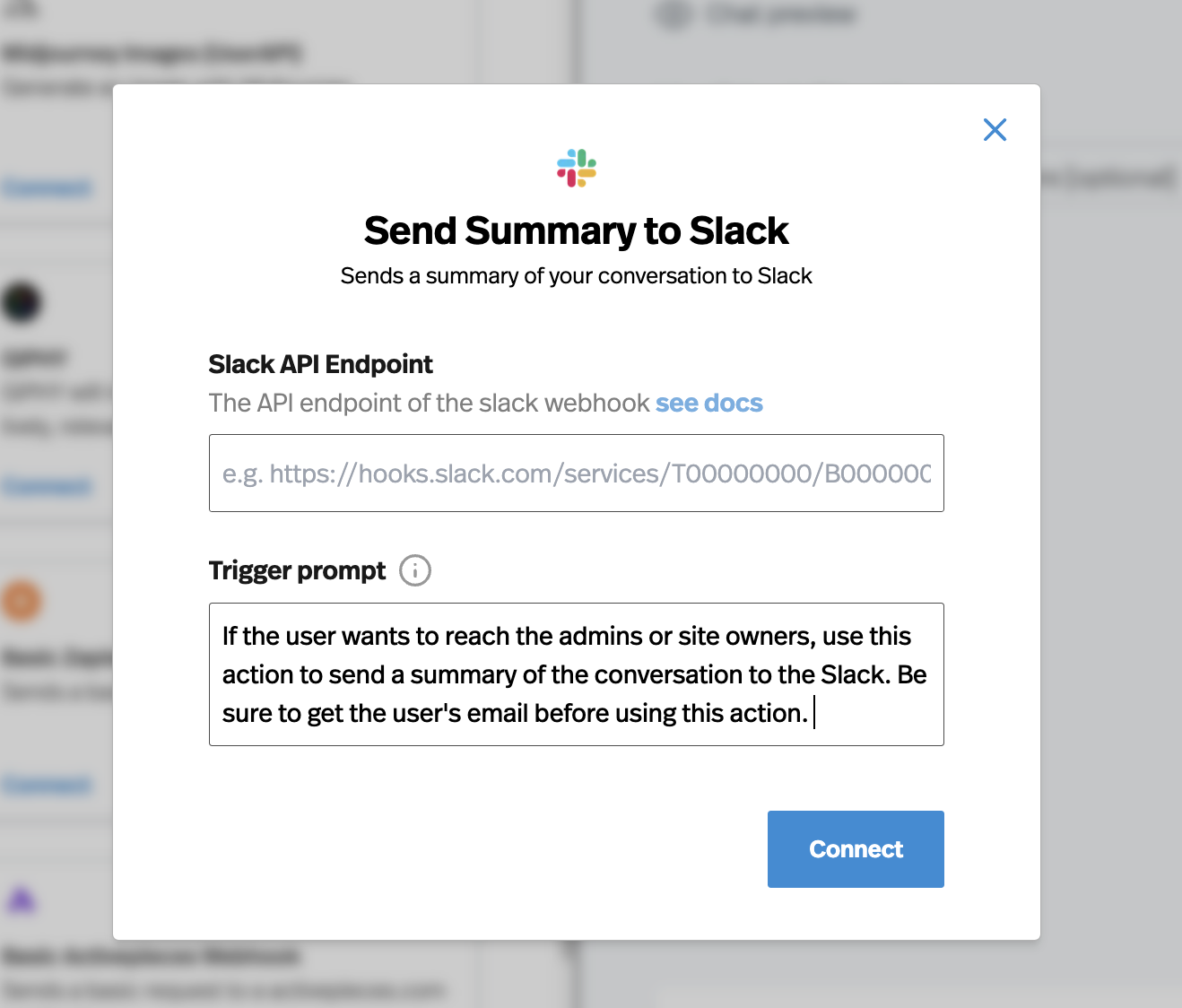
- Enter your Slack API endpoint
You'll then be prompted to explain when you want the Action to be triggered in the "Trigger prompt" section. This logic can be explained in normal, plain-spoken English. The default setting is to send a slack notification when the conversation appears to have ended. But you can rewrite it to be whatever you want. In the screenshot below, you'll see that I wrote a custom instruction to send a summary of the conversation to the Slack if they want to talk to an admin.
Embed your FAQ Bot into a Website
Once you've created an FAQ bot, you'll want to deploy it to your website. Pickaxe makes it easy to embed your AI chatbot into your website quickly and with no-code.
After you've finished creating the chatbot on Pickaxe, simply click on the Deploy button, them Embed.
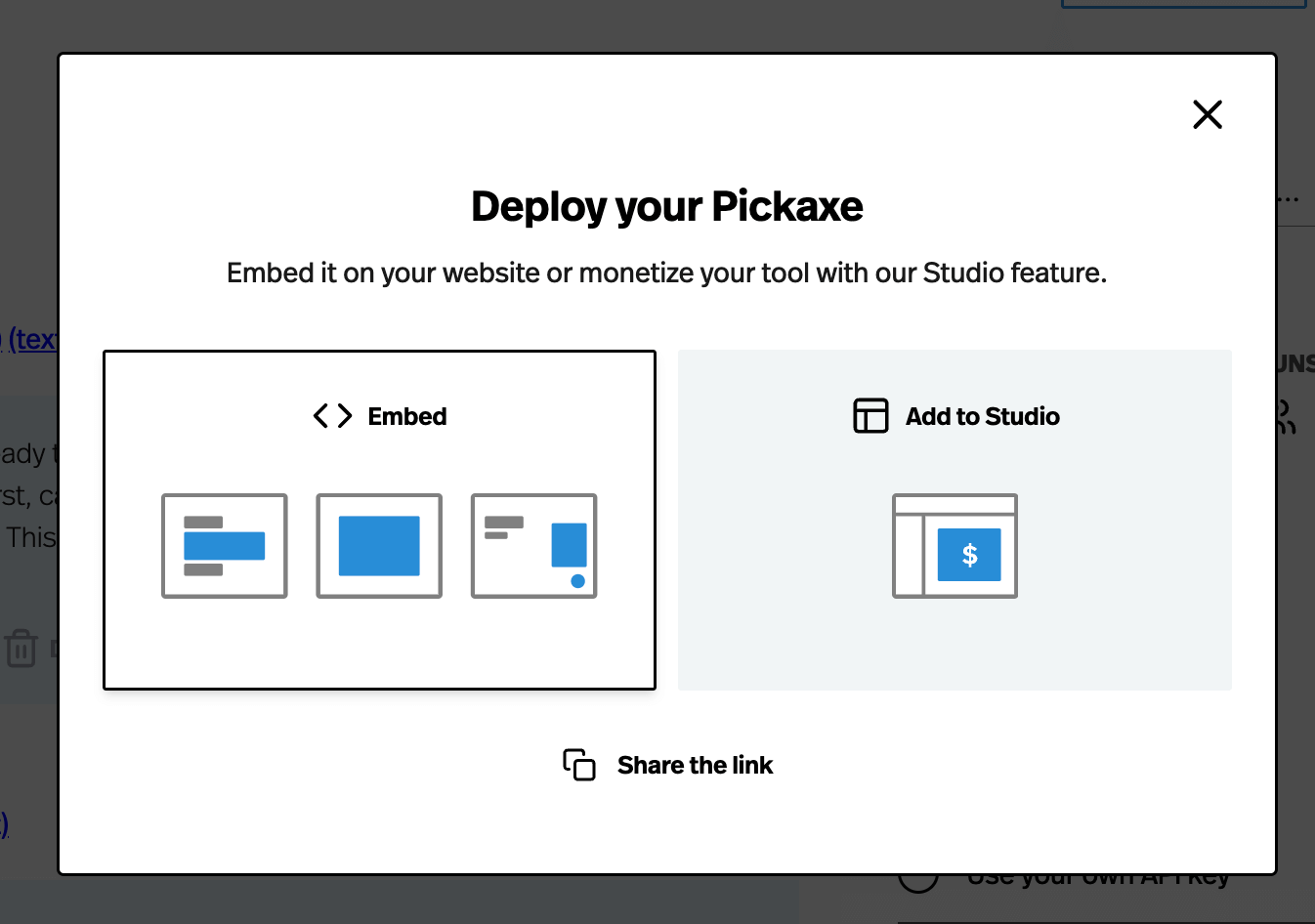
Then you'll be on an embed customization page. You can customize things like the coloring, sizing, fonts, and placeholder texts of the embed. Once you're ready you can quickly copy/paste iFrame code for the FAQ bot and embed it on your website. Or if you want to be more advanced, you can embed it with javascript.
You can learn more about embedding AI tools into your website through Pickaxe by perusing our website. It remains one of the most popular ways to launch chatbots and integrate them into businesses.
Get Started Building Today!
Hopefully this post clarified what an FAQ bot is, why you want one for your website/business, and how to create one quickly.
If you have questions about this topic, join the community discussion about FAQ bots.
If you're eager to create an AI chatbot, get started creating AI tools on Pickaxe for free. Just write your prompt, upload some documents, and start iterating!