.png)
This is a simple walkthrough of how to use the document upload feature that powers our no-code AI tool builder. Pickaxe's document upload system is a powerful way to take knowledge trapped in texts and inject them into your chatbots or AI tools. By training chatbots on texts, you can create very powerful and useful tools. For example, this Charlie Munger chatbot was created by uploading his books and essays into a chatbot. Now it answers questions with the sensibility of Charlie Munger and his value investing principles.
How It Works
To get the most out of our document upload system, let's start with a quick explanation of how it works. Essentially, our document upload is a form of semantic search. When you upload a document, our system breaks it down into uniform "chunks" of text. It then stores all these chunks in the AI's brain. Whenever the end-user sends a new message to your chatbot or tool, the system quickly scans all of the chunks, finds the most relevant ones based on semantic search, and then returns those chunks. Those chunks are then dynamically inserted into your chatbot as context that it can choose to consider or ignore as it generates a response.
For example, let's say you are making a chatbot that can answers questions about U.S. tax laws and upload a large document about U.S. tax law. If a user asks about tax write-offs for home offices, it may return two chunks from the document about home office write-offs. The chatbot will then look at those chunks and use them to inform its answer.
Uploading Documents
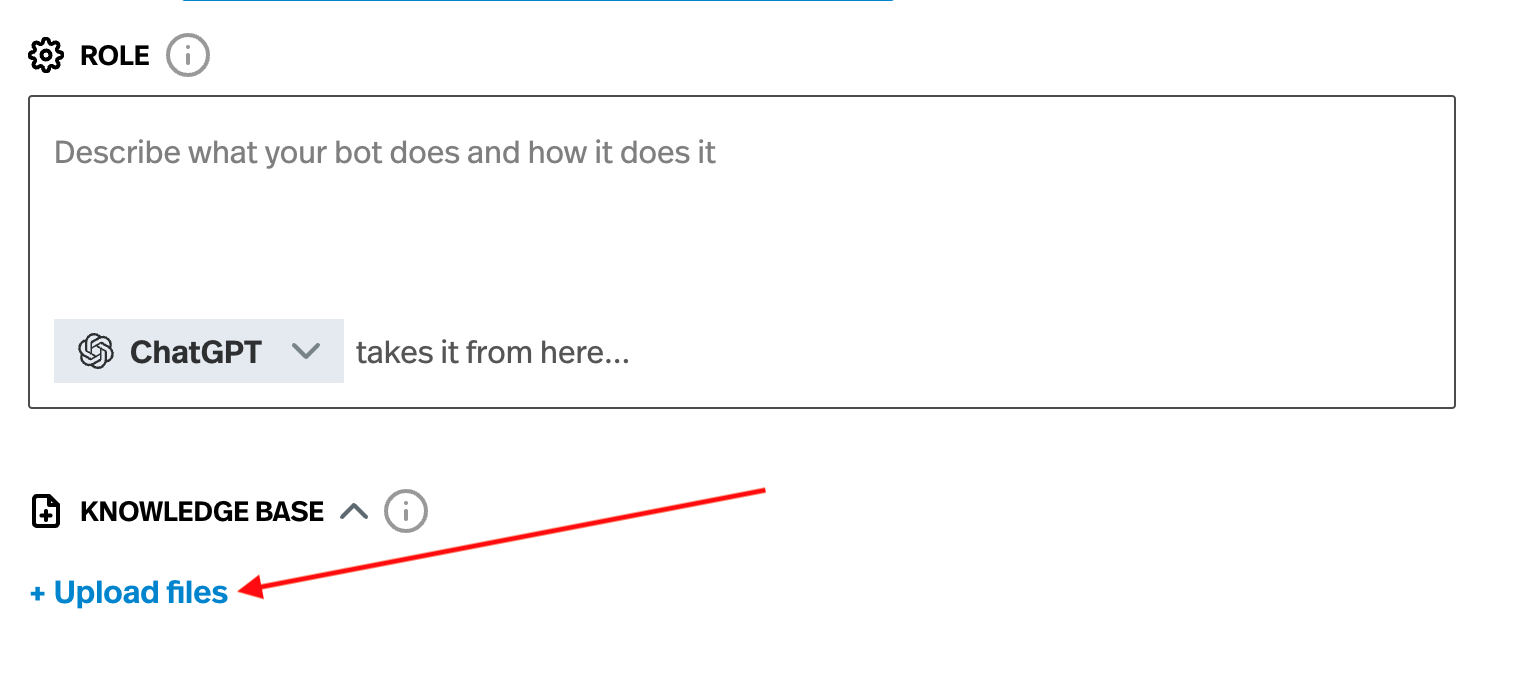
To upload a document, look for the section "Knowledge Base" in builder. You will be prompted to upload documents. When you upload a document, it will immediately turned into "chunks" that will then be stored in the tool's brain. This process takes a while, so give it a moment. Once the document has been "chunked", searching and retrieving chunks will be near instantaneous.
Framing the information in the chunks
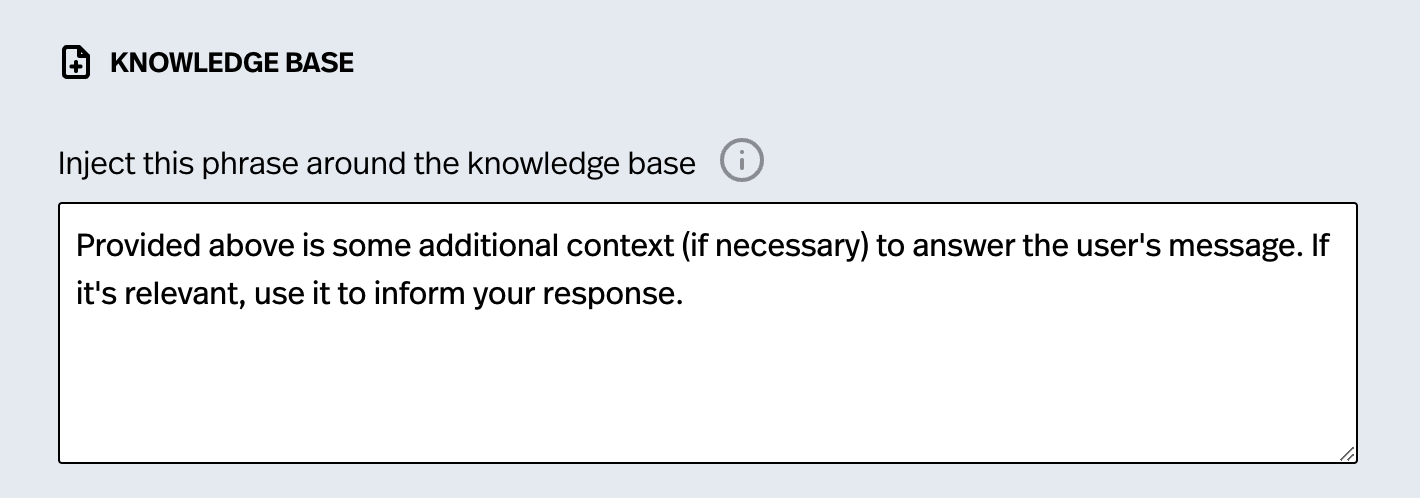
For advanced users who have a clear understanding of how they want their chatbot to behave, the ability to "frame" your chunks is a powerful way to exercise more control over the chatbot.
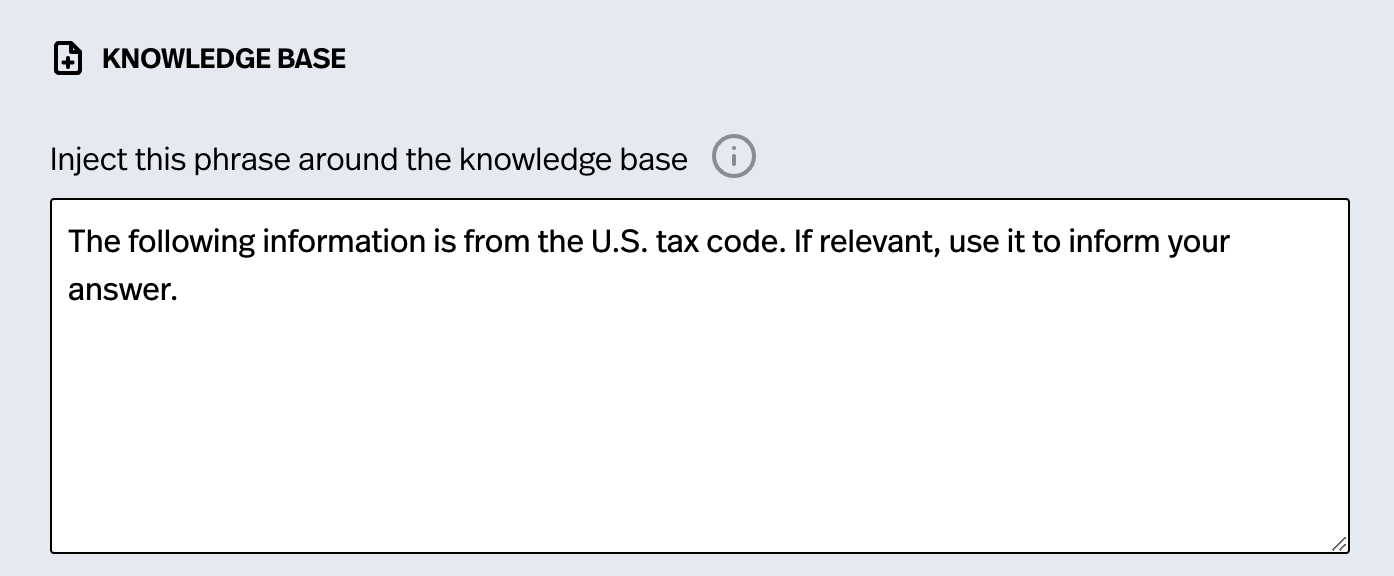
The concept of "framing" the chunks is pretty simple. When the "chunks" are returned to the model, it is also given a simple instruction on how to interpret the chunks. The chatbot will receive the phrase followed by all the relevant chunks that were found. We've put in a robust default phrase already, but you may want to change it for more precise control. For example, you can tell the chatbot that chunk is from the U.S. Tax Code. Or you might want to tell the model something very specfic about the data
How to set a threshold for relevance
When the system is searching through the chunks, it does not return all the chunks. It only returns the 'relevant chunks'. What does that mean?
When searching through the chunks, the model assigns each chunk a 'relevance score'. This score reflects how relevant the chunk of text from your document is to the user's message. If the user asked about tax write-offs for a home office, it will quickly give each chunk a score that reflects how relevant it is to the user's question. 0 is the lowest score and 1 is the highest score. A relevance score of 0.5 is pretty irrelevant, a score of .75 is kinda relevant, and a score of .9 and above is very relevant.
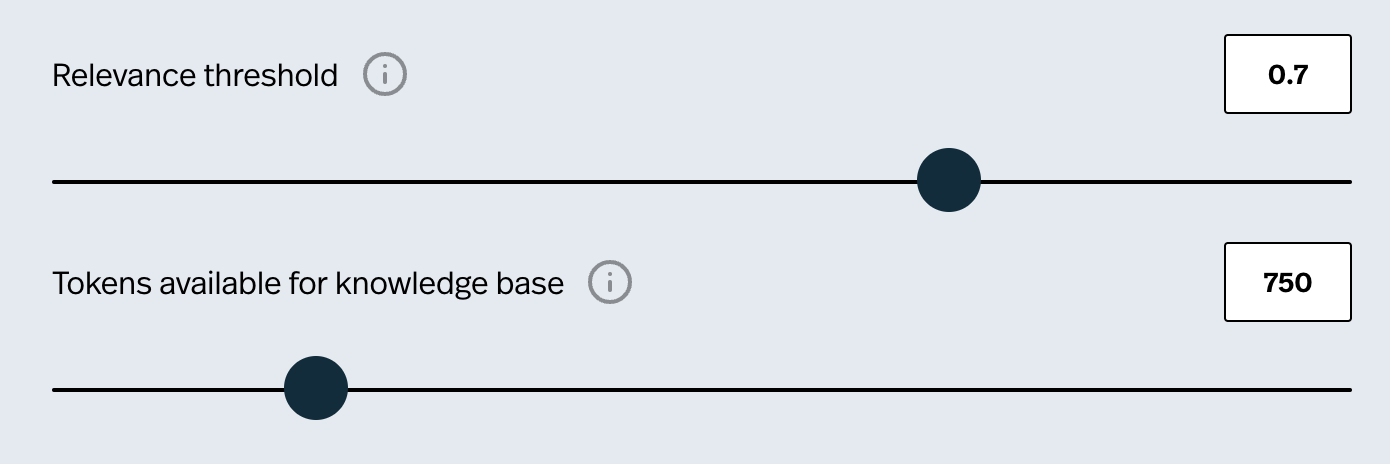
If you set this number to 0.7, that means only chunks that score 0.7 or higher will be returned. Everything else will be ignored. We suggest somewhere in the 0.7 to 0.8 range, but you may want to adjust this based on your specific case.
Amount of chunks returned
Another advanced setting is the "tokens available for the knowledge base". That sounds like a mouthful but it's pretty simple. It's a way to set an upper limit on how much text you feed the model from your documents.
Depending on the message, the model might return tons of chunks or only a few chunks. Since the chatbots have limits on how many tokens (words) they can input and output, obviously you don't want to feed your chatbot 10,000 words about tax law when it may only need 100 words. By default we set the limit of tokens reserved for the chunks to 750. That means that the model will be given chunks until it hits 750 tokens or there are no more relevant chunks to feed it, whichever comes first. You can set this upper-limit yourself if you want to allow the chatbot to receive more information. But be warned. Sometimes less is more. Chatbot performance can be dulled if you give it too much text sometimes.
More Resources
If you have any questions on how to use the Pickaxe document upload system, feel free to reach out at info@pickaxeproject.com. We love talking to enthusiastic prompt designers!
For help writing good prompts, you can check out this guide on chatbot prompt design principles.



.png)