
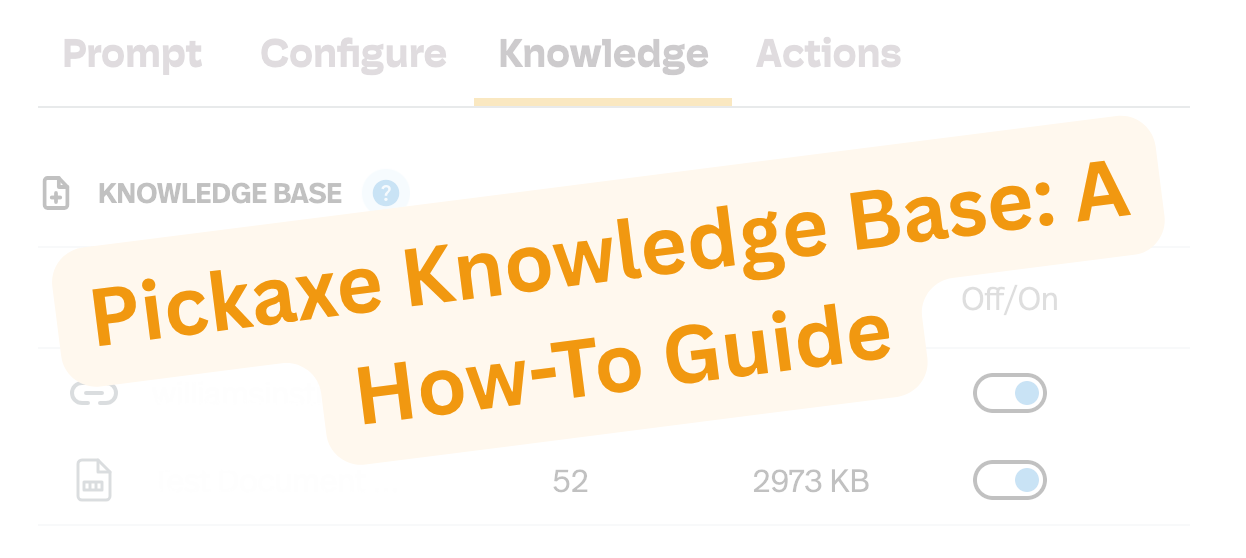
AI models are trained on hundreds of gigabytes of data from key sources around the internet, and after years of improvement they have the information necessary to manage a wide range of user queries. However, many use cases require a model to have more specific stores of knowledge. Owners of a small business may want their model to have detailed information on their store’s offerings, while an avid baker may want to make sure their model knows the contents of their favorite cookbooks back to front. In situations like these, retrieval-augmented generation (RAG) with the Pickaxe Knowledge Base the key to getting the most out of your model interactions.
What is the Knowledge Base?
Put simply, RAG enhances your existing AI model by drawing from sources of information that you provide it with to answer user queries. At Pickaxe, these uploads go into your Knowledge Base, which can be found under the “Knowledge” tab on your Pickaxe editor.
You can add a variety of file types to the Knowledge Base, from Excel sheets to PDFs, with minimal limitations on size (around 100 MB max). You can also add links, which will prompt the page provided to be scraped for information.
One common question is whether an entire site can be scraped using one link; the answer depends greatly on the individual site and how easy the site map is to navigate, so trying out different sites and links is a great way to measure what you can do. It’s also important to note that the page will be scraped at the moment it is added to the Knowledge Base; if there are changes to the page, you should remove it and add it again to make sure those changes are reflected in your model responses.
Knowledge Bases are stored by Studio and are accessible to any Pickaxe after they are uploaded. If you click “Connect files,” you will be able to select from items already uploaded as well as add new items, and you can use the “Off/On” toggle to determine whether an item in the Knowledge Base is actively being used.
How the Knowledge Base accesses information
To access information from uploaded items, the Knowledge Base will break your files into “chunks,” which are analyzed and pulled by your model to retrieve relevant content. Chunks are created automatically when a file is uploaded; for most file types, chunks will be around 250 words each, though this is more variable for spreadsheet files, which are processed by row. You can learn more about chunk creation and how the model searches for chunks here.
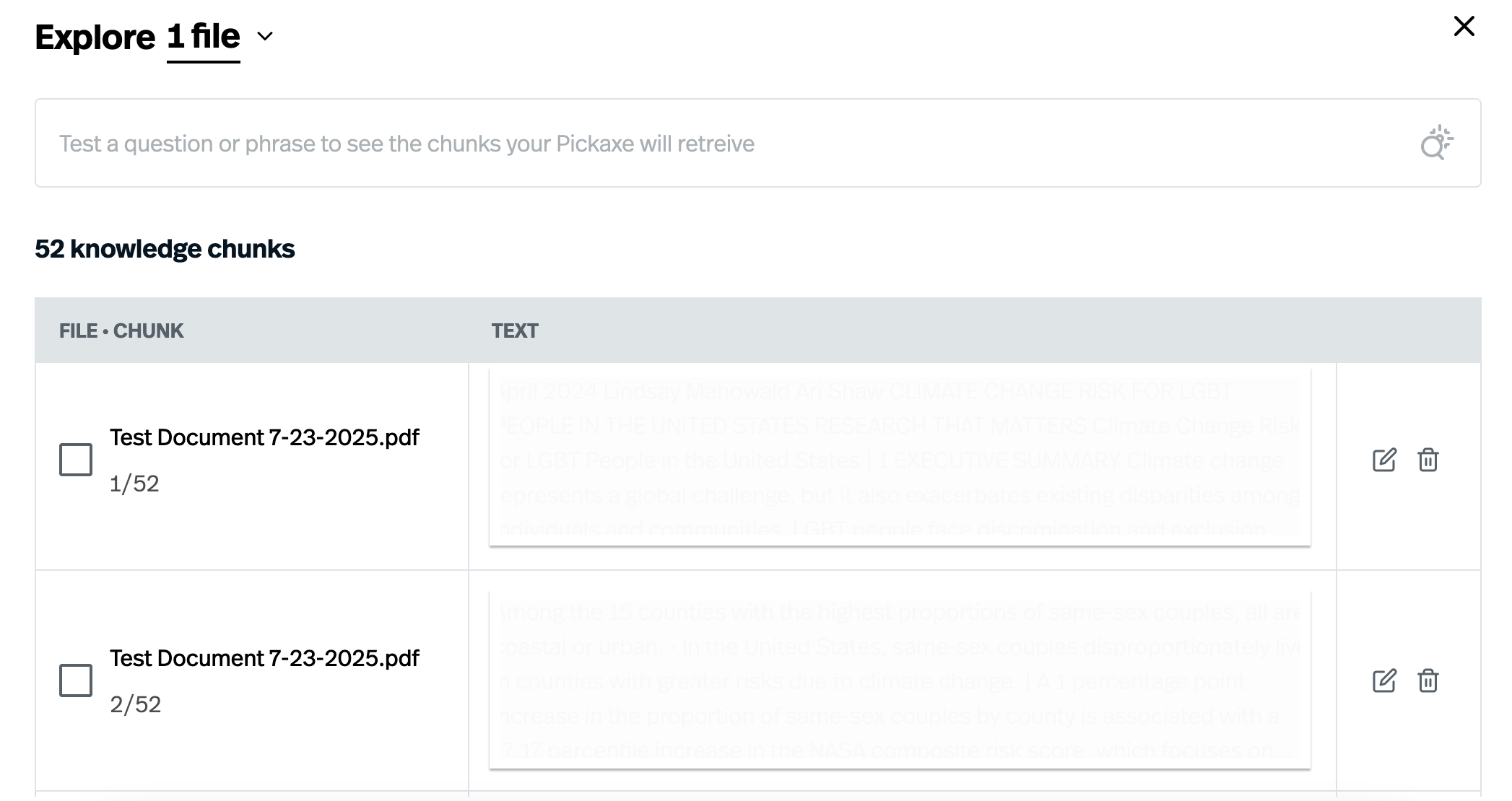
If you want to see how your file has been broken up and test how your Pickaxe is retrieving chunks based on the query, all you have to do is click on a file or webpage upload in your Knowledge Base to pull up the file explorer. If you have a Pro account, you can also delete or edit chunks to your specifications. You can choose to explore these files one at a time, or even select all at once to get a broader sense of how chunks are being pulled.
You can also see how the Knowledge Base chunks are being pulled in the Preview box on the right side of your Pickaxe Editor using the “Message Insights” feature. After a query is responded to, there will be a small magnifying glass to the right of the “copy” function below the text. Select this and you will see exactly which chunks were pulled during the query – along with useful information about Token and Action usage.
Knowledge Base Settings
The key components that influence how the Knowledge Base is used can be found in the Knowledge Settings. First, there’s the Relevance Cutoff – this will determine the degree to which the model will reference your Knowledge Base when responding to queries. When a query is issued, all existing Knowledge Base chunks are ranked on a scale from 0 to 100 based on query relevance – the higher the Relevance Cutoff, the higher the ranking for a chunk must be for it to be included in a response.
Second, there’s the Amount – this feature sets the number of words from the Knowledge Base that your model will pull to answer each query. For instance, an Amount of 1,000 means that 1,000 words will be pulled from your Knowledge Base chunks (starting with the most relevant chunks and working down). It’s important to note that chunks may differ in size based on the file format, and only chunks that can fully fit inside the Amount limit will be processed, so it’s useful to err on the side of a larger Amount to make sure the processing doesn’t get cut off.
The Relevance Cutoff and Amount are interrelated in how they pull information, and work in congruence such that the fewest number of chunks will be pulled. For example, if there is a cutoff of 99 and an amount of 1000, the model will only pull the chunks that meet this very high cutoff (even if it’s well below 1,000 words). If there is a cutoff of 20 and an amount of 1,000, will the model stop pulling after 1,000 words, even if there are more chunks above the relevance threshold.
Lastly, there’s the Context, which is for you to provide useful information about the files you’ve uploaded – armed with this context, the model will be able to better determine when and how to pull from the Knowledge Base.
How to optimize your Knowledge Base
With all these settings in hand, how can you tailor your Knowledge Base to get the best results? The answer will depend greatly on the use case, but here are some handy tricks:
- If focusing on the Knowledge Base is important for your use case, you should set the Relevance Cutoff to be very low and the Amount to be very high to make sure your model will heavily rely on it.
- If you’re still dissatisfied with the degree to which your Pickaxe is leaning on the Knowledge Base, you can add text to your Knowledge Base Context – or in serious cases, to your Model Reminder – telling the model to reference the Knowledge Base first.
- Some file formats are easier to process than others. Text files (.doc, some .pdf files) can be read by Pickaxe, whereas image files (.jpeg, .pdf files that are pictures) are processed by your model using optical character recognition (OCR). Where possible, always use text files over image files, as OCR is more prone to processing errors.
- If you are using an image file, model matters –the more intelligent the model, the more accurate the OCR will be!
- While some tiers (Free, Gold) have limitations on how many documents can be uploaded, there is a relatively high ceiling on document size; combining files into larger documents is an easy way to circumvent this limitation!
- Spreadsheet files (.xlsx or .csv) are processed into chunks differently than text files, based on the file rows. As a result, you can determine the information in each chunk even without a Pro account by using spreadsheet files.
- This is also a useful feature if you want larger chunk sizes; the Knowledge Base tries to keep chunks in text files at around 250 words, whereas spreadsheet files have a max chunk size of around 1,000 words.
- When uploading a text file, Pickaxe will always strive to keep the chunk size between 200-300 words; while the impacts may not be substantial, adding paragraph breaks and punctuation may help keep your chunks slightly smaller.




.png)
.png)